Page | 46
TriCaster’s audio controls follow well-established conventions, providing 20dB of
headroom above nominal level (+4dBu at 0dB on the VU scale).
Hint: Confusion can sometimes arise because different calibration scales are common in
various audio realms, and even for different device types and software.
For example, analog mixers commonly show levels on VU scales indexed as just
described. In contrast, digital devices and editing software usually display levels in dBFS
(Decibels Full Scale), with 0dBFS – the absolute maximum allowable signal that can be
recorded – at the top of the scale.
TriCaster’s VU meters have selectable indexing, allowing you to view a traditional dB VU
scale or dBFS as you please (see Section 15.8.1).
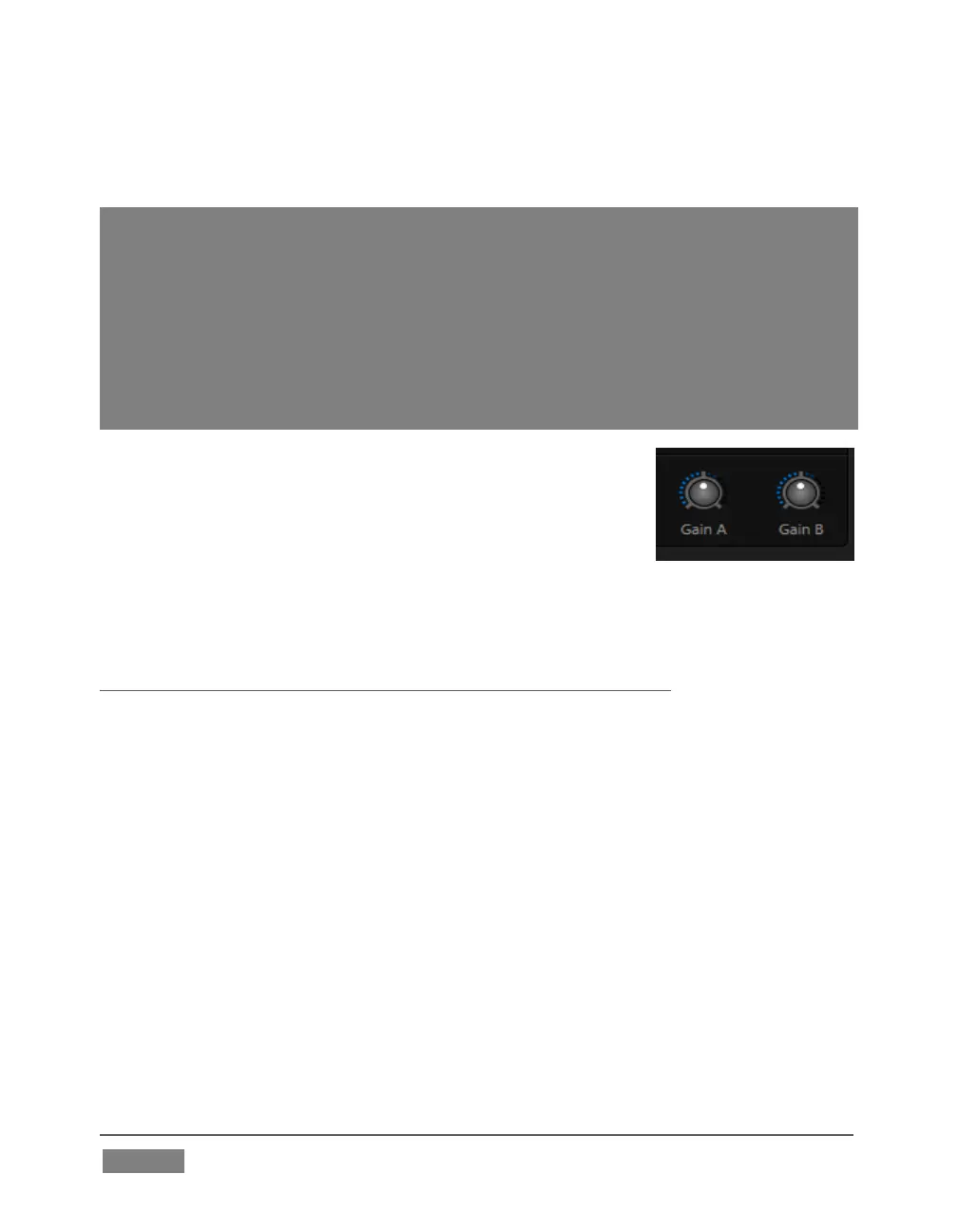
Whatever scale you choose, use Volume controls (and, for Mic
connections, the Gain controls in the Configuration panel) to
avoid over-modulation.
TriCaster’s Compressor/Limiter feature (also located in the
Advanced Audio Configuration pane) is another powerful tool to help you prevent
clipping – see Section 15.7.
SECTION 3.14 CONFIGURE GENLOCK
Genlocking is supported on TriCaster 460, 860 and 8000.
1. If the Live Desktop isn’t already open, launch a TriCaster session from Startup.
2. Access the Output Configuration panel by double-clicking the main Program
Output monitor on the Live Desktop.
3. Click the Genlock & Failsafe tab (Figure 32).
4. The default Reference Type in the Genlock settings group is SD (Bi-level), as this is
currently the most common reference signal type. However, if you supply an HD
reference signal to the Genlock input, you may want to change the setting to HD
(Tri-level).









 To Next Page