Page | 36
SECTION 3.10 STARTING A SESSION
If TriCaster is not already running, power it up now to reveal the Startup Screen. (If
TriCaster is already running, and is in the Live Desktop or another area of the
interface, you may need to click the small [x] button at upper-right to exit, or click the
Back arrow at upper-left in the Session Page to return to the Home Page.)
The Startup Screen consists of two similar pages – Home and Session. Among other
things, the Home Page is where you choose basic TriCaster session settings (see
Section 5.1 for a discussion of sessions).
THE HOME PAGE
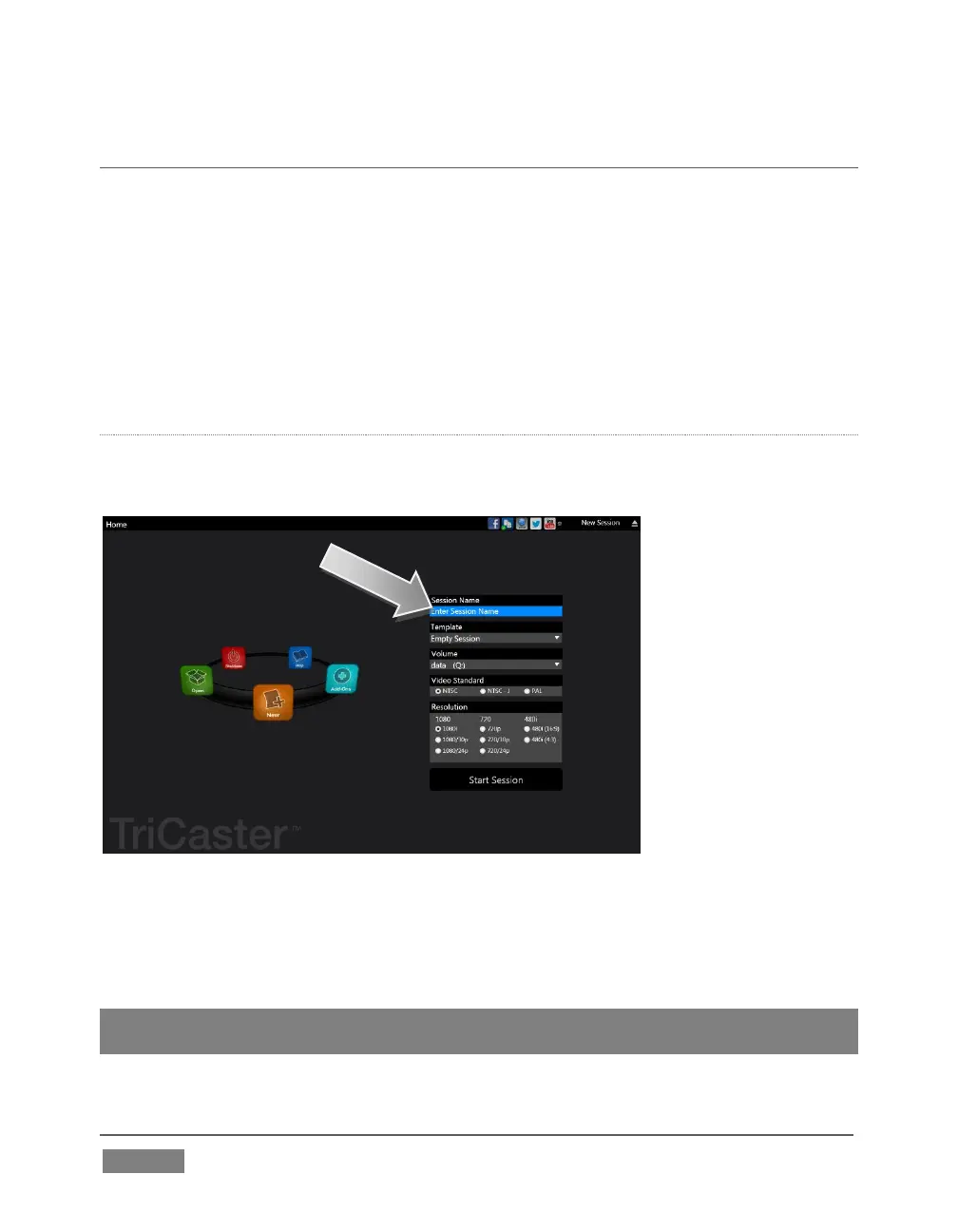
When no previously created sessions exist, the icon ring dominating the Home Page
defaults to New, inviting you to create a new session.
FIGURE 19 (MULTI-STANDARD TRICASTER SHOWN)
A link initially containing the text “Enter Session Name” is shown at the top of the
right-hand pane when the New icon is selected on the ring. Click in this area to modify
the name using the keyboard if you like. (The default name is the current date.)
Note: TriCaster supports a variety of optional session configurations for live production.
You can choose either HD (High Definition) or SD (Standard Definition) operating modes.









 To Next Page