Page | 37
SD options include both 4:3 and 16:9 (widescreen) image aspects. TriCaster Multi-
standard models permit you to select from different video standards according to your
locale, choosing between NSTC, NTSC-J (Japan) or PAL.
Continue with session creation by designating the Video Standard used in your locale
(Multi-standard models only). For the moment, let’s choose 1080i for Resolution
(even if the cameras you plan to connect are SD 4:3), then click the Start Session link
below.
By default, new sessions are created on TriCaster’s D: (Media) drive (see Section 5.2.1
for a discussion of session Volume options).
THE SESSION PAGE
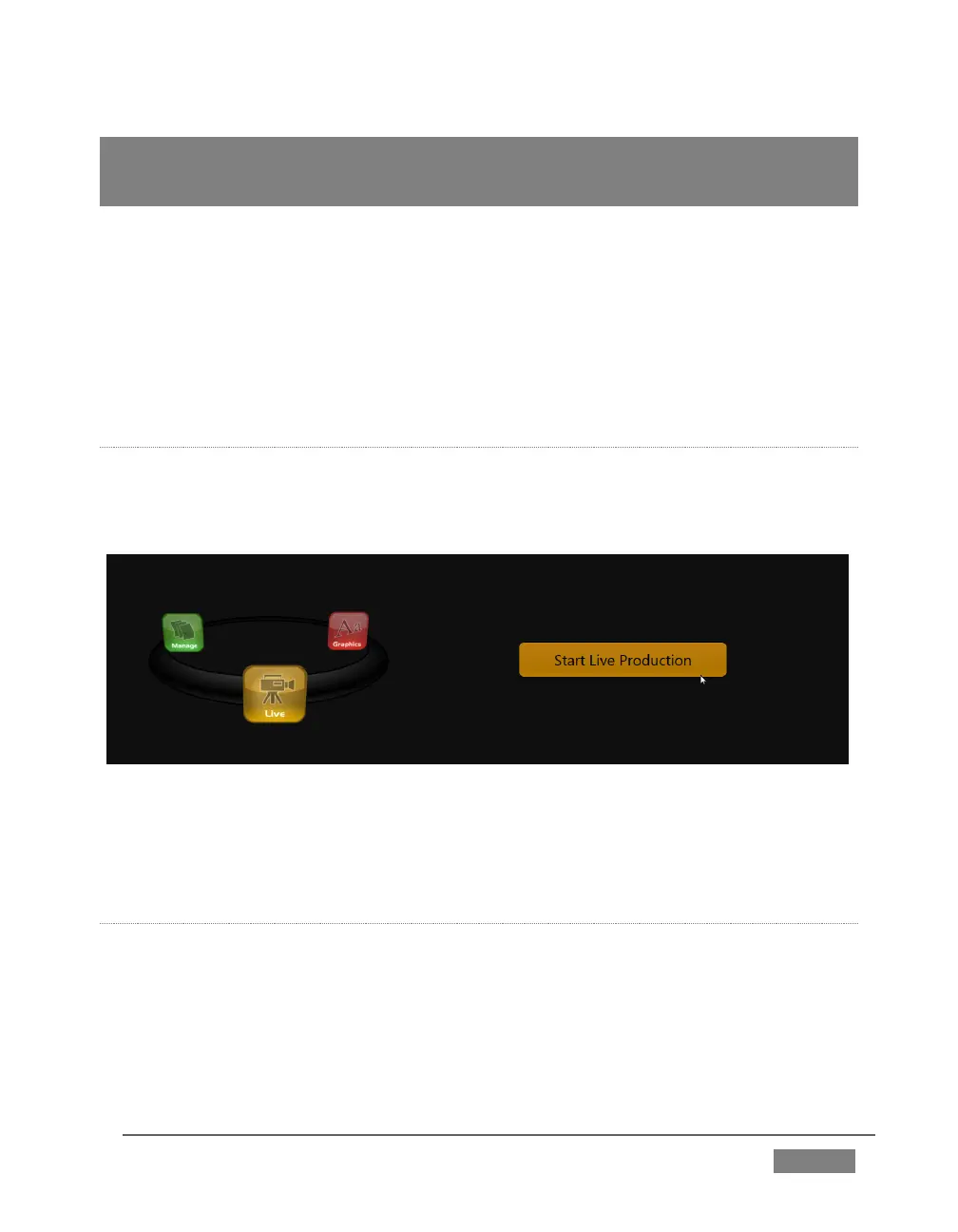
Clicking Start Session will take you to the Session Page. As our intention is to configure
our connections (done in TriCaster’s Live Desktop), click the Live button on the icon
ring.
FIGURE 20
Simply click the link labeled Start Live Production to launch the Live Desktop, which is
likely where you will spend most of your time working with TriCaster.
THE LIVE DESKTOP
Initially, as you have yet to configure input devices or add content, the Live Desktop
will look a bit barren (Figure 21). Take a quick look around, but then let’s continue to
configure your devices. (We had a brief glimpse at the Live Desktop back in Section
2.4, but we’ll examine it more closely in Chapter 4, Live Production Walkthrough –
coming up soon.)









 To Next Page