Page | 223
12.1.2 PTZ PRESETS
The large Preset Bin (above the Camera Bin) shows eight thumbnail icons for the
currently selected PTZ camera. Click a preset to select it, and the camera
automatically begins moving to the new position.
Hint: The number of the current Preset icon is shown in an overlay at upper left. When the
actual camera position at the moment does not correspond to a preset, an “M” is shown
over the most recent selection, rather than a number.
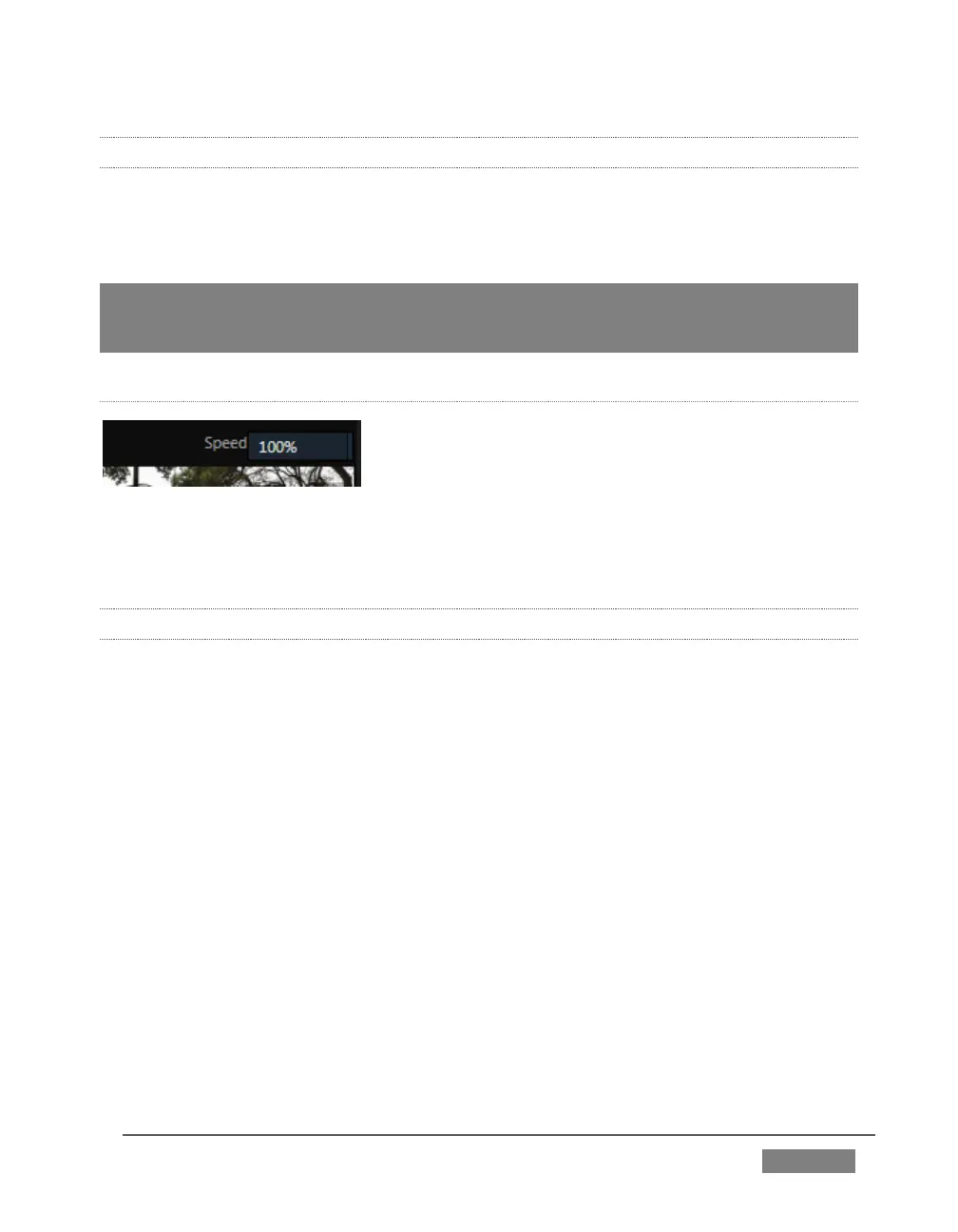
SPEED
The Speed control in the PTZ tab titlebar governs the
rate of change when a new preset is selected.
Camera travel speed capabilities vary widely, so think
of this setting as a percentage of the maximum speed your unit can manage.
12.1.3 CONFIGURING PRESETS
When you roll the mouse over a preset, a configuration overlay (‘gear’) appears in its
upper right corner. Click this to display the PTZ Preset Editor (Figure 213).
Initially, preset icons display the default PTZ Canvas representation. When a live
source is connected (and enabled in the PTZ tab of Input Configuration), making
adjustments causes an image to be grabbed from the live video input. (Click the
Update Snapshot button to update without closing the Preset Editor).









 To Next Page