Page | 415
22.7.17 INSERT
The INPUT/INSERTS button serves several important purposes. It can be used to
reassign the label for a slider input to a different TriCaster audio control by name, or
to insert (or remove) a new (initially unassigned) control column on the surface.
Controls for unused inputs or outputs can be removed from the surface, or if you wish,
you can re-order controls using the Remove and Insert features. To insert a new
control strip on the surface, proceed as follows
1. Make sure FLIP and CHAN are both turned off, and then
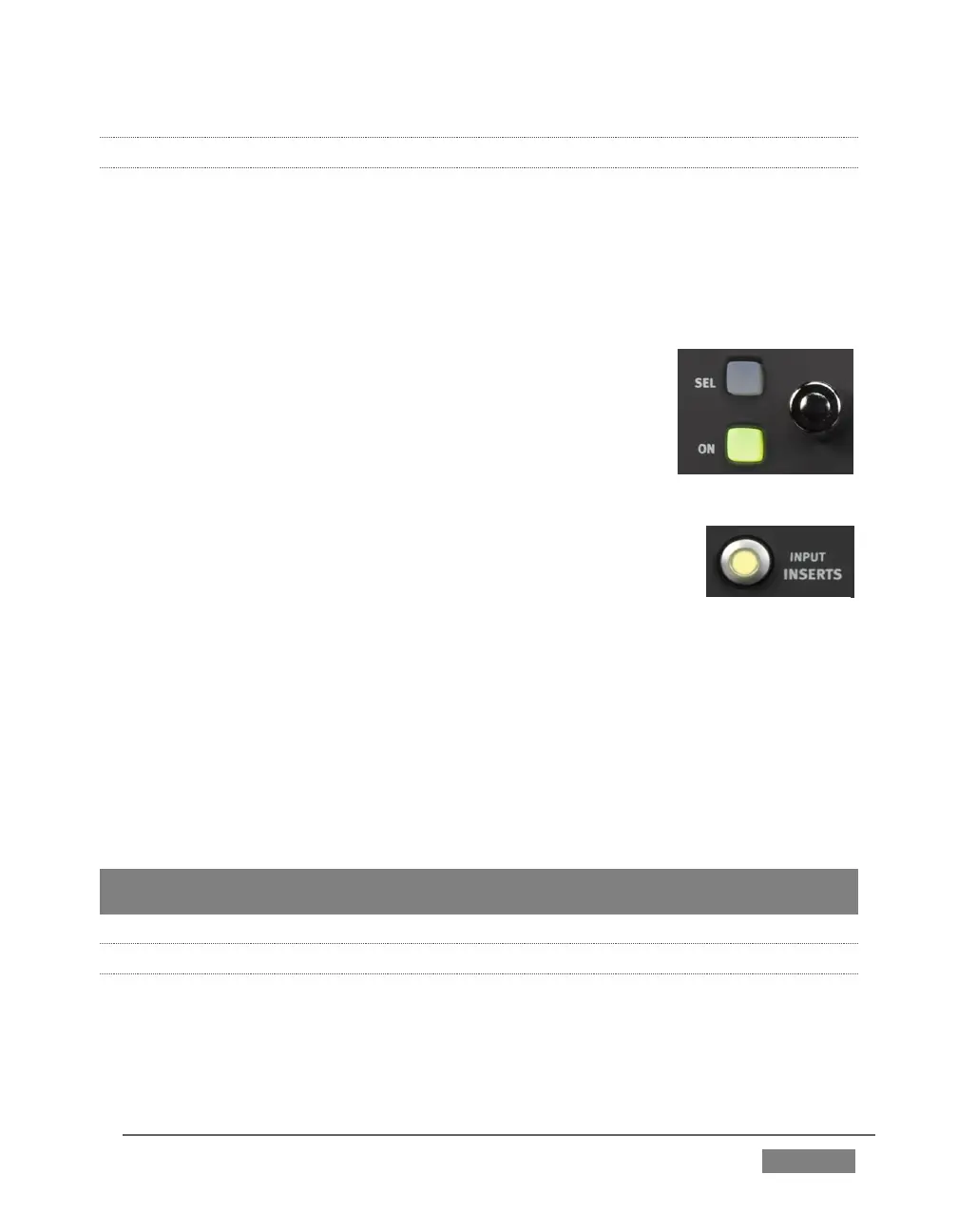
press the INSERTS button in the Knob Set group.
2. Rotate the knob for Input one clockwise, cycling
through optional settings until the label above the knob
says Insert.
At this point, the small SEL button just left of the rotary
knob begins to flash, to indicate that if you wish to confirm
your selection you must press it (otherwise, press MIX/PAN
to cancel the operation and revert to the original
selection).
3. Press the SEL button to execute the insertion.
This action inserts a new, unassigned control, pushing the original Artist Mix
control group to the right to make room for the addition.
4. Slowly rotate the same knob again – this time, you could choose an option
(such as Master 1 option), and then press SEL once more to lock the input to
TriCaster’s Input 1a (left) input channel. Instead, just select Remove this time
and press SEL to confirm.
Hint: Normally, if you insert a source that already appears elsewhere in the layout, the
inserted control group is kept and the original is removed.
22.7.18 LOCKING CHANNELS
By default, Artist Mix presents control groups for each TriCaster audio source in their
natural order from left to right. It can be very desirable however, to lock one or more
sources in a fixed position, thus keeping it in view on the control surface at all times
despite any use of the navigation buttons.









 To Next Page