Page | 55
6. With the Interface D preset active, reselect the Load Default menu,
7. This time, choose the Cameras preset, populating the Live Desktop monitors
with 8 camera input monitors (plus Preview and Program monitors).
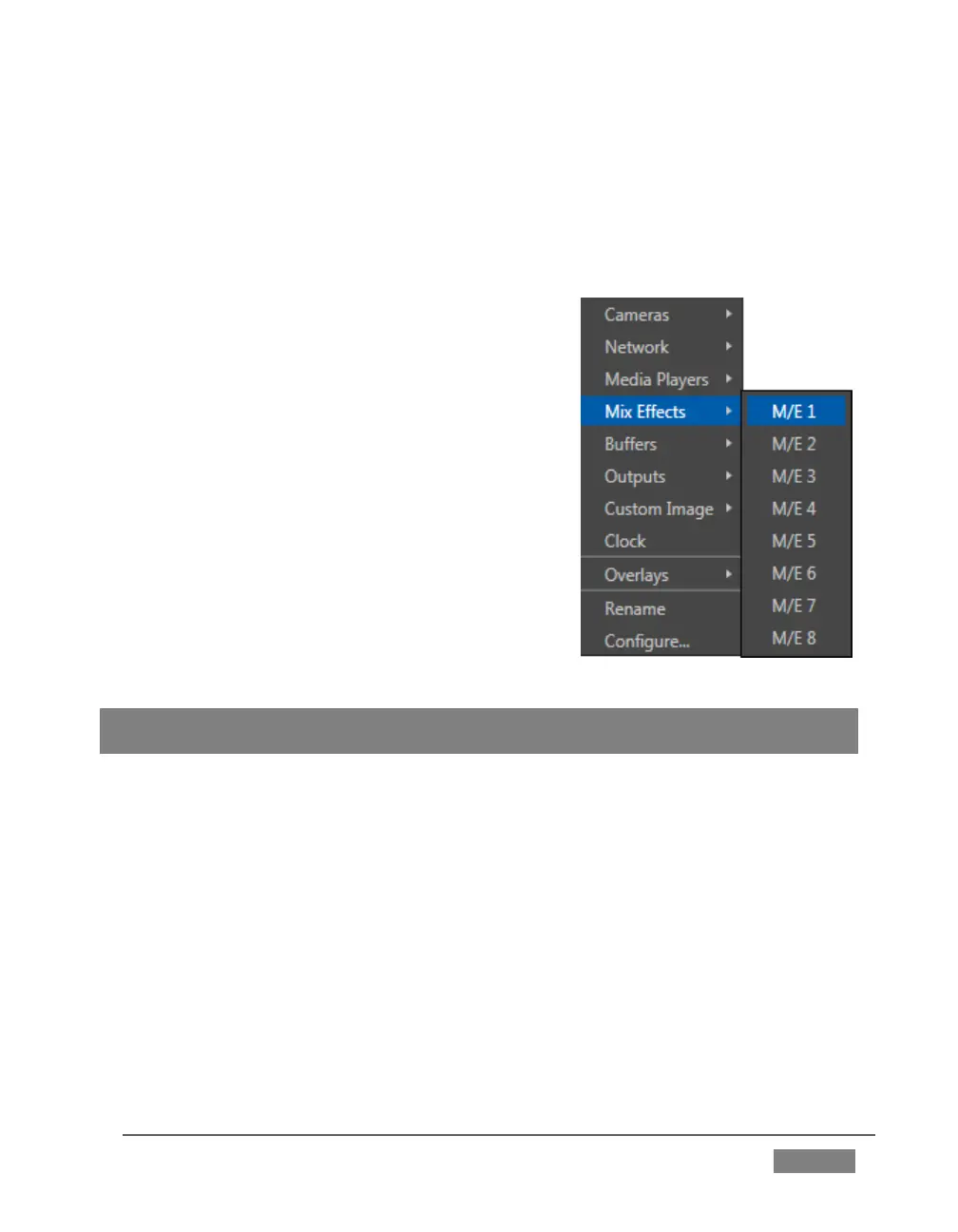
8. Move the mouse pointer over the monitor for Camera 1 and right-click to open
the Monitor Setup menu (Figure 42).
9. Slide down to the Mix Effects entry, and
select M/E 1 from the sub-menu.
10. Repeat this operation for the remaining
seven camera monitors, selecting a different
M/E as the source for each monitor in turn.
The Interface D preset now displays individual
monitors showing the output of all M/Es after
the associated effects are applied (including
virtual sets, overlays, etc.)
All video viewports in the Interface and
Multiview monitor areas can be customized in
similar fashion.
Hint :To restore default monitor layouts, simply activate the preset you want to modify, click
Workspace and select your preferred Default Layout,
Let’s look at a few more details of TriCaster’s monitors before moving on:
The Monitor Setup context menu (Figure 42) provides many options in
addition to simple source assignment, including a Checkerboard background
option for sources with transparency (Figure 44), VU meters, and more.









 To Next Page