Page | 179
These special Animation Store transitions are loaded into the Transition Palette in the
same way as their less colorful cousins, using the Browse feature.
A number of Animation Store transitions are supplied, but you can generate your own
using the supplied Animation Store Creator application and custom animation content
you have access to or create using art software.
Note: The Animation Store Creator application is covered in its own manual, which can be
opened from the Help menu in TriCaster Startup.
DSK POSITIONING
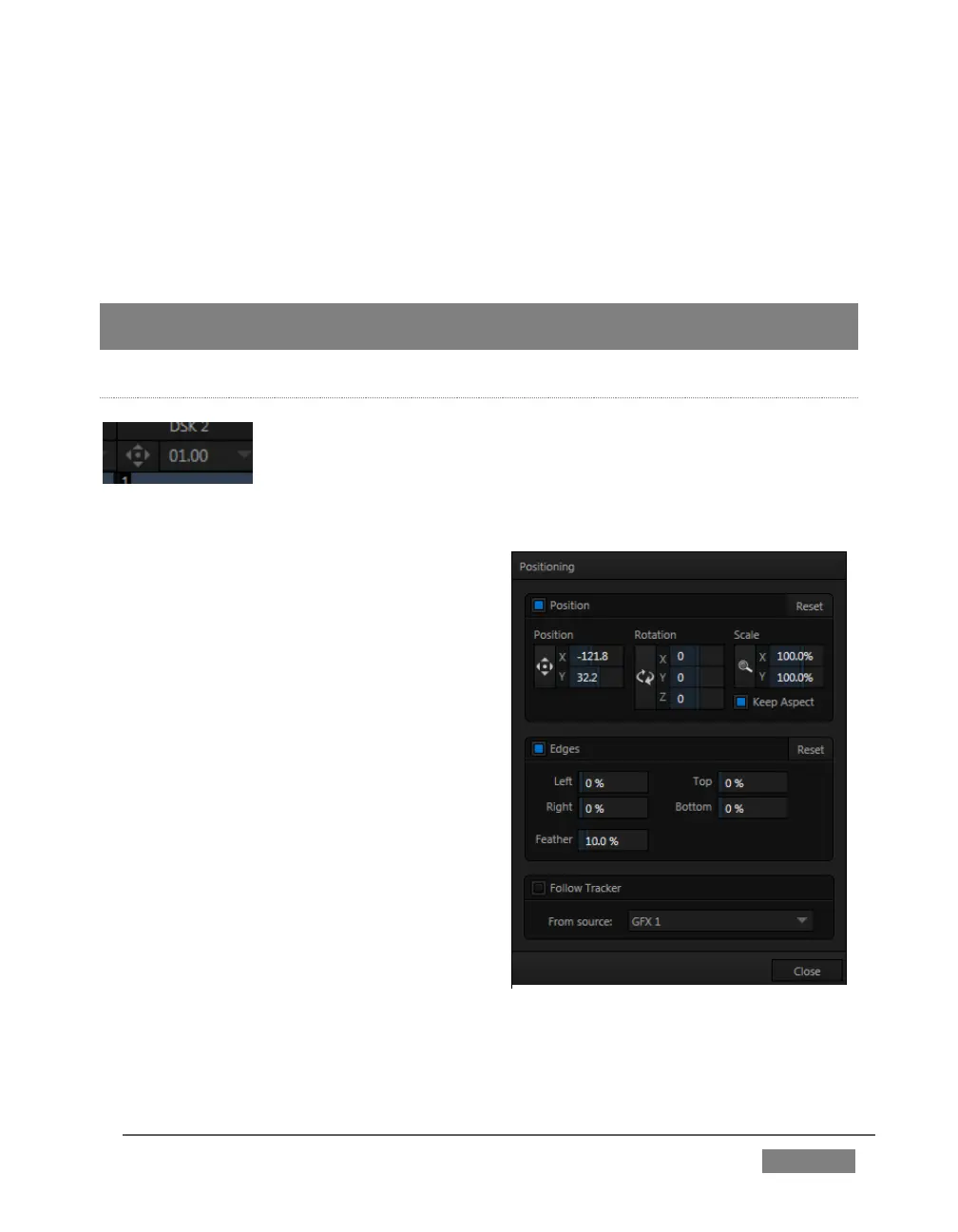
Each DSK layer has its own Position button and settings. Click the
‘diamond’ button to open the Position panel. This button is a toggle
switch, and is lit when Position settings for the associated DSK are
active.
Position panel settings are organized into
three groups from top to bottom:
1. Position
2. Crop Edges
3. Follow Tracker
The current settings for each group can be
toggled as well, using the switch provided.
The upper-most section of the panel is
devoted to Position settings. Across the top
you will see three labels: Position, Rotation,
and Scale (viewed from left to right).
Click and drag on the Position button to
relocate the associated DSK layer vertically
or horizontally within the frame. Dragging
left or right directly on either of the two
nearby numeric controls adjusts the
position on a single axis only.
FIGURE 159 (TriCaster 8000 shown)









 To Next Page