Page | 337
Select one or more DDR MEM slots using the menu that opens when you click the
nearby gear to automatically append newly completed Primary clips to designated
playlist(s) of the corresponding Media Player(s).
Hint: You’ll generally enable this feature and set at least one of the DDR targets to
“Current” when using the optional NewTek TimeWarp™ control surface with your TriCaster
for ‘instant replay’ purposes.
PUBLISH QUEUE
Check-marking Publish Queue in the Send to menu causes the primary recording to be
added to TriCaster’s Publish Queue, with destinations as configured in the Publish
Destinations menu (see Section 19.3.2).
Hint: Enabling Publish Queue does not automatically initiate file upload when recording is
stopped, except when Auto Upload is also enabled – see Auto Upload in Section 19.3.2.
SHARED OPTIONS
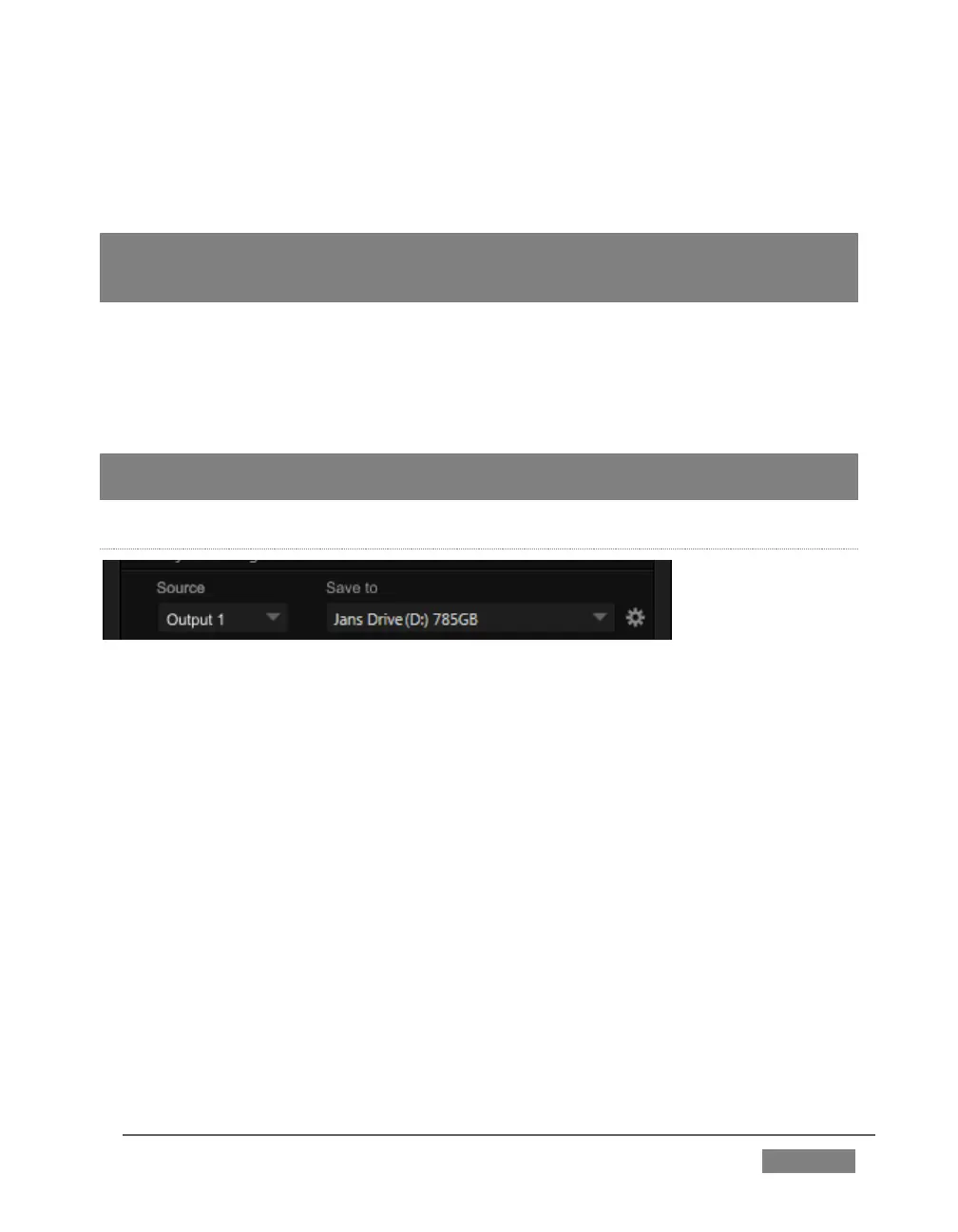
FIGURE 323
Apart from the Add to (playlist) feature, Primary and Secondary (IsoCorder models)
recording controls are similar.
SOURCE
A drop-down menu labeled Source lets you choose which video channel (along with
the audio assigned to it) will be captured. TriCaster provides numerous source
options. Selecting Output 1 or 2 gives you access to a variety of useful video and audio
source combinations and formats in Output Configuration. In addition, any single
camera input can be designated as a source in Record Configuration.
Note that Output 1 and 2 can likewise be configured to use any single camera as
source. However – when you opt to record an Output (1 or 2) using the Source
selection menu, it may well result in a very different recording than if you directly
select the same input as Source in the Record Configuration panel.









 To Next Page