Alarm Settings
104 ClareVision Plus Network Video Recorder User Manual
9. Click the Linkage Action tab to set up alarm response actions for the video
tampering alarm.
10. Click OK to complete the video tampering settings for the channel.
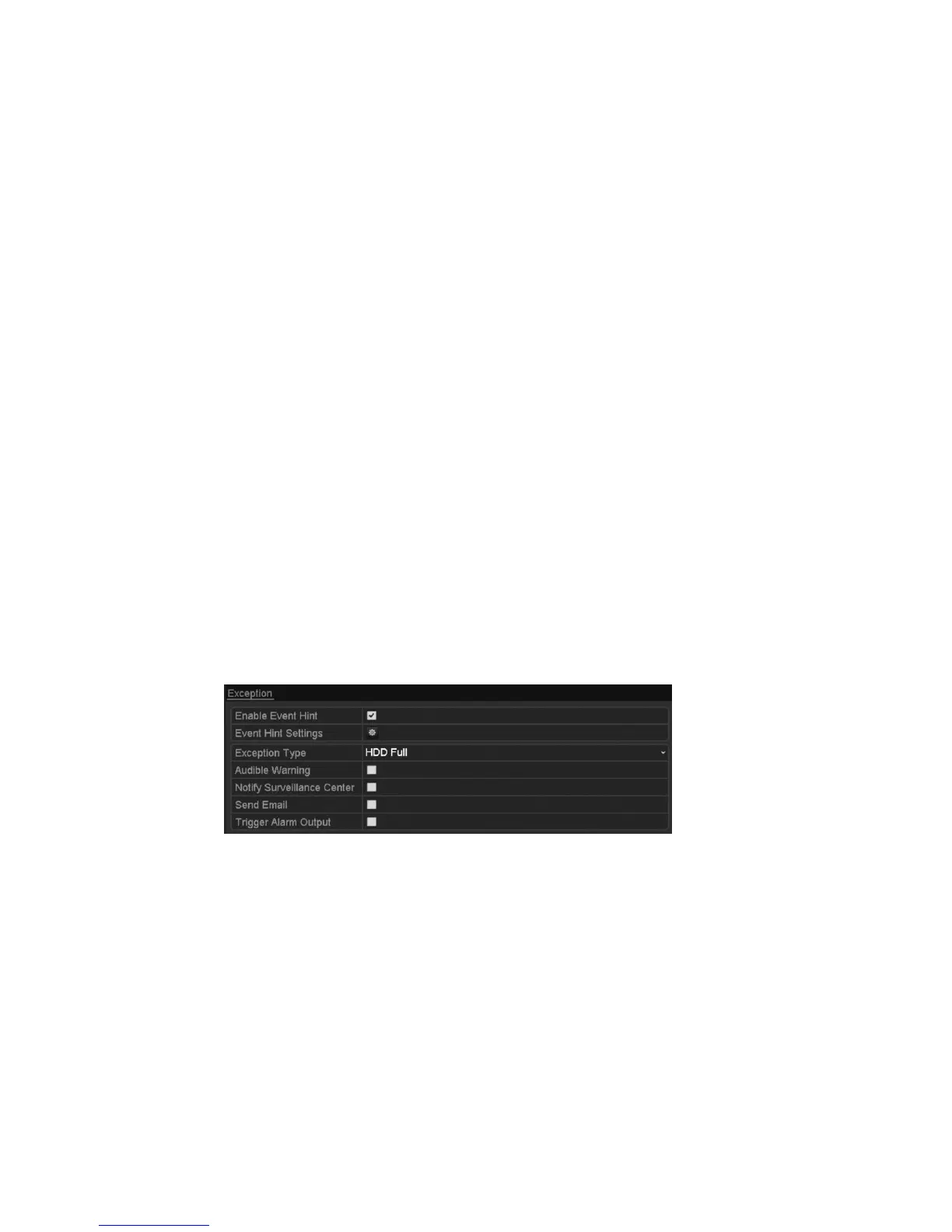
Handling alarm exceptions
The exception settings refer to handling actions of various exceptions, such as:
• HDD Full: The HDD is full.
• HDD Error: Writing HDD error or unformatted HDD.
• Network Disconnected: Disconnected network cable.
• IP Conflicted: Duplicated IP address.
• Illegal Login: Incorrect user ID or password.
• Record/Capture Exception: No space for saving recorded files or captured
images.
• Hot Spare Exception: The working device is not connected.
To set alarm exceptions:
1. Browse to the Exception interface of System Configuration and handle
various exceptions.
Menu > Configuration > Exceptions
Setting alarm response actions
Alarm response actions activate when an alarm or exception occurs, including
Event Hint Displays, Full Screen Monitoring, Audible Warning (buzzer), Notify
Surveillance Center, Upload Picture to FTP, Trigger Alarm Output, and Send
Email.
Event hint display
When an event or exception occurs, if configured, a hint displays in the lower-left
corner of the live view image. Click the hint icon to check the details.



 To Next Page