HDD Management
ClareVision Plus Network Video Recorder User Manual 157
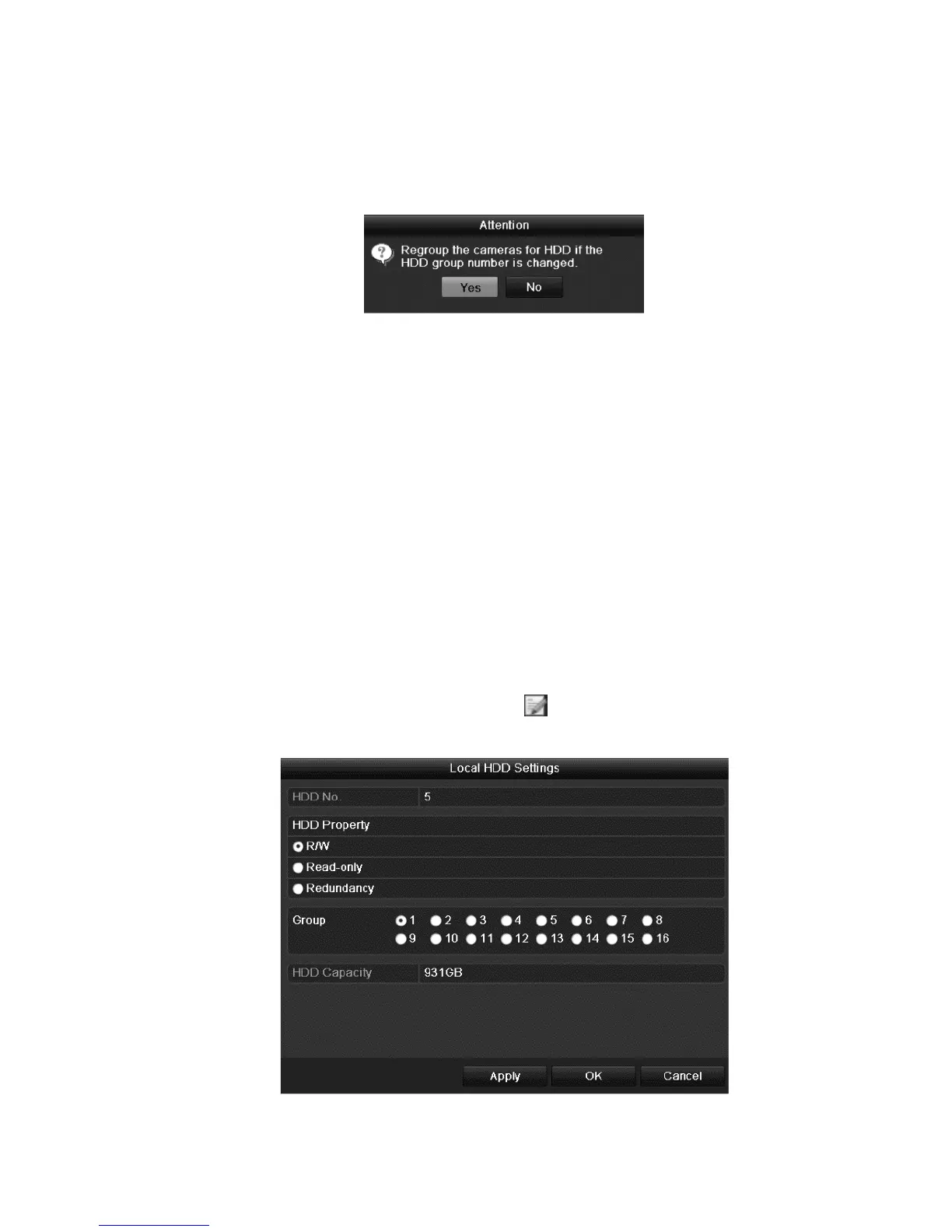
7. Select the Group number for the current HDD.
Note: The default group number for each HDD is 1.
8. Click OK to confirm the settings. The Attention dialog displays.
9. Click Yes to finish the settings.
Setting the HDD property
The HDD property is set to redundancy, read-only, or read/write (R/W). Before
setting the HDD property, set the storage mode to Group.
An HDD is set to read-only to prevent important recorded files from being
overwritten when the HDD becomes full in overwrite recording mode.
When the HDD property is set for redundancy, the video is recorded on both the
redundancy HDD and the R/W HDD simultaneously. This ensures high security
and reliable video data.
To set HDD properties:
1. Browse to the HDD Information interface.
Menu > HDD > General
2. Select HDD from the list, and then click to enter the Local HDD Settings
interface.



 To Next Page