Network Video Recorder User Manual 35
Live View
Live View displays the video images from the connected camera in real time.
When the NVR is powered on, it displays live view.
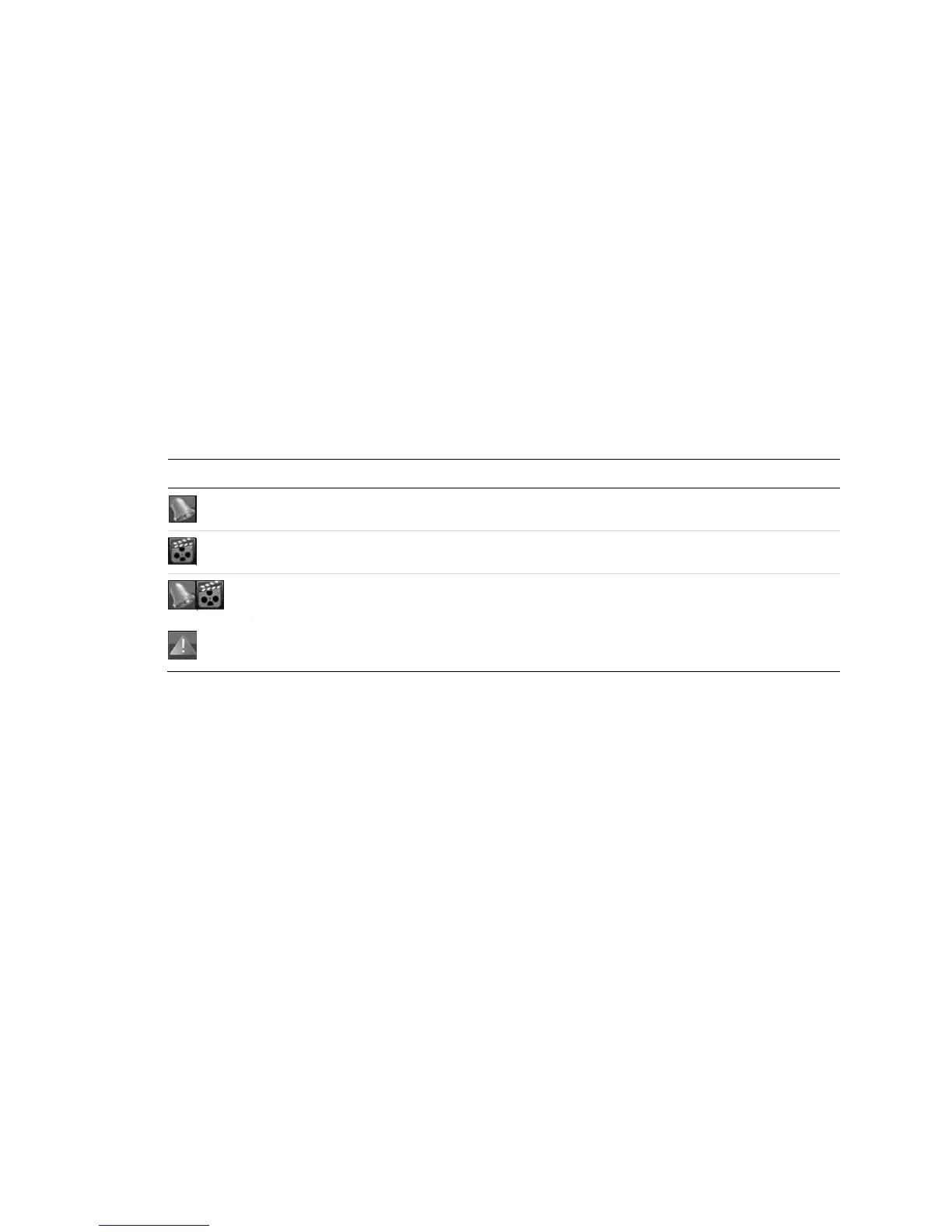
Live View icons
When in Live view mode, icons display in the upper-right corner. These icons tell
the status of the channel, it is being recorded, and if it is connected to any
alarms.
Table 12: Mouse operation in Live View
Event/exception actions are set. See “ Setting alarm response actions” on page 104.
Note: This icon appears in the lower-left corner.
Operations in Live View mode
The Live View mode functions are listed below.
• Single Screen: Shows only one screen on the monitor.
• Multi-screen: Shows multiple screens on the monitor simultaneously.
• Auto-switch: The screen is auto switched to the next one. You must set the
dwell time for each screen on the configuration menu before enabling
auto-switch.
Menu > Configuration > Live View > Dwell Time
• Start Recording: This starts recording, continuous record and motion
detection record are supported.
• Output Mode: Select the output mode; Standard, Bright, Gentle or Vivid.
• Playback: Playback the recorded videos for current day.



 To Next Page