Record and Capture Settings
ClareVision Plus Network Video Recorder User Manual 69
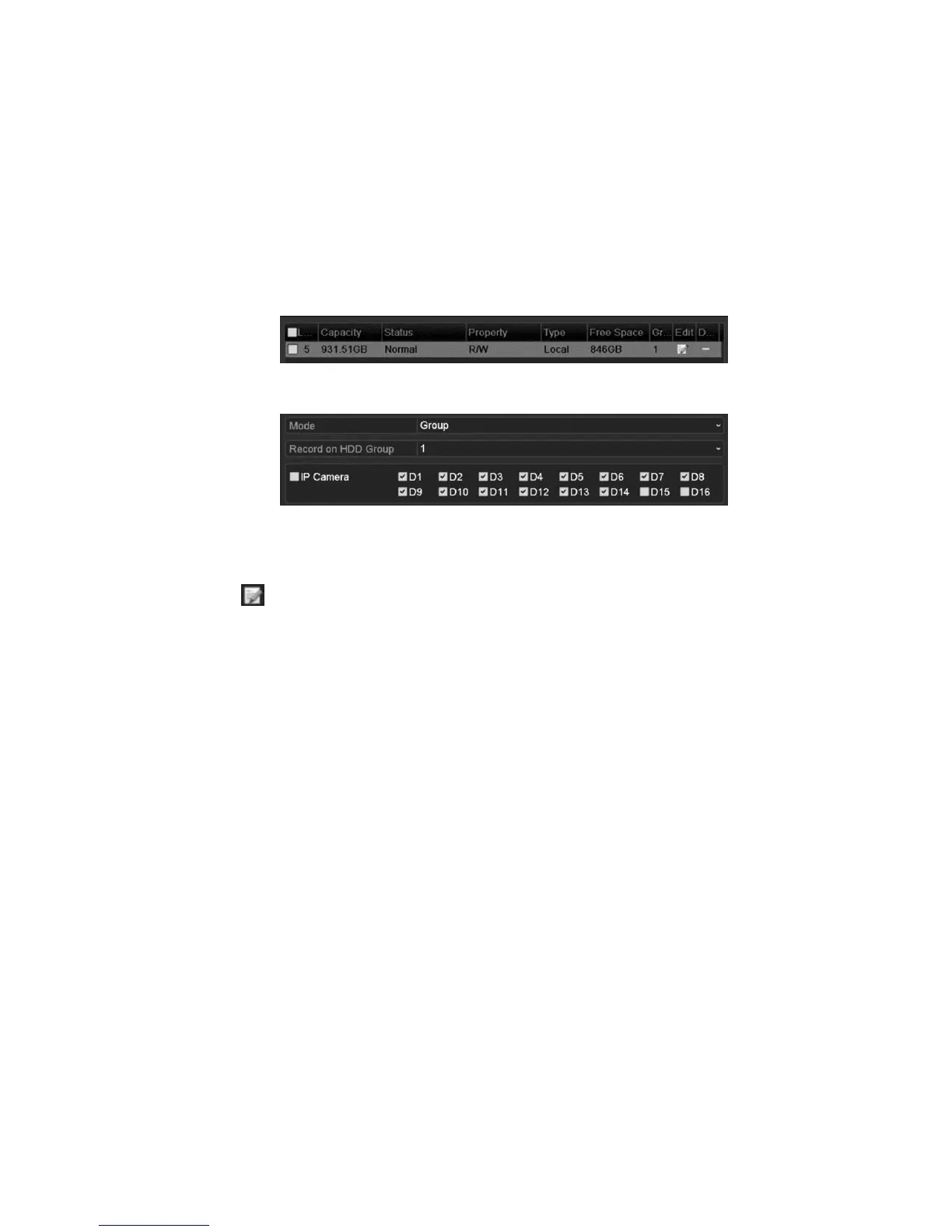
Configuring HDD groups for recording and capture
You can group the HDDs and save the record files and captured pictures in
various HDD groups.
To configure the HDD group:
1. Browse to the HDD setting interface.
Menu > HDD
2. Click Advanced.
3. Set the HDD storage mode to Group.
4. Select General in the left bar.
5. Click to enter editing interface.
6. Choose a group number for the HDD group.
7. Click Apply, and then click Yes to save your settings.
8. Click OK to return to the previous menu.
Repeat the above steps to configure more HDD groups.
To choose the channels that you want to save:
1. Click Advanced on the left bar.
2. Select the group number in the Record on HDD Group drop-down list.
3. Check each desired channel to save to the group.
4. Click Apply to save settings.
Note: After configuring the HDD groups, you can configure the Recording and
Capture settings. Follow “Configuring parameters” on page 55



 To Next Page