Record and Capture Settings
ClareVision Plus Network Video Recorder User Manual 65
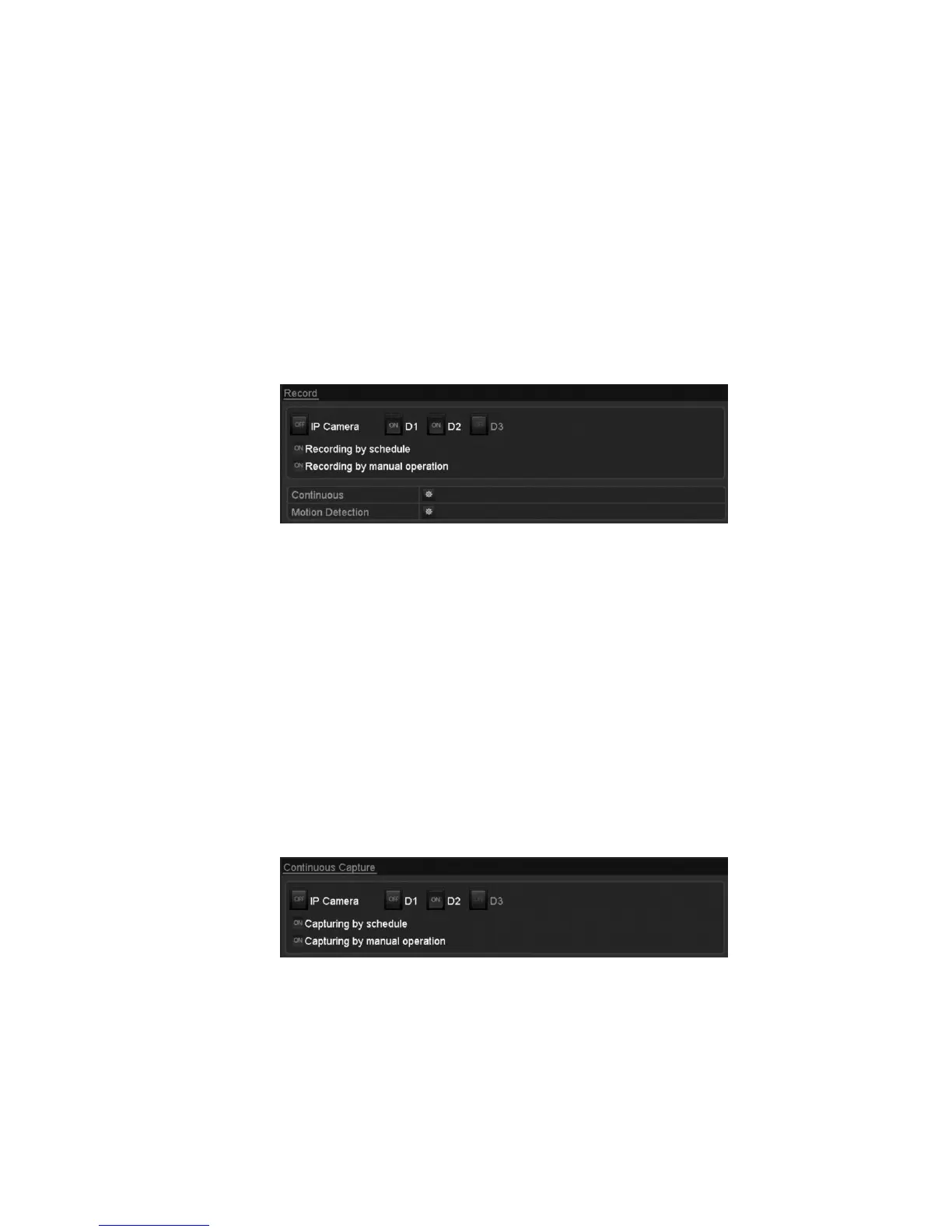
Manual record and continuous capture
Follow the steps to set parameters for the manual record and continuous
capture. Using manual record and continuous capture, you must manually cancel
the record and capture.
To enable manual record:
1. Browse to the Manual settings interface.
Menu > Manual
- or -
Press the REC/SHOT button on the front panel.
2. To enable manual record, select Record on the left bar.
3. Click the status button before the desired camera number to change from
OFF to ON.
To disable manual record:
1. Click the status button to change ON to OFF.
Note: The green ON icon indicates that the channel is configured in the
record schedule. After rebooting all the manual records that were enabled are
canceled.
To enable continuous capture:
1. Select Continuous Capture on the left bar.
2. Click the status button before camera number to change OFF to ON.



 To Next Page