Network Settings
ClareVision Plus Network Video Recorder User Manual 135
Configuring NAT
Use UPnP (Universal Plug and Play) or manual mapping to port map realizing
the remote access vie cross-segment network.
UPnP
Permits the device to seamlessly discover the presence of other devices on the
network and establish a functional network service for data sharing,
communications, etc. Use the UPnP function to enable a quick connection for the
device to the WAN via a router without port mapping.
Note: If you want to enable the UPnP function of the device, you must enable the
UPnP function of the router. When the network working mode of the device is set
as multi-address, the default route of the device is in the same network segment
as that of the LAN IP address.
To configure UPnP:
1. Browse to the Network Settings interface.
Menu > Configuration > Network
2. Click the NAT tab.
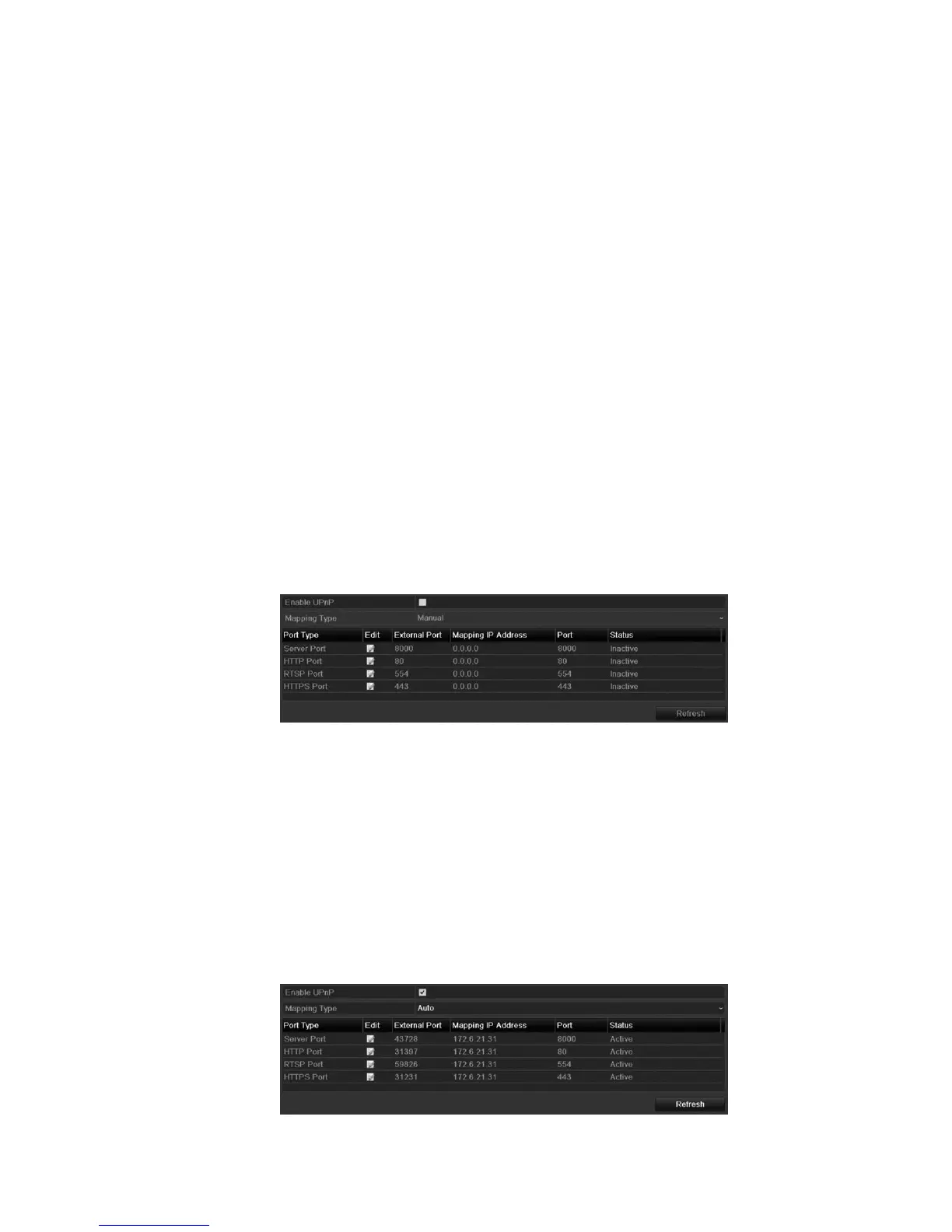
3. Select the Enable UPnP checkbox.
4. Set the Mapping Type, either Auto or Manual.
Auto
When selecting Auto, the port mapping items are read-only and the external
ports are set automatically by the router.
a. Set the Mapping Type to Auto.
b. Click Apply.
c. Click Refresh to view the latest port mapping status.



 To Next Page