Other Settings
176 ClareVision Plus Network Video Recorder User Manual
3. Configure the following settings:
Language: The language used is English.
CVBS Output Standard: Set the CVBS output standard to NTSC or PAL to
match the video input standard.
VGA Resolution: Set the VGA output resolution to match the monitor screen.
HDMI Resolution: Sett the HDMI resolution to match the monitor screen.
Time Zone: Set the time zone.
Date Format: Set the date format.
System Date: Set the system date.
System Time: Set the system time.
Mouse Pointer Speed: Set the speed of mouse pointer; four levels are
configurable.
Enable Wizard: Enable/disable the Wizard when the device starts up.
Enable Password: Enable/disable the use of the login password.
4. Click Apply to save the settings.
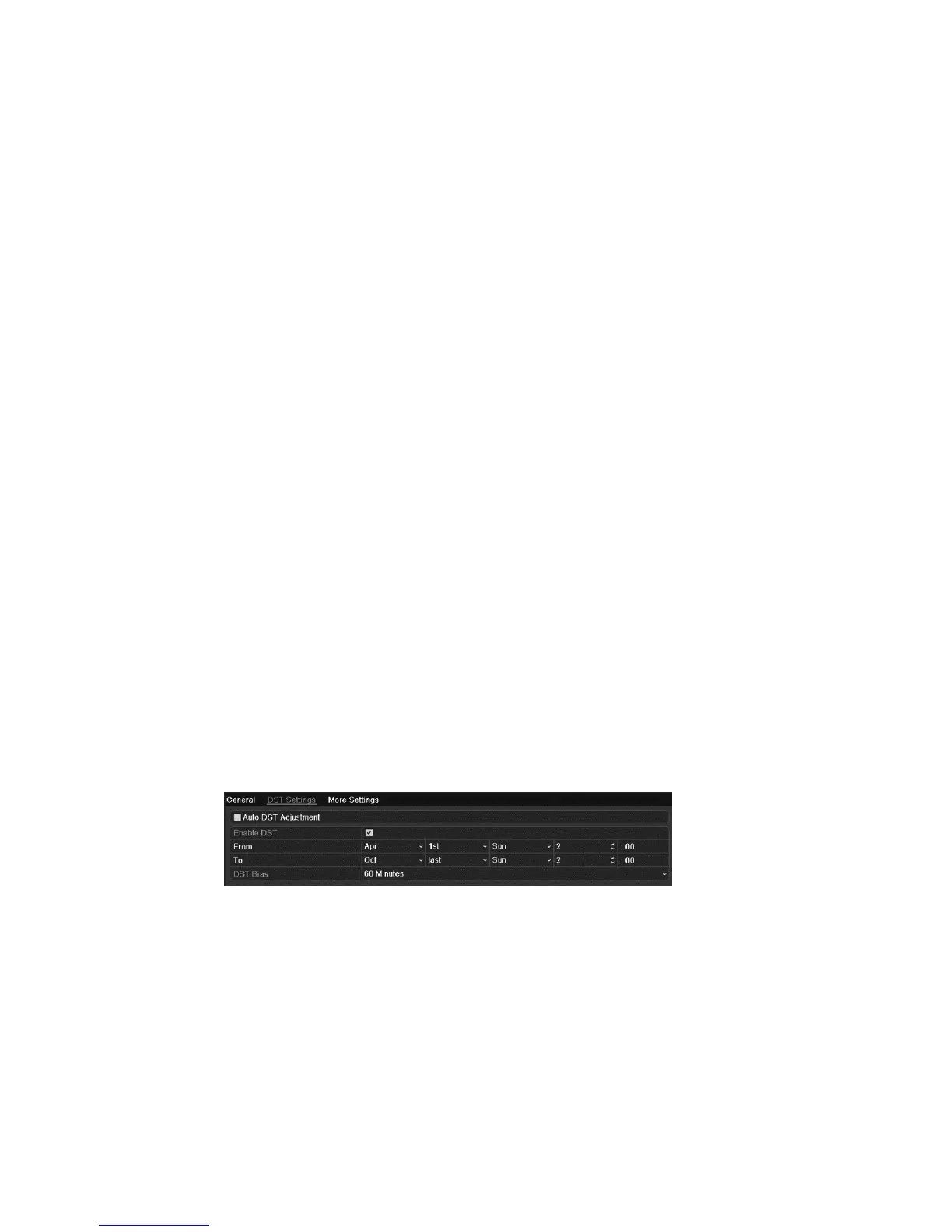
Configuring DST settings
To configure DTS settings:
1. Browse to the General Settings interface.
Menu > Configuration > General
2. Click the DST Settings tab.
3. Select the Auto DST Adjustment checkbox.
- or -
Select the Enable DST checkbox, and then enter the date for the DST period.



 To Next Page