Live View
ClareVision Plus Network Video Recorder User Manual 37
Using the mouse in Live View
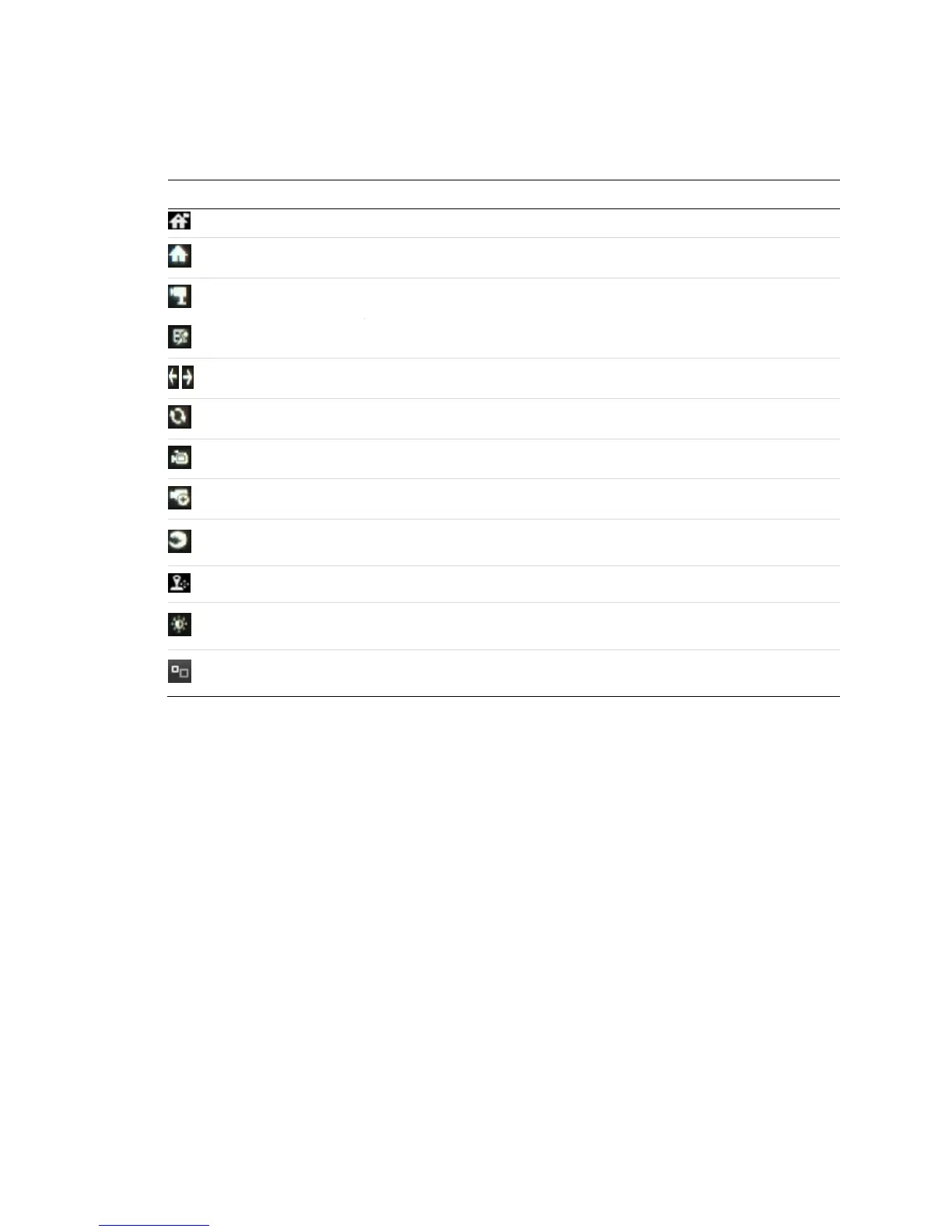
Table 15: Mouse operation in Live View
Provides access to the most frequently visited sub-menus.
Enters the system menu by clicking the icon.
Switches to the single full screen.
Switches to the previous /next screen.
Starts the auto-switch of the screens.
Starts recording all channels.
Enters the playback interface and start playing back the video of the
selected channel immediately.
Enters the PTZ interface.
Four modes of output supported, including Standard, Bright, Gentle and
Vivid.
Switches to the auxiliary output mode and the operation for the main
output is disabled.
Notes
• If you enter the Aux monitor mode and the Aux monitor is not connected, the
mouse operation is disabled. You must switch back to the Main output with
the MAIN/AUX button on the front panel or use the remote.
• If the corresponding camera supports intelligent function, the Reboot
Intelligence option is available when accessing the right-click menu.
• The dwell time of the Live View configuration is set before using Start
Auto-switch.
Note: Dwell time is programmable. It is configurable in the Live View Menu.



 To Next Page