Live View
ClareVision Plus Network Video Recorder User Manual 39
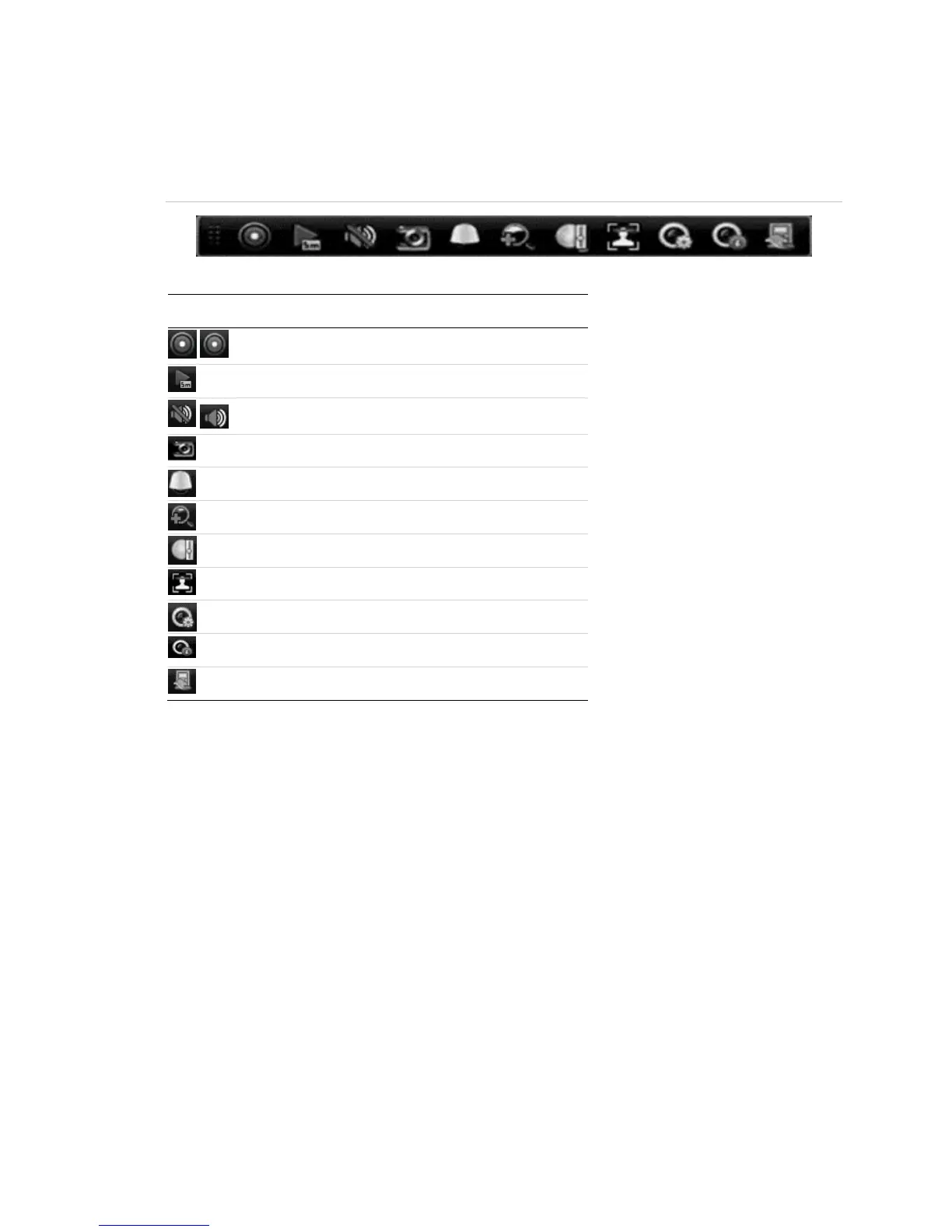
Quick Setting toolbar in Live View mode
Clicking the screen of a channel displays the Quick Settings toolbar.
Figure 17: Quick Settings toolbar
Table 16: Quick Settings toolbar icons
[1] Instant Playback only shows the recording in last five minutes.
[2] Digital Zoom can zoom to make the selected area full screen. Click and draw to select the
area to zoom, as shown in Figure 18.
[3] Click the Image Settings icon to enter the Image Settings menu, as shown in Figure 19. You
can change the image parameters.
[4] Live View Strategy is selected to set strategy, including Real-time, Balanced, and Fluency, as
shown in Figure 20.
[5] Face detection is used to detect human faces in live view mode. The faces are captured and
stored in the HDD.
[6] Moving the mouse over this icon displays the real-time stream information, including the frame
rate, bitrate, resolution, and stream type. See Figure 21: Information.



 To Next Page