Record and Capture Settings
62 ClareVision Plus Network Video Recorder User Manual
2. Choose the desired camera, and then select the Enable Motion Detection
checkbox.
3. Using your mouse, drag and draw the motion detection area. To select the
camera’s entire field of view, click Full Screen. To clear the motion detection
area, click Clear.
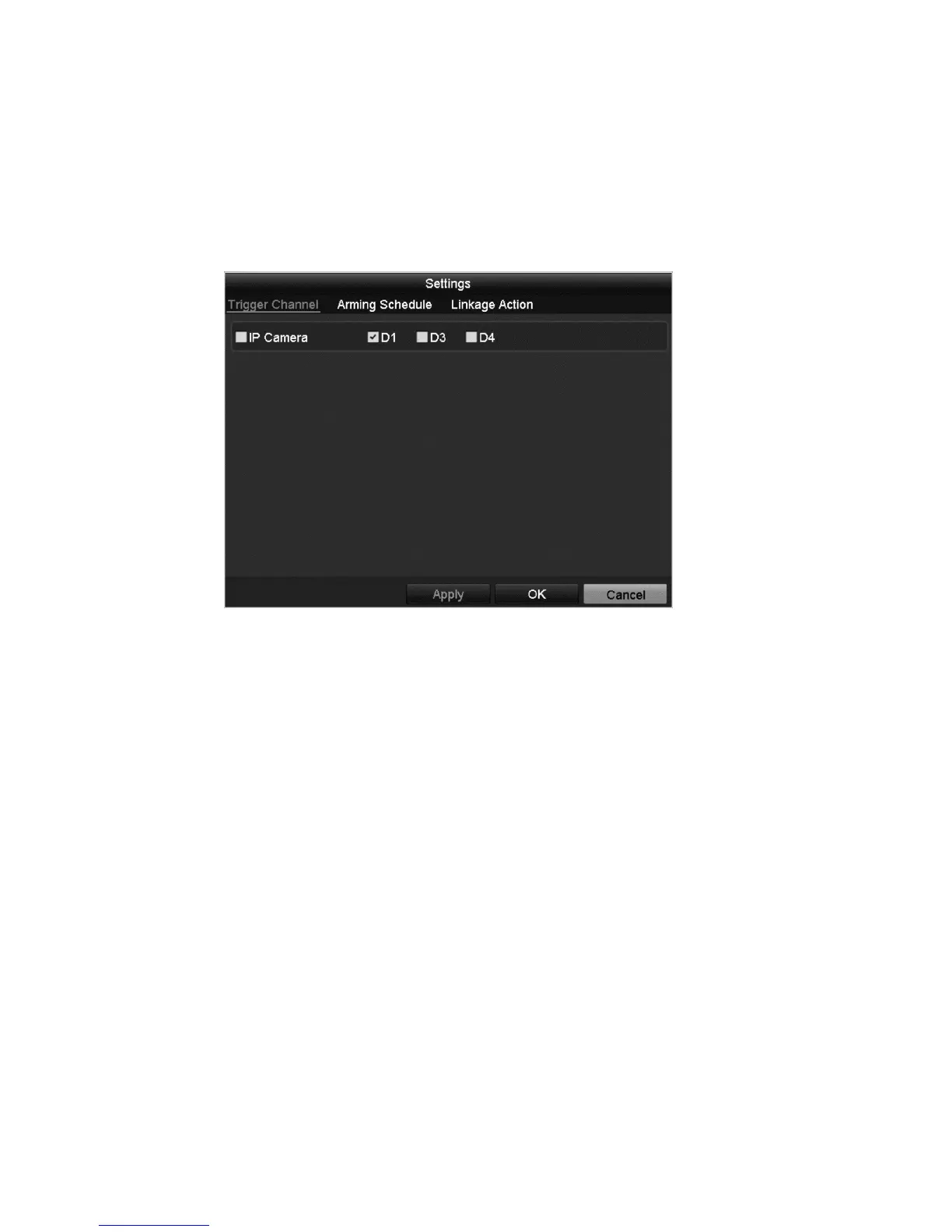
4. Click Settings.
5. Select the channels you want the motion detection events to trigger recording.
6. Click Apply to save the settings.
7. Click OK to return to the previous menu.
8. Exit the Motion Detection menu, and then edit the Motion Detection Record
Schedule. See “Configuring record/capture schedule” on page 58.



 To Next Page