Image Quality Problems
441
Problem Solving
16
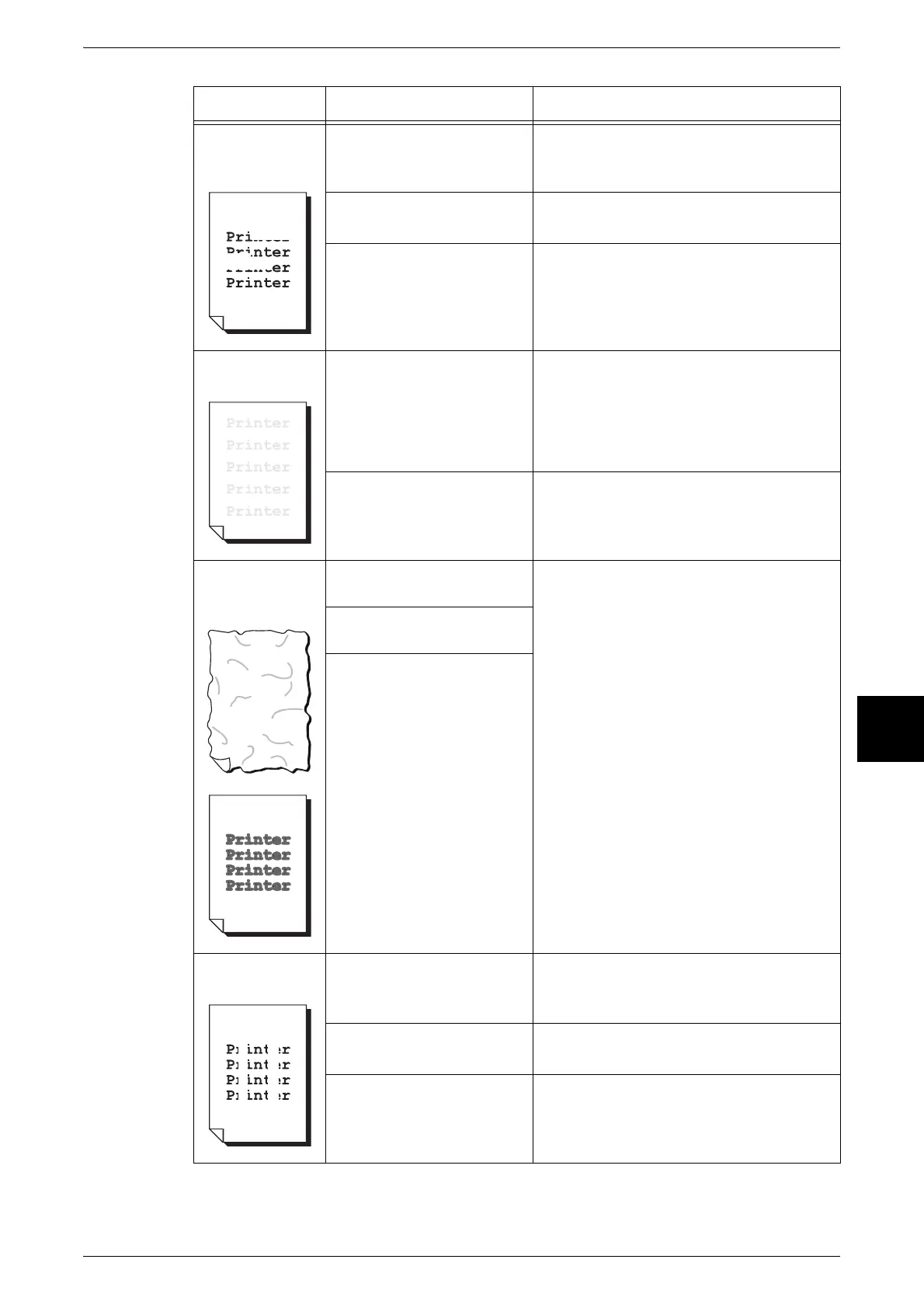
White areas or
white or colored
stripes appear.
A probable cause is a dirty
Raster Output Scanner.
Clean the Raster Output Scanner.
Refer to "Cleaning Internal Components
(Raster Output Scanners)" (P.419).
Is the paper damp? Replace with paper from a new ream.
Refer to "Loading Paper" (P.232).
The paper in use is
unsuitable.
Load suitable paper.
Refer to "Loading Paper" (P.232).
The entire page
is printed faint.
When the print was made
using Tray 5 (bypass), the
size and type of the actually
loaded paper differed from
the setting on the print
driver.
Either load paper of the correct size and
type into Tray 5 (bypass), or fan the paper
thoroughly before loading it again.
Refer to "Loading Paper in Tray 5 (Bypass)"
(P.233).
Two or more sheets may be
feeding at once.
Fan the paper well and reset.
Refer to "Loading Paper" (P.232).
Paper becomes
wrinkled.
Text is blurred.
The paper in use is
unsuitable.
Replace with paper from a new ream.
Refer to "Loading Paper" (P.232).
Paper is being added while
it is being fed.
Is the paper damp?
White or color is
missing vertically
The drum cartridge is
depleted or damaged.
Replace with a new drum cartridge.
Refer to "Replacing Drum Cartridges [A1],
[A2], [A3], and [A4]" (P.413).
There is no toner left in the
toner cartridge.
Replace with a new toner cartridge.
Refer to "Replacing Toner Cartridges" (P.409).
A probable cause is a dirty
Raster Output Scanner.
Clean the Raster Output Scanner.
Refer to "Cleaning Internal Components
(Raster Output Scanners)" (P.419).
Symptoms Check Remedy












 To Next Page