Output Z-Folded Copies (Z-Fold) (continued)
7-17
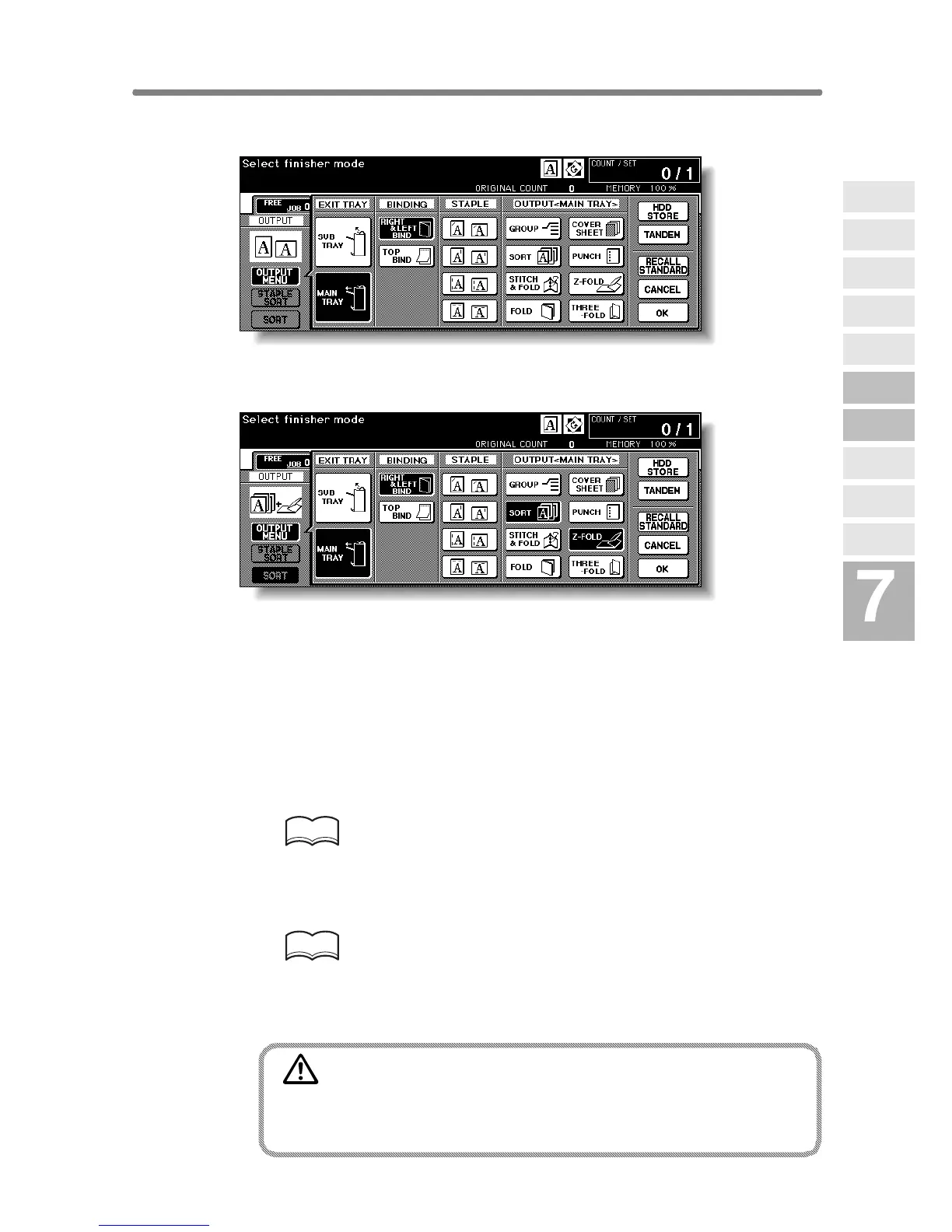
2. Touch MAIN TRAY, if not highlighted.
3. Touch Z-FOLD to highlight it.
4. Touch OK on the Output Mode popup menu to complete the
setting and return to the Basic Screen.
The Z-FOLD icon will be displayed in the OUTPUT icon area.
5. Select additional copying features, as required.
6. Enter the desired print quantity from the control panel keypad.
HINT
See p. 3-6 for details on setting print quantity.
7. Position originals.
HINT
See p. 3-2 to p. 3-5 for details on positioning originals.
8. Press [START].
CAUTION
When the finisher exit tray capacity is exceeded due to the print
quantity selected, remove the copied sets as they exit; other-
wise, mishandled paper will occur.
Advanced
Information
Using Finisher
Manually
Cover Sheet
Feeding
Three-Fold
Z-Fold
Tandem Mode
Punch
Fold /
Stitch&Fold
Vertical/Hori-
zontal Zoom
Rotation
Weekly
Timer










 To Next Page