Repeating Automatically Or Selecting Repeating Times(Repeat: AUTO/
Repeat Mode) (continued)
9-37
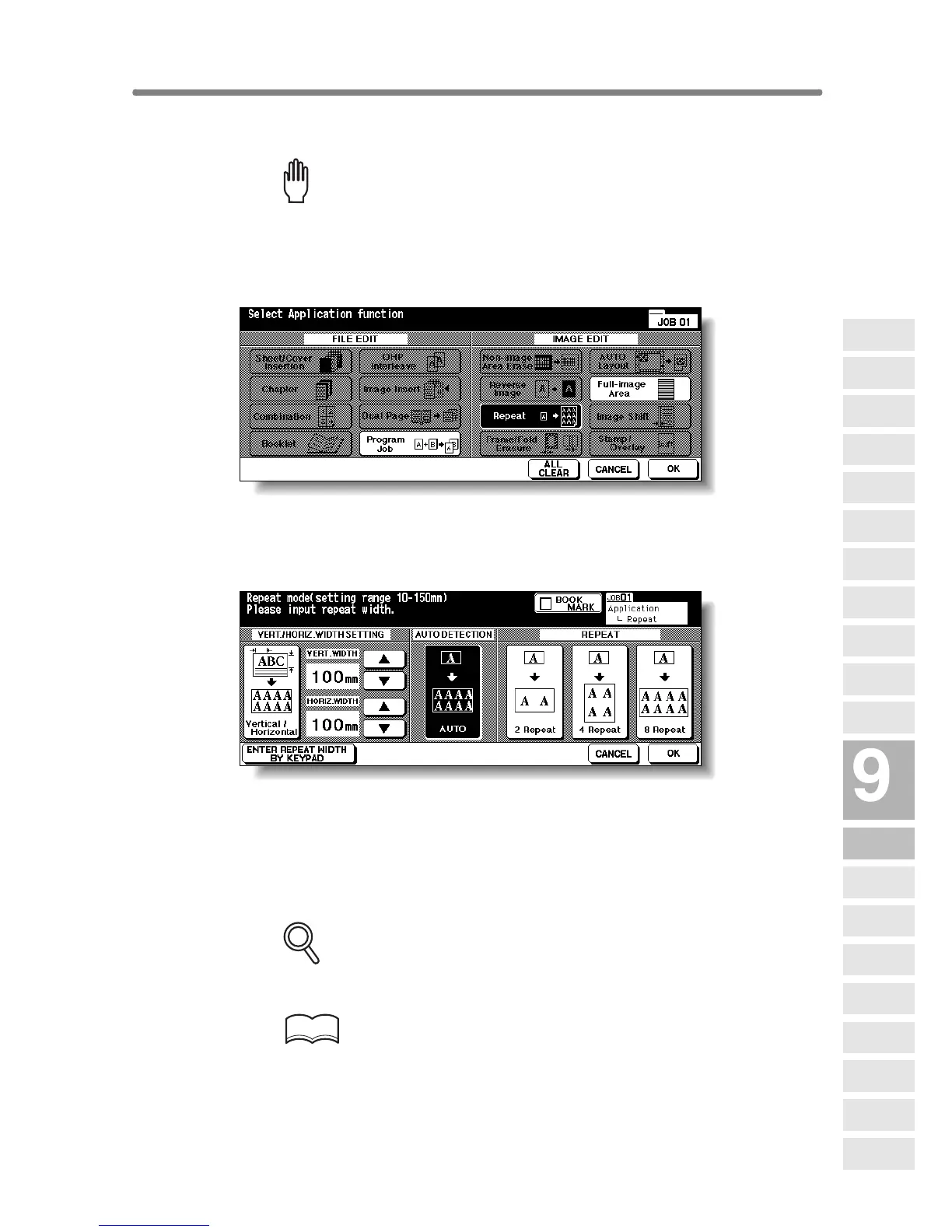
1. Touch APPLICATION on the Basic Screen.
Please Be Reminded!
When starting a new copying job, be sure to close the RADF securely,
then press [AUTO RESET].
2. Touch Repeat on the Application Selection Screen.
The Repeat Mode Selection Screen will be displayed.
3. Touch to highlight the desired mode key.
Touch AUTO to select the Auto Detection mode.
Touch 2 Repeat, 4 Repeat, or 8 Repeat to select the desired Repeat mode.
4. Touch OK.
The Application Selection Screen will be restored.
FOR DETAILS
Non-Image Area Erase is automatically selected on the Application
Selection Screen when AUTO mode is selected.
HINT
When 2 Repeat mode is selected, Page space function of Image Shift
can be used to make the desired amount of blank space between the
two images on a page. See p. 9-46 to p. 9-48.
Applications
Reverse
Image
Non-Image
Area Erase
Program Job
Dual Page
Image Insert
OHP
Interleave
Booklet
Combination
Chapter
Sheet/Cover
Insertion
Application
Selection Screen
Repeat
Frame/Fold
Erasure
AUTO
Layout
Full-Image
Area
Image Shift
Reduce &
Shift
Stamp
Overlay
Overlay
Memory










 To Next Page