Machine Configuration (continued)
2-15
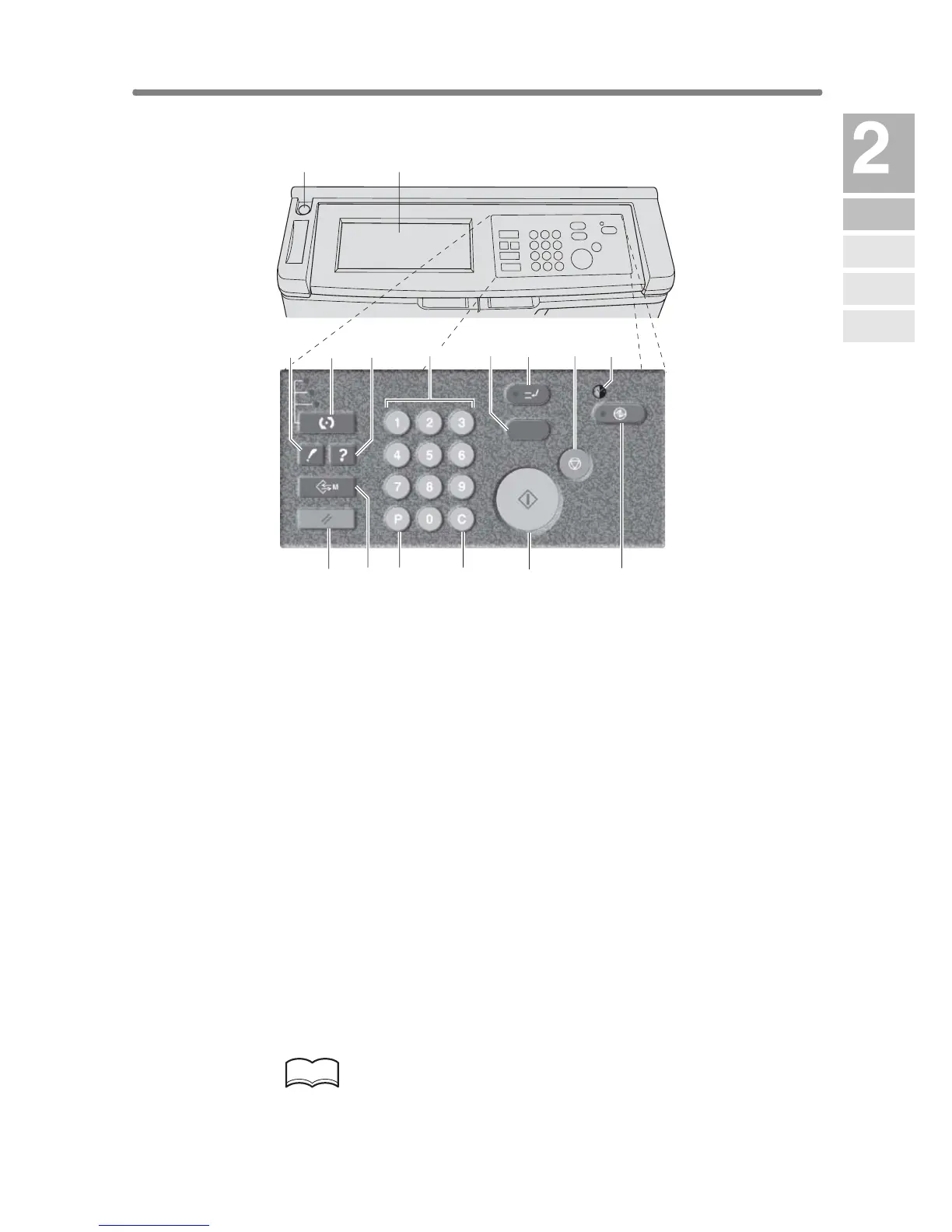
Control Panel Layout
1 Sub power switch turns copier power On/Off when pressed.
2 LCD TOUCH SCREEN displays machine and copying status, help information,
interactive screens, and touch keys for selecting all functions.
3 CHECK displays a screen showing all settings that are selected for the current
job.
4MODE switches the machine operation mode to copy, scan/server, and print.
5HELP displays a screen with help for the currently selected function, or to access
the Key Operator Mode Screen.
6KEYPAD enters numeric values.
7 PROOF COPY outputs a single set of copies to confirm whether the current
settings are selected properly.
8 INTERRUPT stops copying in progress to allow copying from the platen glass.
9STOP stops the copying sequence; deletes the stored memory.
10 TIMER lights when the timer function is set.
11 POWER SAVER ON/OFF
activates power-saving mode for times when the copier
is inactive, or activates Timer Interrupt mode when Weekly Timer function is active.
12 START activates copying or scanning.
13 CLEAR QTY. allows resetting of print quantity.
14 [P] (counter) displays the Counter Screen or accesses programming modes for
setting special functions.
15 JOB MEMORY displays screens for selecting job store/recall functions.
16 AUTO RESET restores copier to automatic mode settings or to Key Operator
settings.
HINT
The control panel of this machine can be slightly lowered to ensure easy
access by anyone, regardless of the physical or positional status of the
operator. Your authorized service representative can make this setting
for you.
COPY
SCAN / SERVER
PRINT
CHECK
HELP
JOB MEMORY
AUTO RESET
COUNTER
START
STOP
TIMER
CLEAR QTY.
PROOF COPY
POWER SAVER
ON / OFF
INTERRUPT
12
345 6 78 910
111213141516
Machine
Information
Machine
Configuration
Turn On/Off
the Power
Loading
Paper
Changing
Paper Size





 To Next Page