13-36
[10] Control Panel Adjustment
Use this feature to check the malfunction of the LCD touch screen due to the shift in
position of the touch sensor.
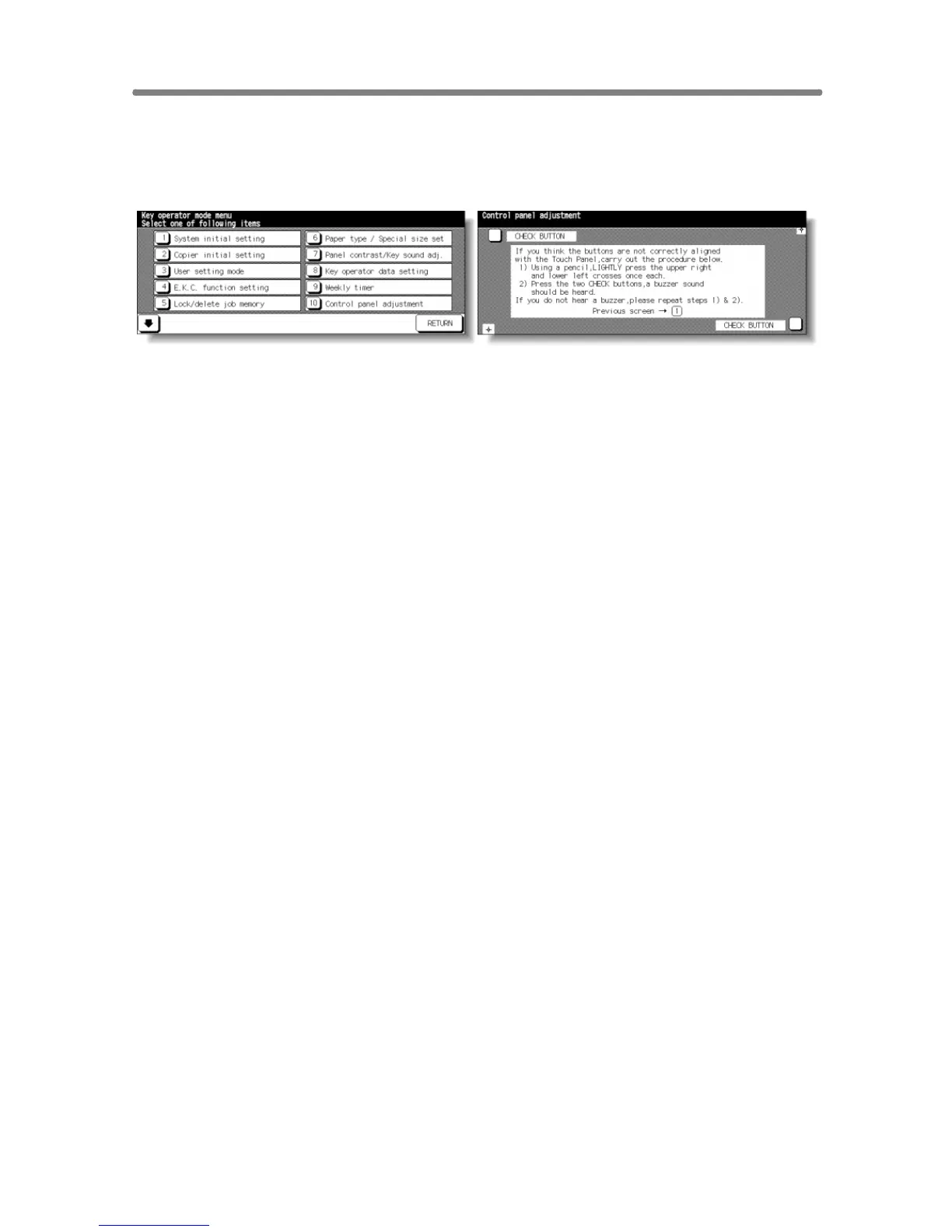
Key Operator Mode Screen Control Panel Adjustment Screen
Procedure
1 Touch [10] Control panel adjustment on the Key Operator Mode Screen to
display the Control Panel Adjustment Screen.
2 Touch the “+” indication at the upper right corner, then lower left corner on the
screen. The present coordinates will be displayed in the message area of the
screen.
NOTE:
When touching the “+” indications, it is recommended that you use a
sharp point such as a pencil to be much more accurate.
3 Check that the X coordinate and Y coordinate displayed in the first line of the
message area fall within the standard value displayed in the second line.
4 Touch the CHECK BUTTONs at the upper left and lower right corners on the
screen to check if the buzzer tone functions normally.
5 If the coordinates fall out of the range of the standard value in step 3, or the
buzzer tone does not sound in step 4, repeat the adjustment procedure from 2
to 4.
6 Press [1] to restore the Key Operator Mode Screen.
7 If no further changes are required, touch RETURN to restore the Basic Screen
to perform copying operations.










 To Next Page