Locating Title Pages on the Right Side (Chapter) (continued)
9-8
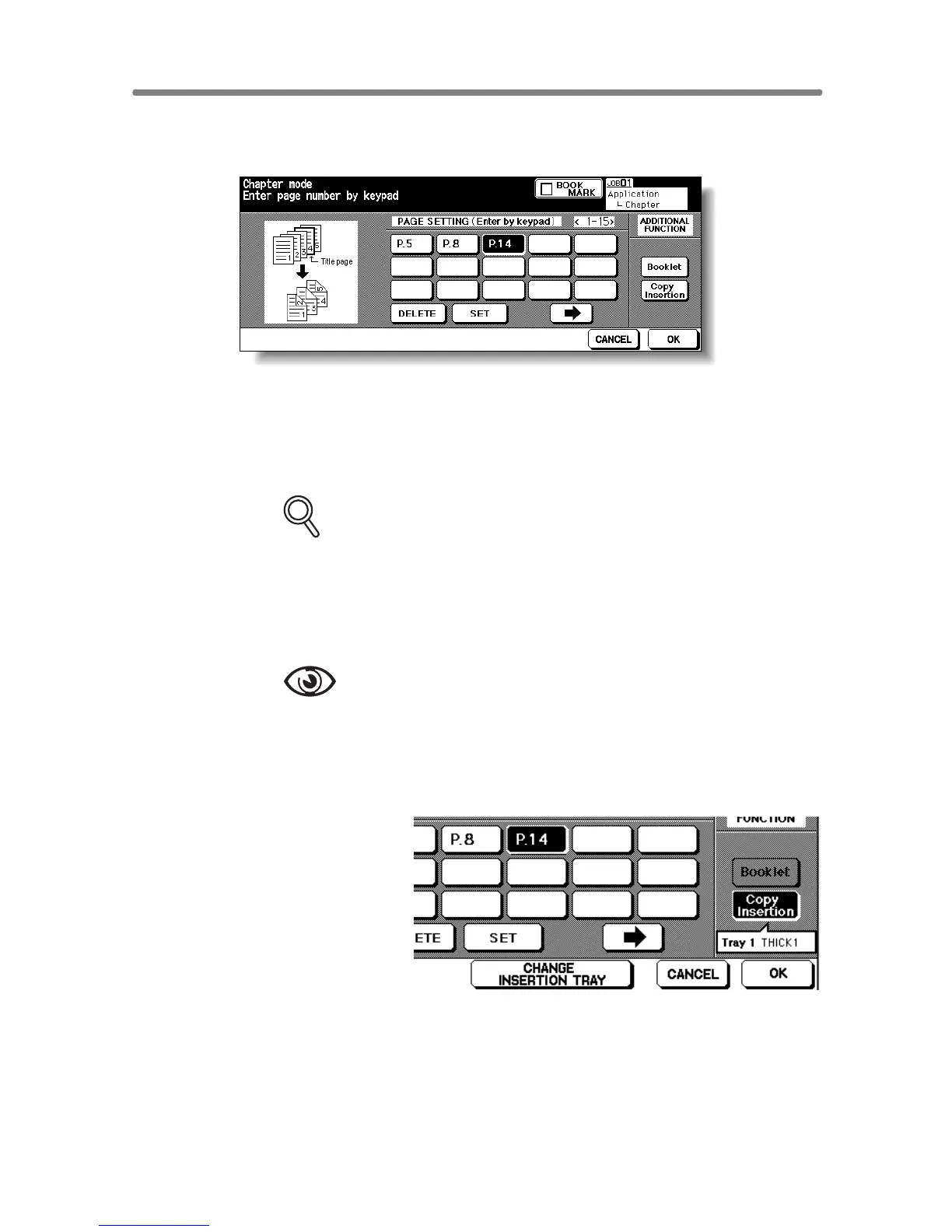
3. Use the control panel keypad to enter the page number of each
title page.
Touch SET after each entry to move to the next key.
When setting more than 15 locations, touch the arrow key to move to the next
page.
To clear an incorrect entry, touch DELETE. The entered number will be
deleted.
FOR DETAILS
• Entering “0” or the same page number twice will be ignored on the
screen.
• Chapter insertions occur in sequence even if original page numbers
are entered out of sequence.
• When a page number is larger than the total original page count,
insertion occurs as the last page of the document.
OPTION
Touch Booklet on the Chapter Insertion Setting No. Screen to use this
function.
To change the selection of paper tray for copying title pages, touch
Copy Insertion on the screen. In this case, you can touch CHANGE OF
THE INSERTION TRAY to change the currently selected paper tray dis-
played on the screen.
4. When all entries are made, touch OK.
The Application Selection Screen will be restored.
5. Touch OK on the Application Selection Screen.
The Basic Screen will be restored.











 To Next Page