Machine Configuration (continued)
2-17
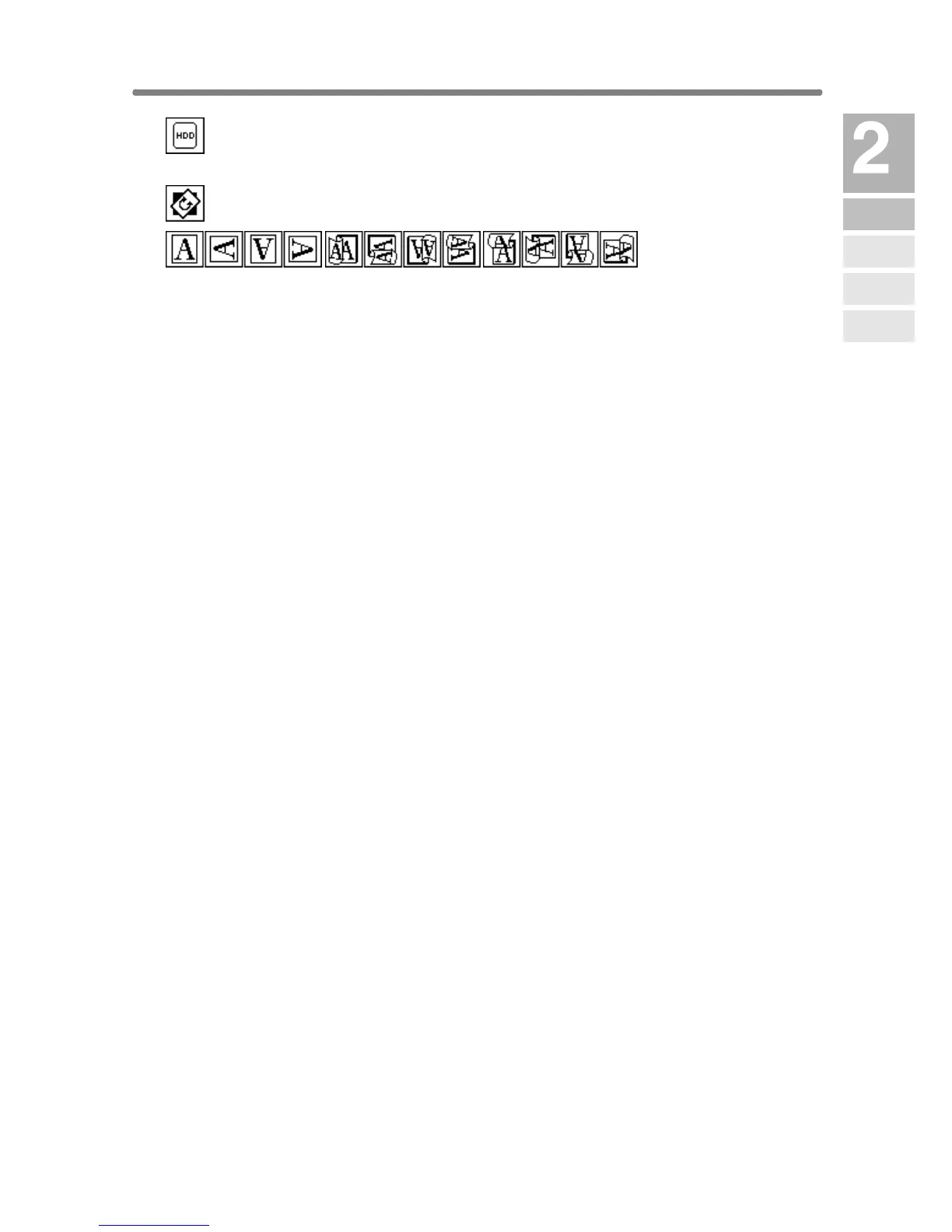
: HDD icon is displayed when using Image Store & Output mode of
Server function.
: Rotation icon is displayed when Rotation automatically functions.
:
Original direction icon
indicates the original direction specified on the
Special Original popup menu.
7 PAPER TYPE/SIZE key is touched to specify the type and size of the
paper loaded in the Multi-sheet bypass tray.
8 Count/Set indicator indicates the print quantity entered from the control
panel keypad, and also indicates the print count on the left of the set
count while printing.
9 Memory indicator indicates the remaining memory available for the next
operation.
10 STATUS key is touched to view the current job status, to change the
printing order of reserve jobs, or to cancel printing a reserve job.
11 SPECIAL ORIGINAL key is touched to specify the condition of originals
to be scanned.
12 APPLICATION key is touched to select various application functions.
13 ROTATION OFF key is touched to release the Rotation function.
14 STORE key is touched to store scanned images into memory.
15 Paper size area is used to select the desired paper size or APS.
16 Lens mode area is used to select the desired magnification ratio.
17 Copy density area is used to specify the desired exposure level.
18 Copy mode area is used to select the copy mode (1-1, 1-2, 2-1, or 2-2).
19 Output mode keys are used to specify the desired output mode.
20 Output icon area displays the appropriate output icon according to the
selected output mode.
Machine
Information
Machine
Configuration
Turn On/Off
the Power
Loading
Paper
Changing
Paper Size










 To Next Page