Setting Job During Warm-up (continued)
3-8
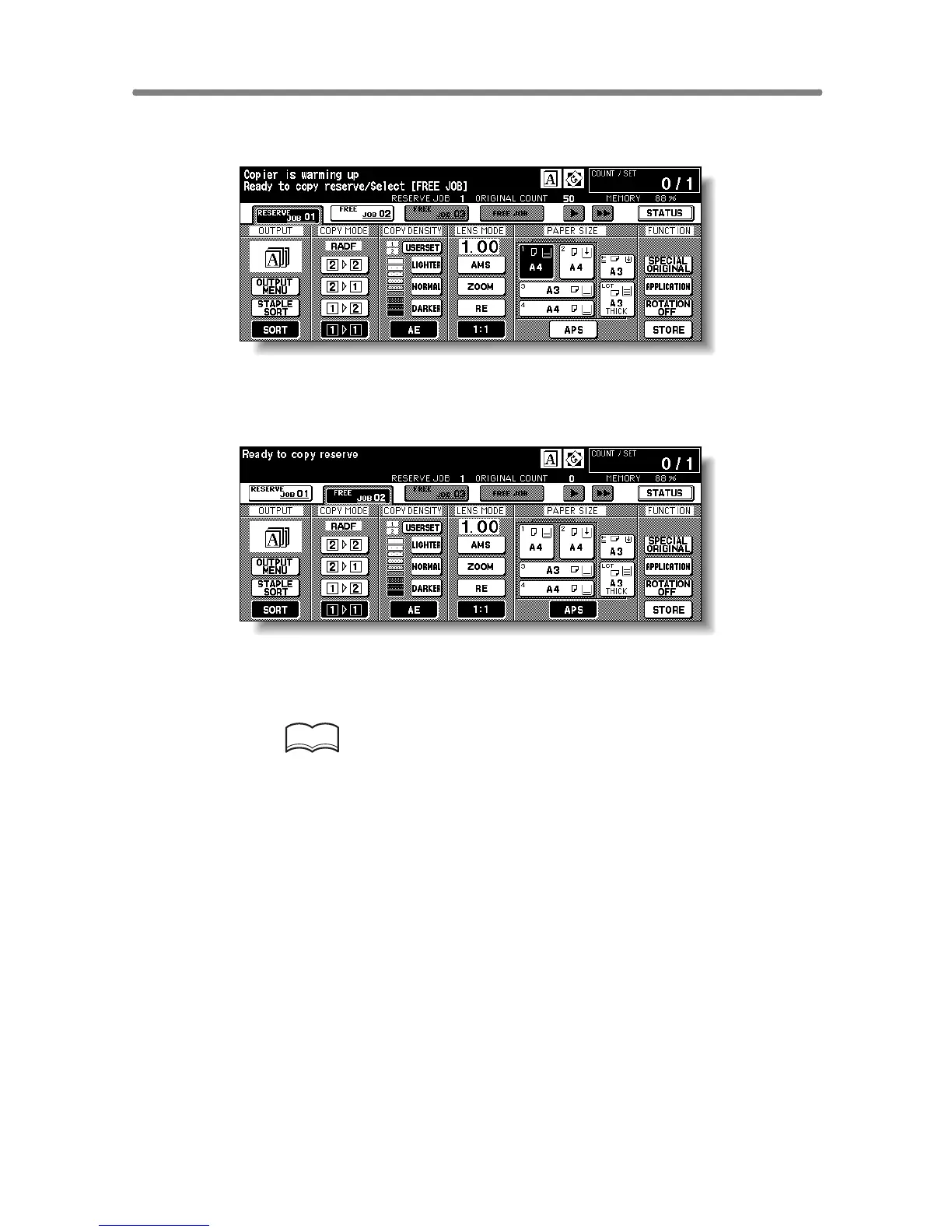
When scanning is completed, the highlighted FREE JOB folder key will
change to RESERVE JOB, and the next FREE JOB becomes active.
6. If setting more than one reserve job, touch the next FREE JOB to
highlight it.
Repeat step 3 to 5. Up to 10 reserve jobs can be prepared.
Copying on the reserve job will start automatically after completing the warm-
up.
HINTS
• To set the fourth reserve job, touch the arrow key on the far right in
the Folder key area to display succeeding folder keys. See p. 3-35 ~
p. 3-37.
• To stop printing, press [STOP]. See p. 3-9 for details.
• The Job Status Screen allows you to alter the output order of the
reserve jobs or to delete the reserve job. See p. 3-38 ~ p. 3-40.










 To Next Page