Page | 102
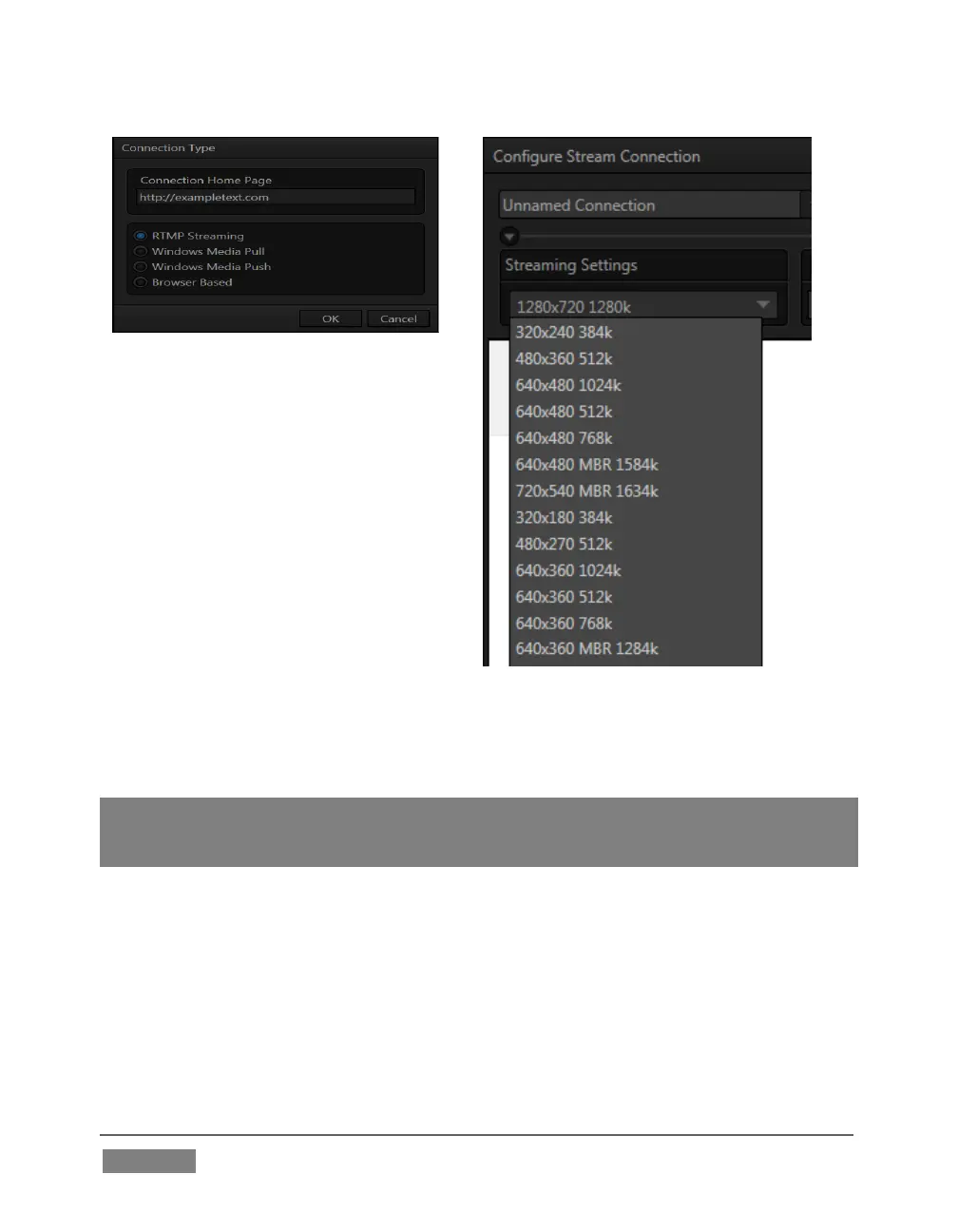
2. Select Windows Media Pull, click
OK, and then supply a name for
this Connection preset.
3. The next thing to do is to choose
a streaming profile that
provides a suitable resolution
and bitrate from the Resolution
menu (Figure 90).
4. Click the Test button.
In a few moments, TriCaster displays the IP (Internet Protocol) address of your
computer as viewed from the network. This information is provided as a ‘punctuated’
numeric value in the Location display field.
Hint: If your TriCaster is connected to the network by a router or is behind a firewall, it may
be necessary to take further steps to provide external access. See Chapter 18, Streaming
for a more elaborate explanation.
5. Close the Configure Stream Connection panel now, and click the Stream button.
You’re streaming! You can provide clients (or streaming providers supporting Pull
streaming) the Location address. Entering this into the File menu of Windows Media
Player® (using the Open URL window) will direct WMP to show the stream from your
system on client computer system(s) connected to the Internet (or intranet).









 To Next Page