Page | 114
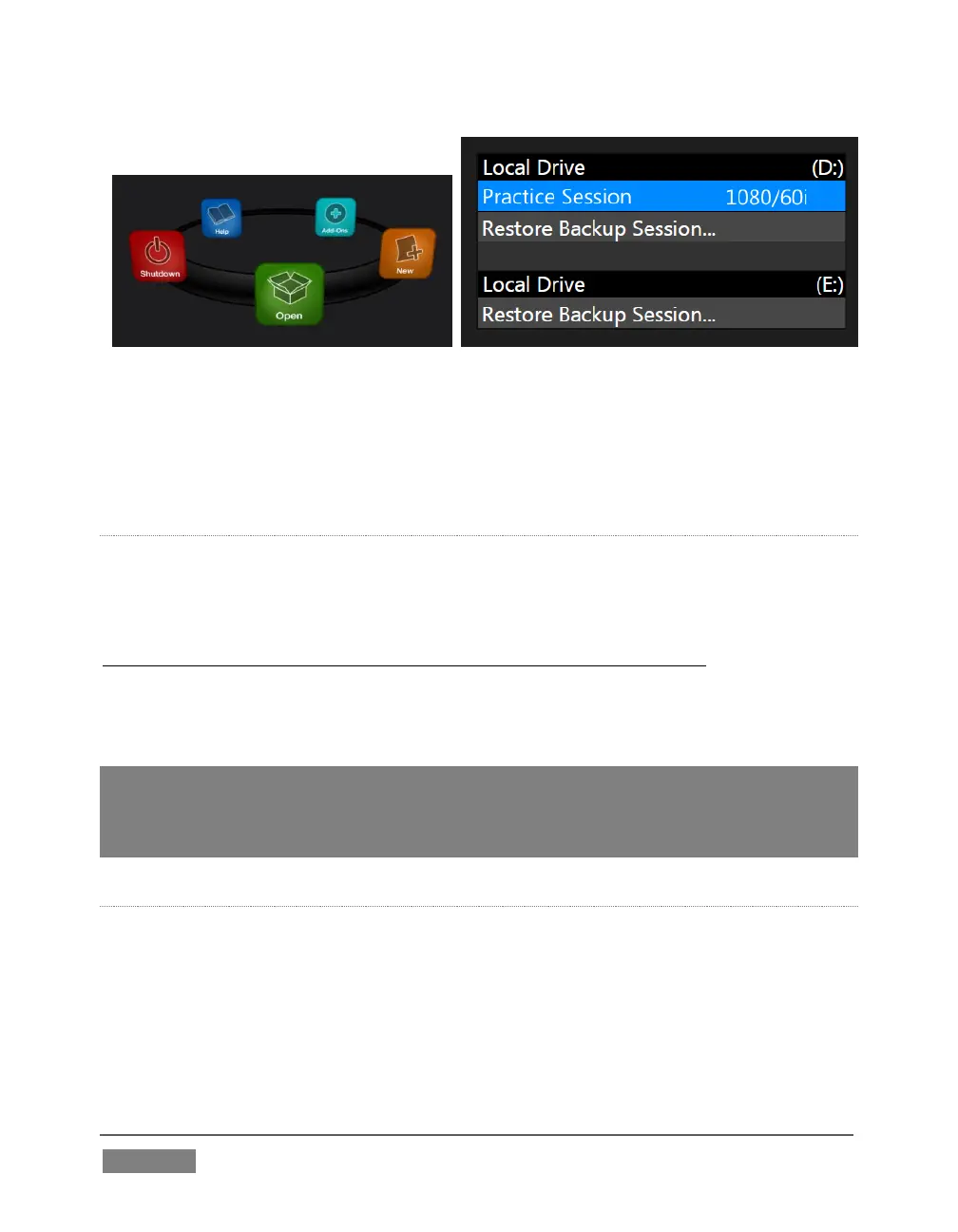
Available sessions are grouped under the names of the storage volume they are
located on (Figure 97). The listing shows the Session Name and Format for each
session. Let’s look at the Sessions List briefly before we open a session.
CONTEXT MENU
Right-click a session name to open a context menu with two items listed in it: Rename
and Delete. Be aware that the Delete function should be used thoughtfully, as it cannot
be undone.
All content stored in the named session’s folders will be deleted, including clips,
images and titles, and even LiveText title project files created within the session
(unless you have deliberately saved the projects and related files to locations outside
the session folders).
Note: Content that is not local to the session but which was used in it is not deleted. For
example, you may have added still images to your playlist directly from a USB thumb-drive,
doing so without actually importing the files into the session. Those external files will not
be deleted.
RESTORE SESSION BACKUP
In another section of the Startup Screen (Session Page>Manage) there is a feature that
allows you to back up the current session to another storage volume.
The Restore Session Backup link at the bottom of the Session List (for each drive) is
provided to compliment this feature. To restore a session you have previously
archived, click Restore Session Backup (Figure 98), and use the file explorer provided
to select a .SessionBackup file.









 To Next Page