Page | 237
If the source assigned to input A is fully opaque, any content in the layers below is
hidden. Or if input A is at least partially transparent, the source assigned to input B is
blended into the M/E background layer, and so on.
Hint: Don’t overlook the fact that the input Position controls allow you to create more
elaborate compositions even with these simple compositing effects.
The output of any active Key layers is then added to the effect output before passing
the combined result onward to the final M/E output.
ADVANCED TRACKER (TRICASTER 8000)
As we mentioned, effects can be ‘simple’ compositing effects, like most of the Default
group, or more advanced. Before considering TriCaster’s virtual set system (a.k.a,
LiveSet™), let’s talk about some of the other effect types.
Effects can vary widely in their types, from relatively simple utilities effects to image
processing or advanced compositing effects.
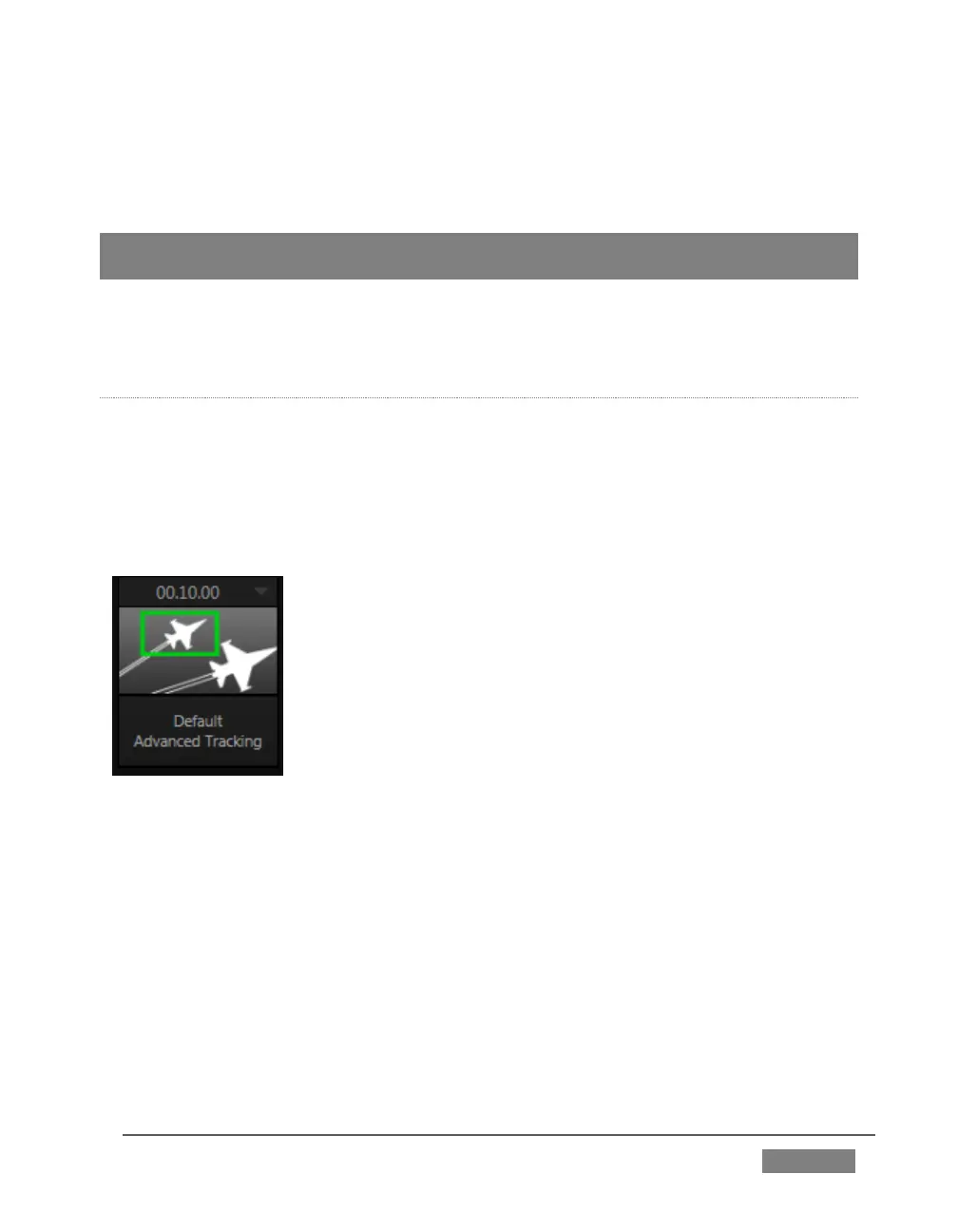
For example, we mentioned that one member of the Default
group is unique.
The Advanced Tracking effect takes three video sources as input
to produce a result that would otherwise require the use of an
additional M/E.
Set up this effect as follows:
1. Click the label above the Effect icon, and use the Media
Browser to select the Advanced Tracking effect from the
Default group.
2. Add the clip named Kiki Track Rectangle.mov (NewTek
location, Green Screen group) to the playlist for DDR 1.
3. Enable Single and Loop modes for DDR 1.
4. Add the clip named “Bumper Cars.mov” (Samples group) to DDR 2, set it to
Single and Loop as well.









 To Next Page