Page | 241
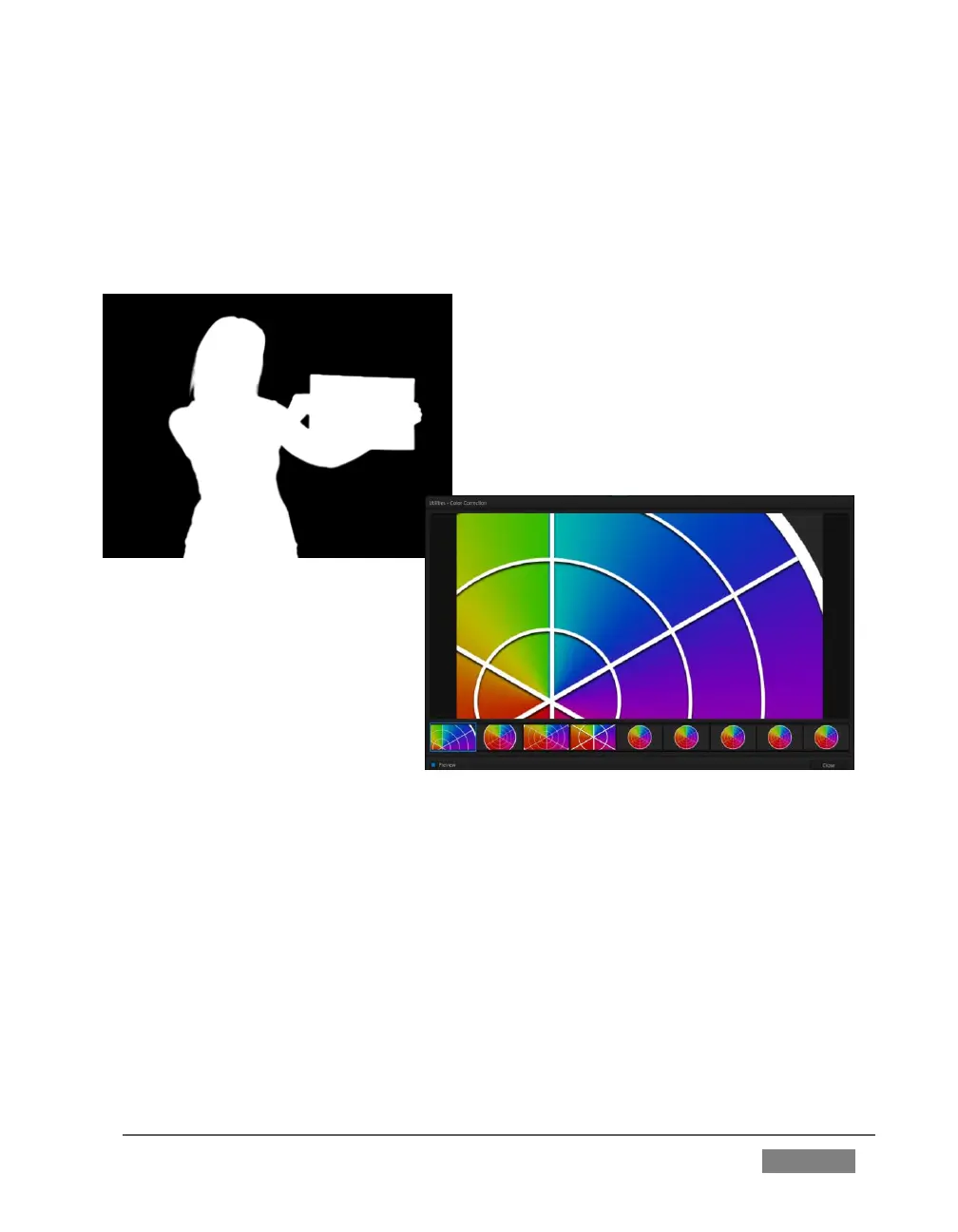
Applying this effect immediately causes the display on the Program monitor update,
showing the content of the alpha channel for input A (Input B is ignored).
The current input A source is keyed, so the effect displays black on Program out
reveals wherever transparency exists in the foreground, white for full opacity, and
shades of gray for in-between blends.
With this in mind, it won’t be hard to guess
what Show Inverse Alpha does. In contrast,
the Show Color effect in this group passes
the full color output of LiveMatte prior to
being multiplied by the alpha channel.
(It might seem as though this would be
identical to the original source, but you may
notice subtle differences. This is
because of the Spill Suppression
processing.)
Let’s look at another of the effects in the Utilities group, Color
Correction. Replace the current effect with the Color Correction
effect (again, click the Effect label above the icon to open the Media Browser).
You’ll notice that M/E 1’s output on the Program monitor is now rendered in
monochromatic grayscale. Move the mouse pointer over the effect’s icon, and click
the gear button that pops up.
This opens the effect’s Shot Editor.









 To Next Page