General Setup and Operation
BD Alaris
TM
System with Guardrails
TM
Suite MX User Manual 29
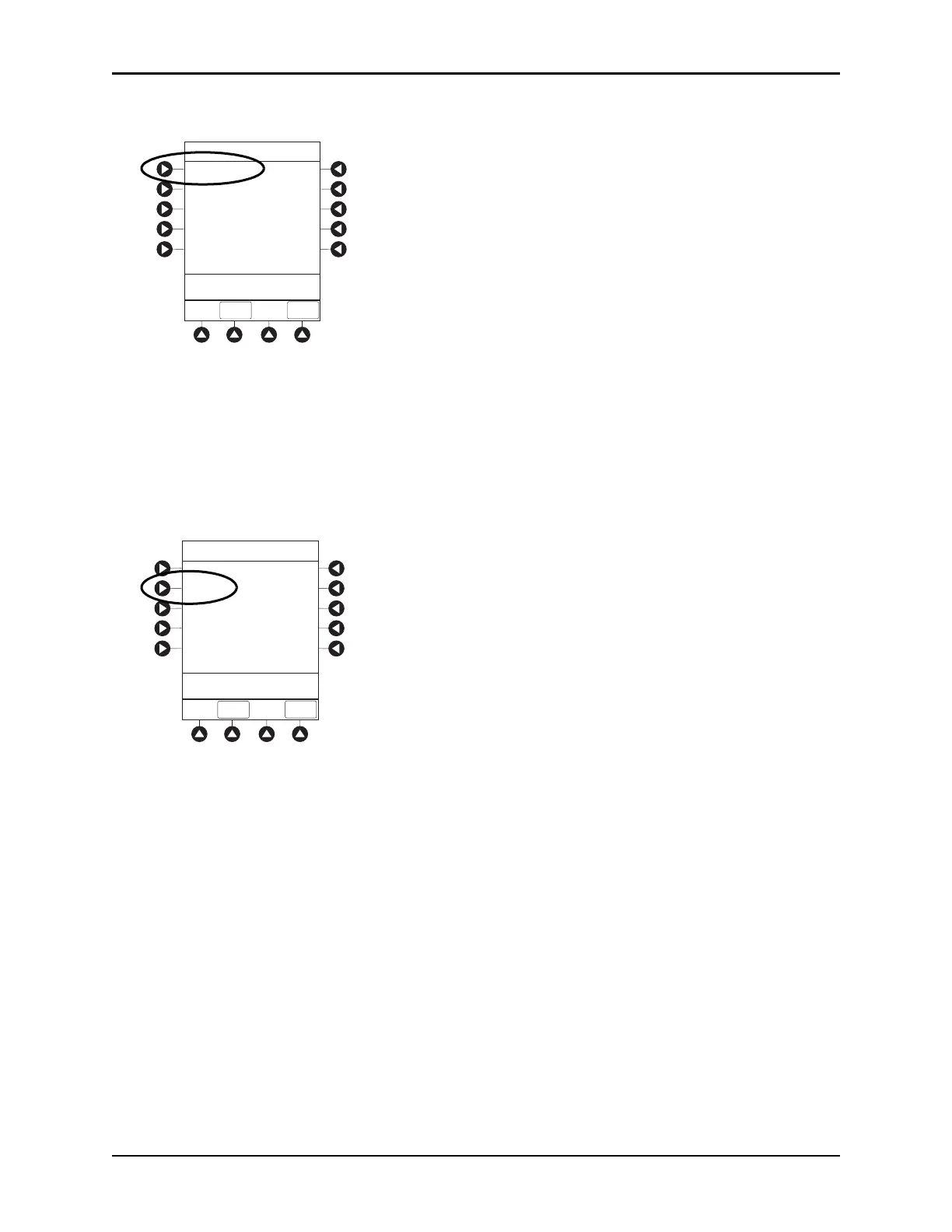
2. Press the Display Contrast soft key.
3. Adjust the display and return to the main screen (see Adjusting Display Contrast on page 22 for the
procedure).
Patient ID
Entering Patient ID
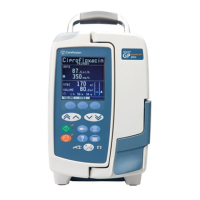
1. Press the OPTIONS key.
2. Press
Patient ID soft key.
3. Scan or manually enter patient identifier:
• To manually enter patient identifier, use numeric data ent
ry keys and/or alpha speed keys.
°
An alphanumeric identifier, of up to 16 characters, can be entered.
°
Press soft key next to a letter group to list letters in that group. Press soft key next to an
individual letter to enter that letter.
°
To access letter “Z” and special characters (hyphen, underscore, space), press the PAGE DOWN
soft key.
°
To clear an entire entry, press the CLEAR key.
°
To back up a single character at a time, press the CANCEL key.
• To scan the barcode on the patient identification band, see Alaris™ Auto
-ID Module Model 8600
on page 309 for more information.
>Select an Option or
EXIT
PAGE
DOWN
EXIT
Display Contrast
Clinician ID
Power Down All Channels
Anesthesia Mode
Patient ID
System Options 1 of 3
>Select an Option or
EXIT
PAGE
DOWN
EXIT
Display Contrast
Clinician ID
Power Down All Channels
Anesthesia Mode
Patient ID
System Options 1 of 3



 To Next Page