Chapter 2—BD Alaris™ PCU Model 8015 and Alaris™ PCU Model 8015
46 BD Alaris
TM
System with Guardrails
TM
Suite MX User Manual
Wireless Connection
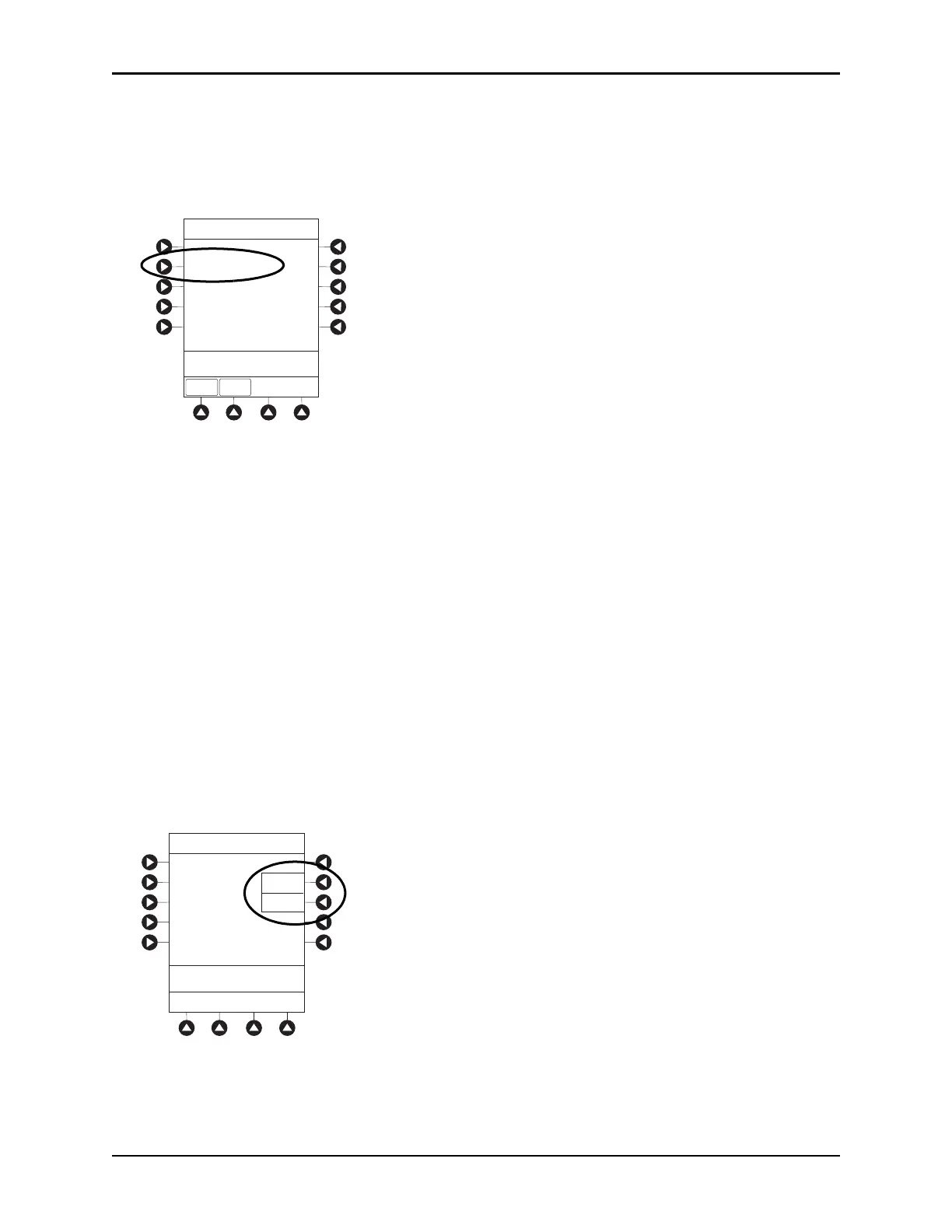
1. Press the OPTIONS key.
2. Press the PAGE DOWN soft key two times.
3. Press the
Wireless Connection soft key.
If the Wireless Connection soft key is inactive (grayed out), the PCU has the following configuration:
• The system maintenance software was us
ed to disable wireless connection.
• The CF card flashing process was done without the programming of the p
roper AppConfig file
(v9.12 or later). For more information, refer to the BD Alaris
TM
PC Unit Model 8015 and Alaris
TM
PC Unit Model 8015 Software and Hardware Upgrade Instructions.
• A network configuration was never transferred.
To
enable wireless connection, use system maintenance software. Send the PCU to
the biomedical
department to resolve wireless connectivity issues.
4. Wireless connection can be disa
bled or enabled:
• To disable wireless communication,
press the Disable soft key.
°
If wireless connection is disabled, it remains disabled until PCU is powered off. The setting
defaults to
Enable when the PCU is powered back on.
°
System maintenance software instructions also include a procedure on how to disable a
wireless RF card on a PCU being used in a non-wireless environment. Wireless connection
remains disabled until system maintenance is used to enable it.
• To enable wireless connection, press the
Enable soft key.
System Options 3 of 3
>Select an Option or
EXIT
EXIT
Network Status
Maintenance Due Yes
Wireless Connection
Data Set Status
PAGE UP
System Options
Wireless
Connection
Disable
Enable
>Press ENABLE or
DISABLE



 To Next Page