General Setup and Operation
BD Alaris
TM
System with Guardrails
TM
Suite MX User Manual 43
Viewing Network Status
The displayed status updates immediately when a status change takes place.
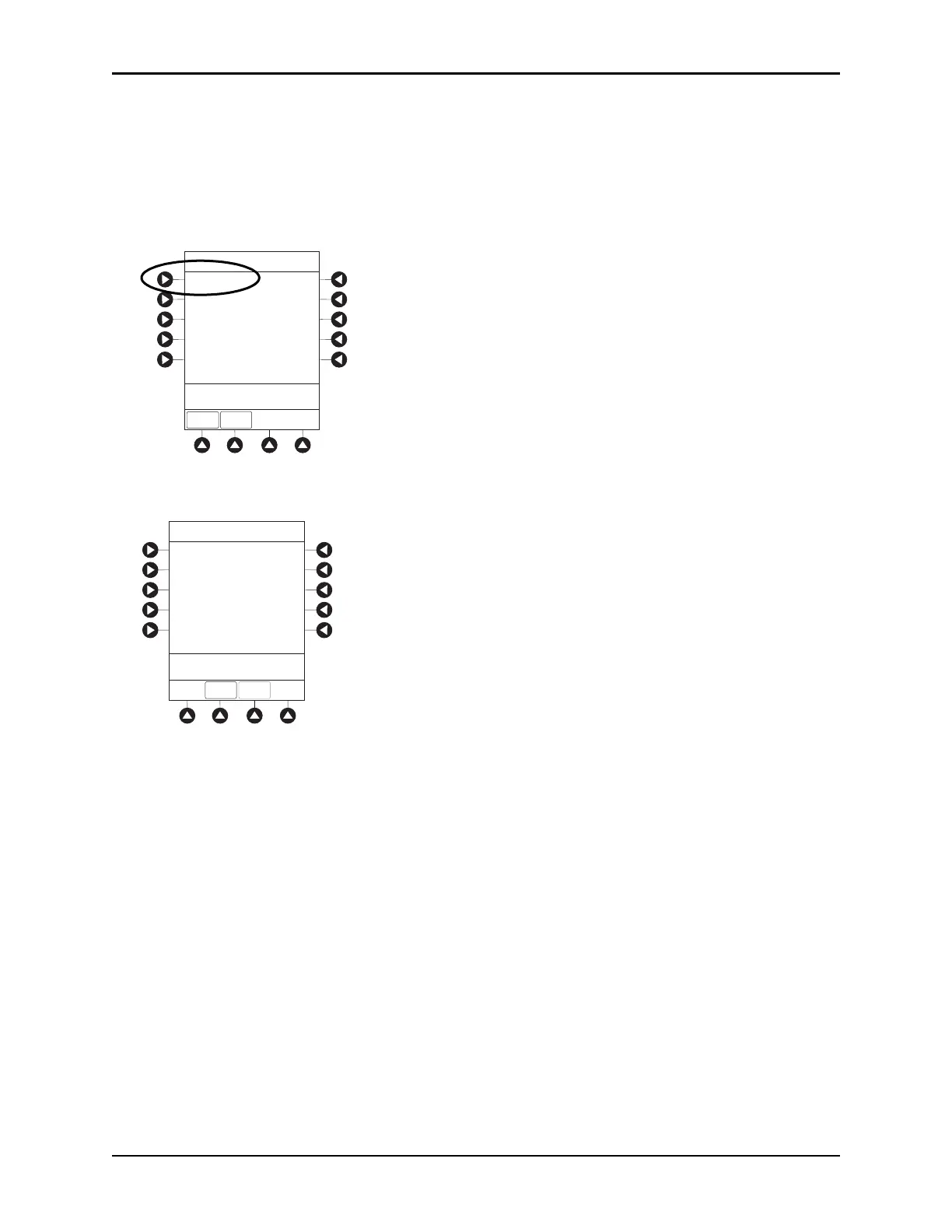
1. Press the
OPTIONS key.
2. Press the
PAGE DOWN soft key two times.
3. To view network status and wireless status information, press the
Network Status soft key.
4. Enter the password (refer to BD Alaris System Maintenance Software User Manual) and press the
CONFIRM soft key.
• Information based on a wireless status of DISABLED, DISASSOCIATED, CONFIGURING,
ASSOCIATING, ASSOCIATED, or AUTHENTICATING is displayed.
• If wireless status is
ASSOCIATED, the following information is displayed:
°
Wireless connectivity: SSID, Channel, Authentication, and Encryption types being used;
BSSID—MAC address of access point that system is connected to; Speed—transfer rate up to
11 Mbps for 802.11b, 54 Mbps for 802.11a or 802.11b/g and 72 Mbps for 802.11a/b/g/n.
°
Link Quality—a minimum of 20% recommended for good wireless connectivity.
°
Signal Strength—
greater than 20% recommended
for good wireless connectivity.
System Options 3 of 3
>Select an Option or
EXIT
EXIT
Network Status
Maintenance Due Yes
Wireless Connection
Data Set Status
PAGE UP
Viewing Network Status
is only to be used by
qualified personnel.
* _ _ _ _
System Options
EXIT
CONFIRM
>Enter Password or
EXIT



 To Next Page