11 Setups
328
Setups
11
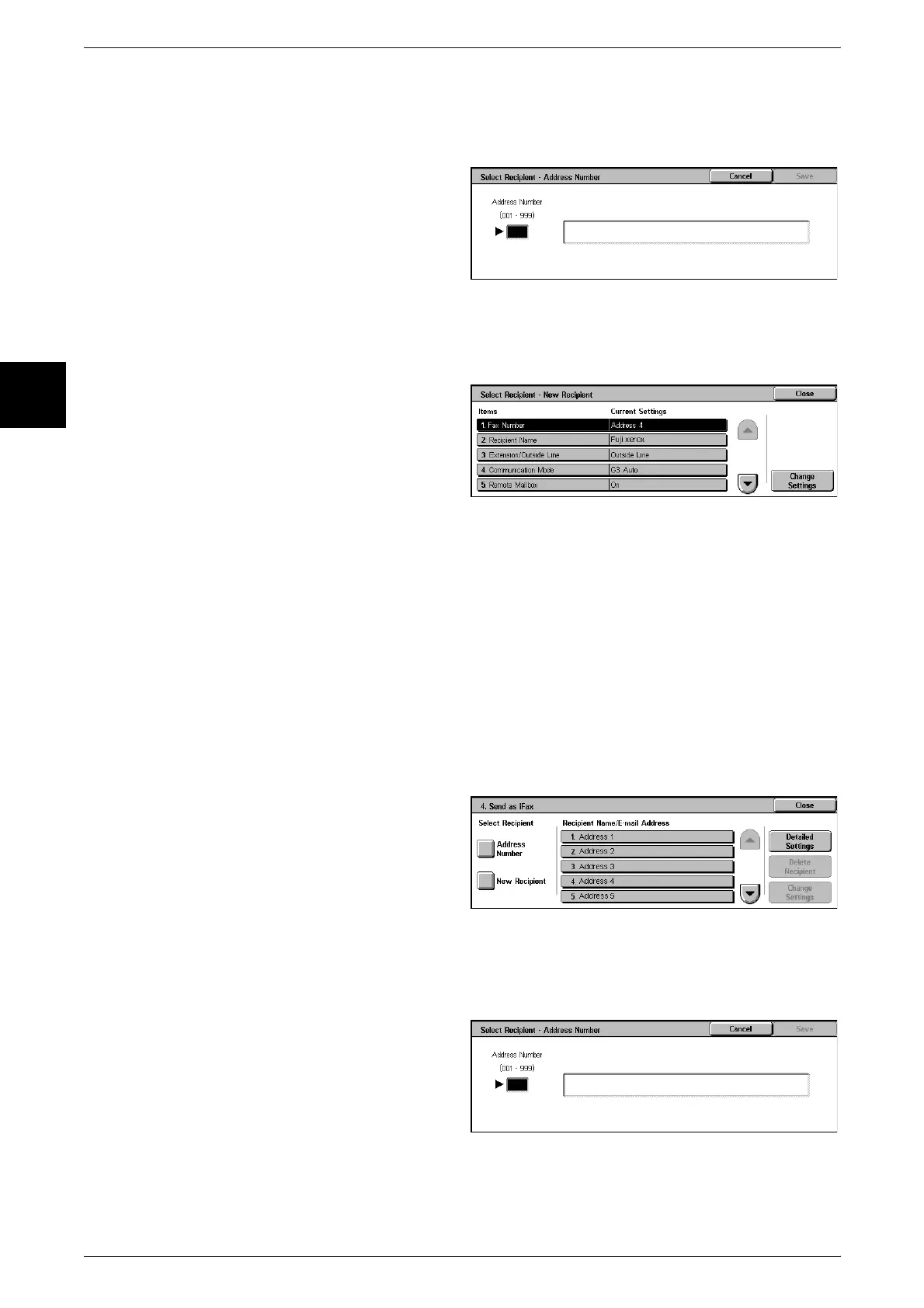
Address Number
Specify the address with an address book number. The specified address appears in
[Recipient/Fax Number] in the [3. Send as Fax] screen.
1 Enter an address book number
with the numeric keypad, and
select [Save].
New Recipient
Specify a new address. The specified address appears in [Recipient/Fax Number] in
the [3. Send as Fax] screen.
1 Select the item you want to
change, and select [Change
Settings] to set.
Delete Recipient
This deletes all information for the selected addresses.
Change Settings
You can confirm or change a selected address.
For information about the method for confirm/change, refer to "Address Book" (P.334).
Send as iFax
Specify an address for iFax transmission.
You can specify a total of up to 100 addresses, using either already registered address
book numbers or direct input.
Important • It is not possible to use wildcard or group number specifications.
Address Number
Specify an address by an address book number. The specified address appears in
[Recipient Name/E-mail Address] in the [4. Send as iFax] screen.
1 Enter the address book number
with the numeric keypad, and
select [Save].












 To Next Page