Making Double-Sided Copy (1-2, 2-2) (continued)
3-25
FOR DETAILS
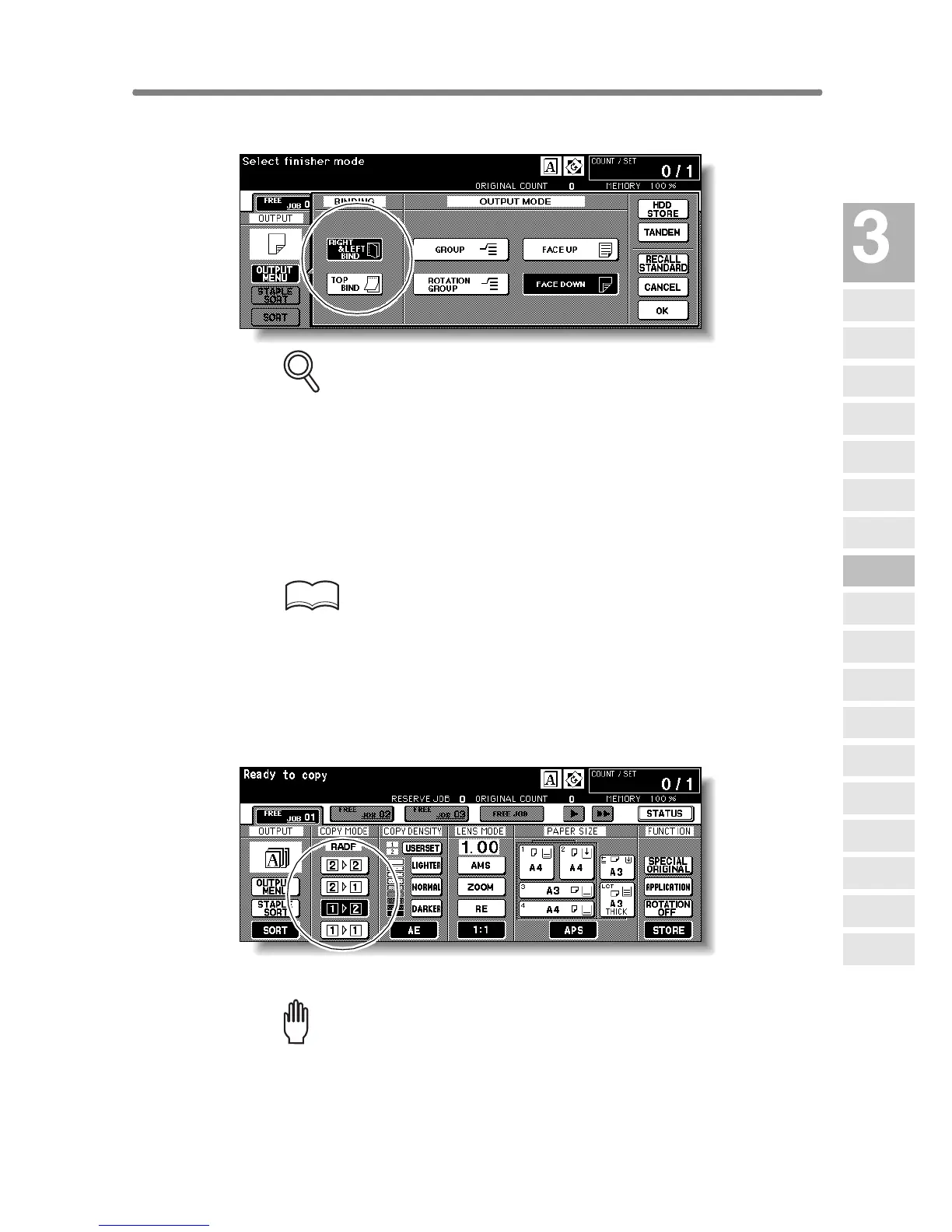
Selecting TOP BIND will make copies upside down on the reverse side,
while RIGHT&LEFT BIND copies normally.
Touch OK to return to the Basic Screen.
3. Position original FACE DOWN on the platen glass according to the
original direction specified in step 1.
Be sure to start from the first page.
HINTS
• See p. 11-8 for paper sizes detectable on the platen glass.
• See p. 3-5 for details on positioning originals.
• Use Non-Image Area Erase to prevent the black copy mark to be
produced when scanning the original with the document feeder open.
See p. 9-29 to p. 9-30.
4. Touch 1-2 on the Basic Screen to highlight it.
The STORE key will be automatically highlighted on the screen.
Please Be Reminded!
DO NOT press [AUTO RESET] at this point, otherwise the platen mode
will be released to disable the copier from scanning the original placed
on the platen glass.
Output Mode popup menu without Finisher
Copying
Operations
Positioning
Originals
Setting Print
Quantity
Set Job During
Warmup
Stop
Scan/Print
Paper Size
Lens Mode
Density
1-1, 2-2
2-1
Multi-Sheet
Bypass Tray
Using
Memory
Output without
Finisher
Finisher
Output Mode
Binding
Mode
Shift Tray
Output Mode
Recalling
Previous Job
Check Mode
& Proof Copy
Interrupt
Mode










 To Next Page