Page | 165
ADJUSTING TOLERANCE
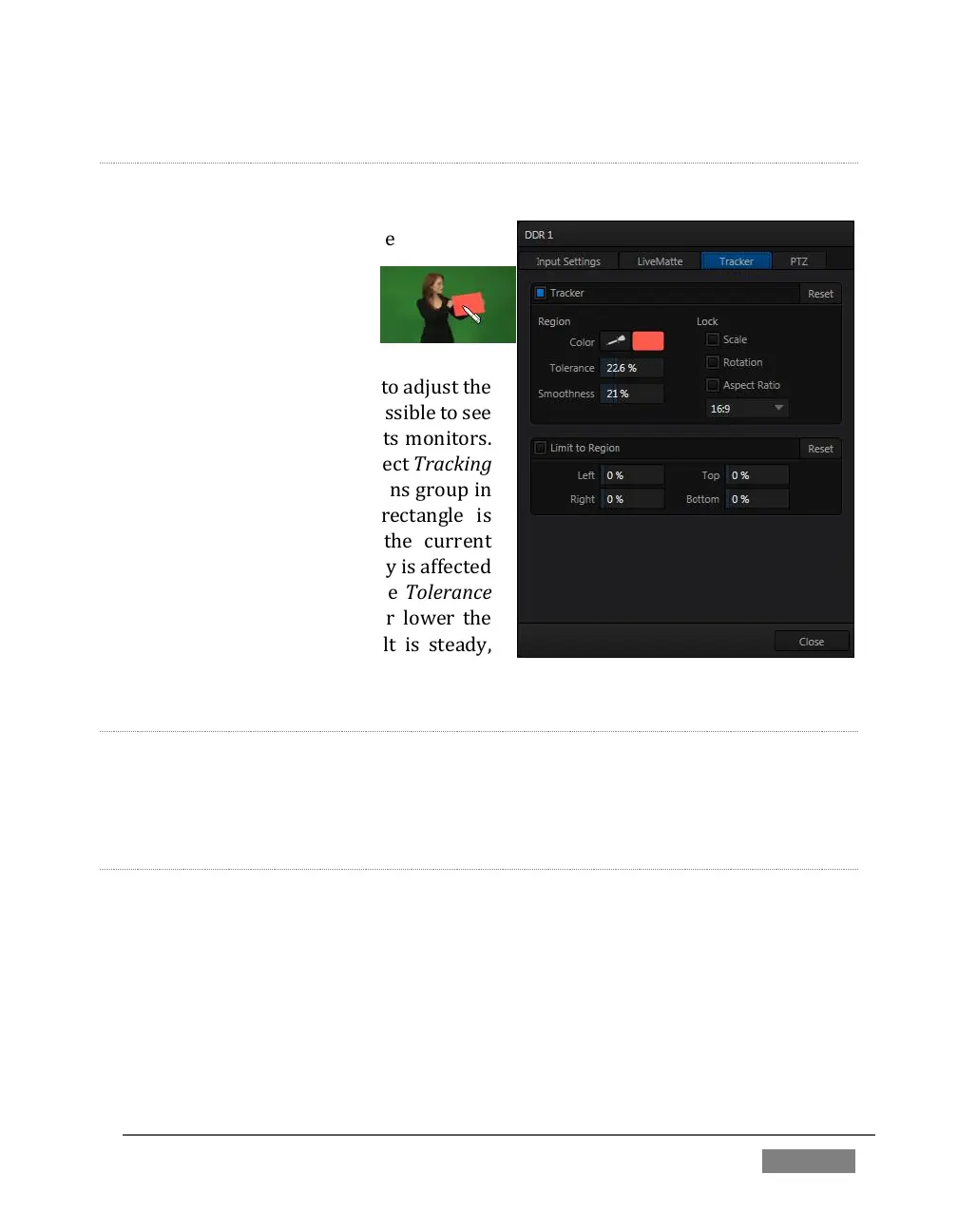
Click the eyedropper, keep the mouse button depressed, and drag the pointer over
top of the monitor showing the source you
want to track (Figure 140). The
color swatch updates
constantly as you drag, until
you release the button to
make a selection.
TriCaster makes it easy for you to adjust the
Tracker settings by making it possible to see
the result of your attempts in its monitors.
Right-click on a monitor and select Tracking
Markers from the Overlays options group in
the menu. A yellow-shaded rectangle is
overlaid on the video using the current
settings. Watch how this overlay is affected
by adjustments you make to the Tolerance
value for the Tracker. Raise or lower the
Tolerance value until the result is steady,
not jittering or jumping about.
SMOOTHNESS
The Smoothness setting works just like the LiveMatte feature with the same name. Its
impact on tracking data output is minimal, but it is often important when used with
the Advanced Tracking effect in M/E panels (see Section 14.2.2).
LOCK
At right are controls that permit you to Lock certain Tracker attributes (Figure 141):
FIGURE 140 (TriCaster 8000 Shown)









 To Next Page