Page | 82
SINGLE AND AUTOPLAY
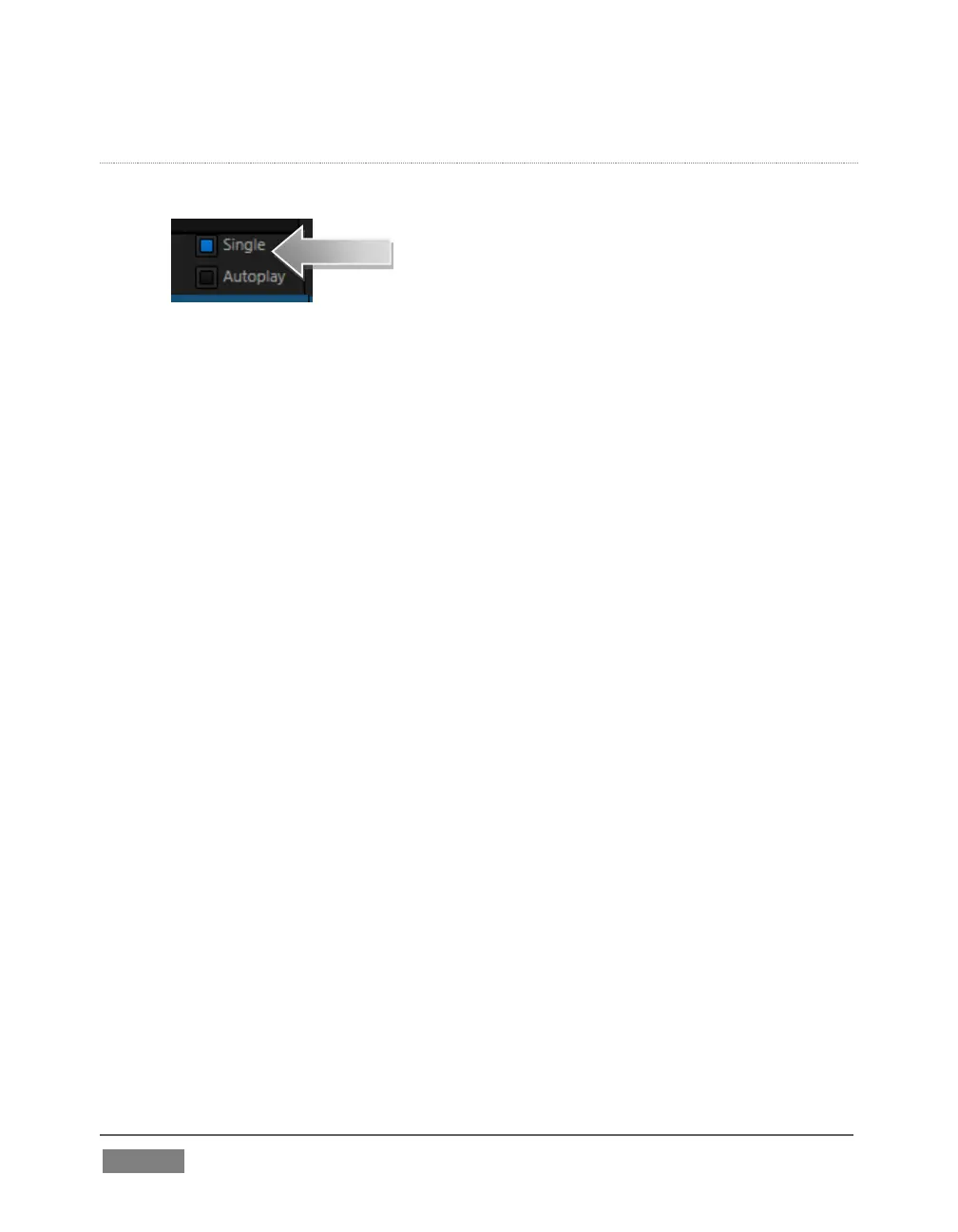
9. Click the Single switch (Figure 70).
FIGURE 70
10. Double-click the first clip in DDR 1’s playlist to play it (double-clicking is
another way to engage Play). With Single mode engaged, playback
automatically stops at the end of the current clip.
11. Select Camera 1 on the Switcher’s Preview row (DDR 1 is already selected on
the Program row).
12. Enable the Autoplay switch for DDR 1.
13. Play the first clip in the playlist again. This time, just as the clip approaches
its end, the Switcher automatically performs a transition (the sources on
Program and Preview are automatically swapped), leaving Camera 1 on
Program output.
14. After a few moments, click either Take or Transition in the Switcher’s
Transition section.
Notice that a transition is performed (returning DDR 1 from Preview to Program) and,
more importantly, the next item in the playlist begins to roll automatically. When it
ends, another automatic transition occurs, restoring Camera 1 to Program output.
Let’s try Autoplay without Single mode:
15. Click Stop (if necessary).
16. Uncheck Single, leaving Autoplay engaged.
17. With DDR 1 on Program, and Camera 1 on Preview, highlight a fairly long clip
(say, a minute or more).









 To Next Page