3.5
Date Code 20130214 Instruction Manual SEL-2414 Transformer Monitor
Getting Started
ACSELERATOR QuickSet
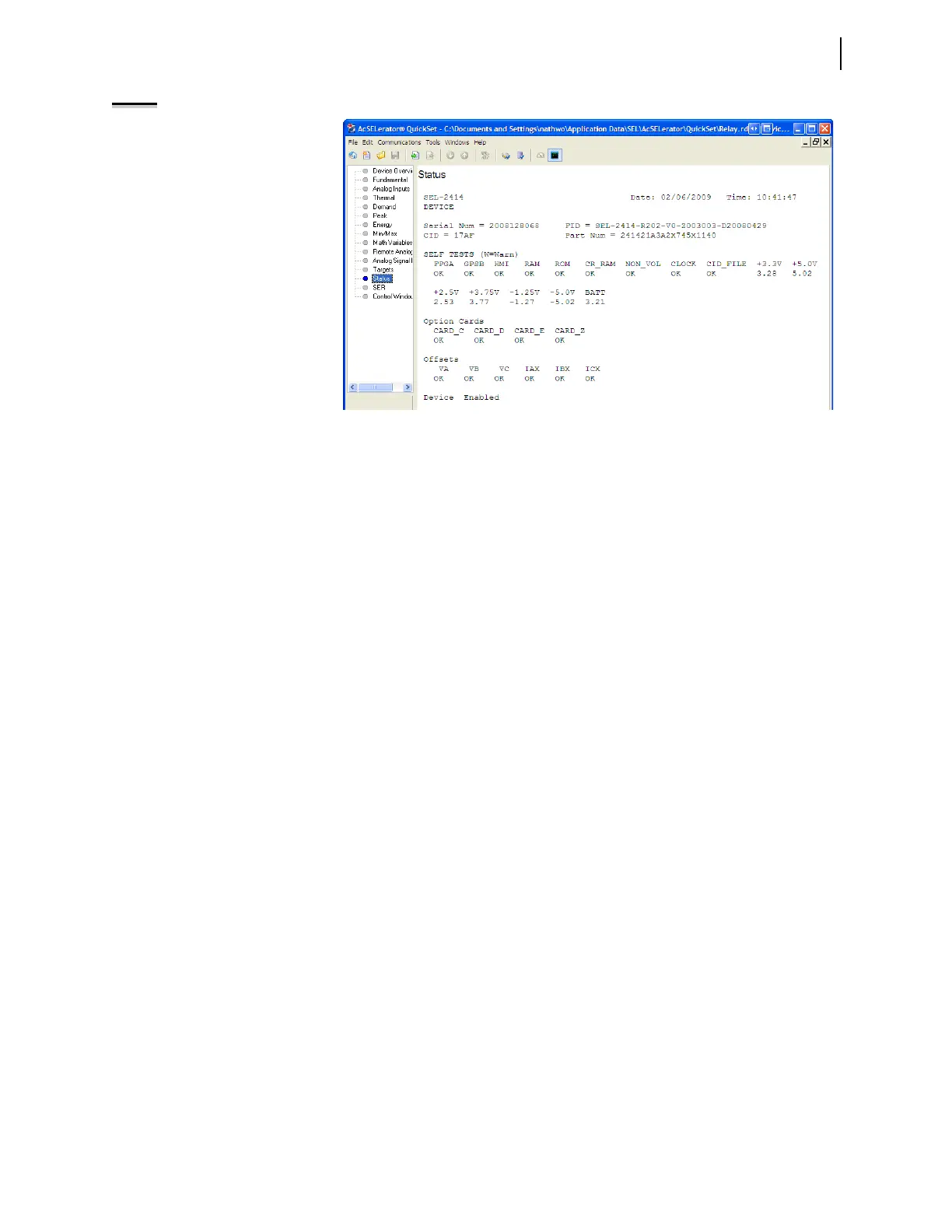
NOTE: With terminal emulation, use
the STA command to access the device
status.
Viewing Device
Information
The device overview screen provides an overview of the device. All metering
functions are shown whether the current and voltage cards are installed or not.
When no current or voltage cards are installed, metering values show
xxxx.xx
instead of current or voltage values.
The Contact I/O portion of the window displays the status of the two inputs and
three outputs of the main board. You cannot change these assignments.
You can assign any Device Word bit to the 16 user-defined Target LEDs. To
change the present assignment, double-click on the text above the square you
want to change. After double-clicking on the text, a box with available Device
Word bits appears in the bottom left corner of the screen. Select the appropriate
Device Word bit, and click the Update button to assign the Device Word bit to
the LED. To change the color of the LED, click in the square and make your
selection from the color palette.
The front-panel LEDs display the status of the 11 front-panel LEDs. Use the
front-panel settings to change the front-panel LED assignment.
Screens between the Overview and Control screens display the corresponding
values.
Click on Target to view the status of all the Device Word bits.
With the control screen, you can clear the event history, SER, M
IRRORED BITS
®
report, analog profile, and trigger events. You can also reset the targets, synchro-
nize with IRIG, and set the time and date. To control the Remote Bits, click on
the appropriate square, then select the operation.
Update
Select Update from the launchpad to update the ACSELERATOR QuickSet appli-
cation, add support for new products (drivers), or update the support for existing
products (drivers). This selection will launch SEL Compass
®
, the SEL software
and literature management application.
Manage Databases
Select File > Database Manager on the main menu bar to open the database
manager or Manage Databases from the launchpad. With the manager you can
create, copy, and manage databases and manage records within existing data-
bases. The manager gives you access to the New Database button and the Copy/
Move Settings Between Databases tab.
Figure 3.4 Communication Menu


 To Next Page