TM Palletizing Operator User’s Manual Product Version: 1.0 / Document Version: 1.0 119
If no box is selected, clicking/tapping on this Arrow will shift all the boxes by
defined shift step.
Shift the box(es) to the direction of the Arrow as close to the boundary or previously
placed box as possible
If a particular box is selected, clicking/tapping on this Arrow will only shift the
selected box only.
If no boxes are selected, clicking/tapping on this Arrow will shift all the boxes.
Table 26: Shift Box configurations
6.4.4 Step 4 – Create Palletizing Sequence
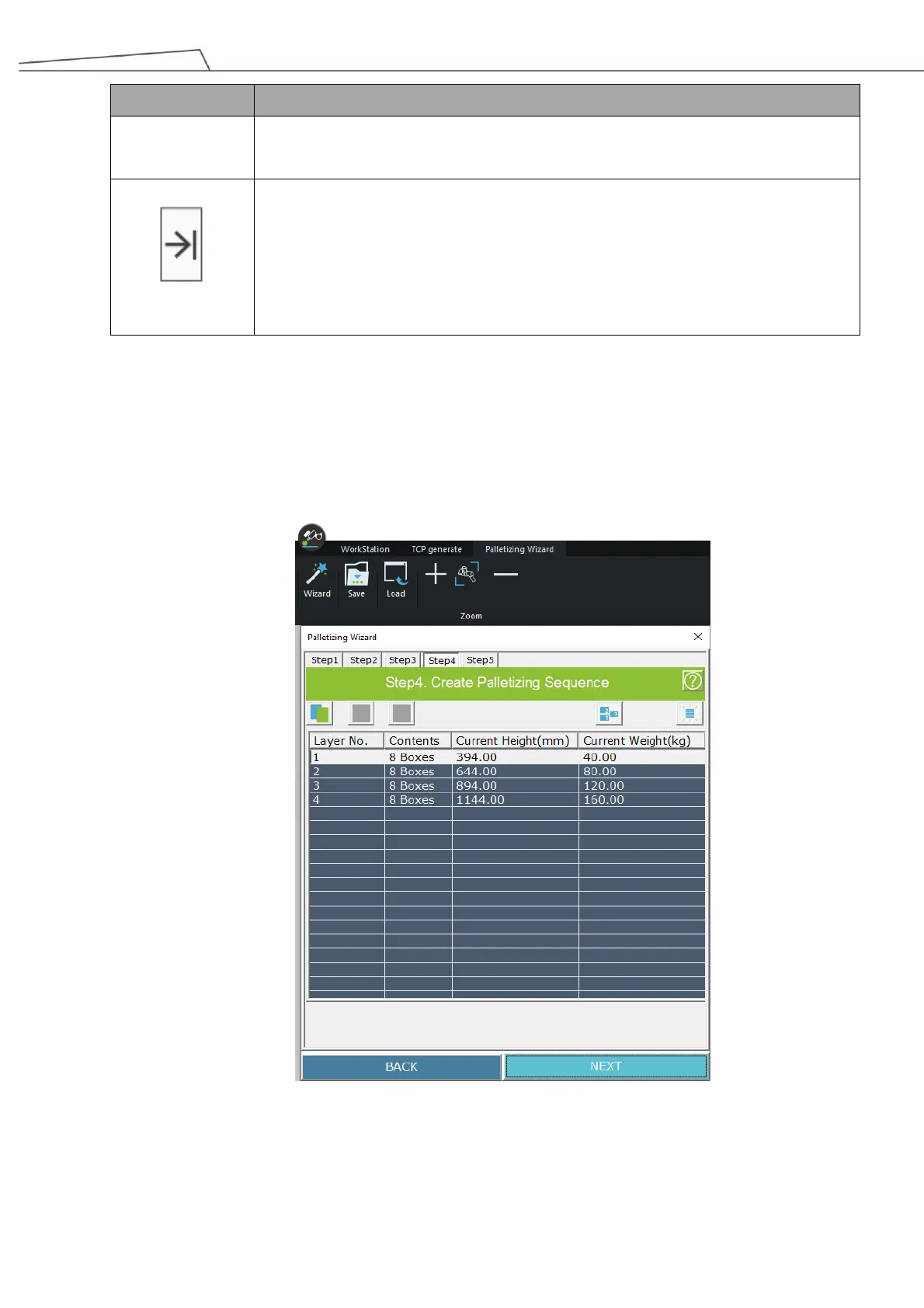
In Step 4, users will set the palletizing sequence based on the pallet information they set in Step 3. The
current height (mm) and weight (kg) indicate the total current status. The following shows an example of
how to configure the palletizing sequence for first-time use based on “Auto Sequence”.
Figure 102: Create palletizing sequence
Selecting “Auto Sequence” will allow the program to automatically detect the sequence for the box
palletizing. The numbers indicate the sequence of the boxes to be placed.



 To Next Page