TM Palletizing Operator User’s Manual Product Version: 1.0 / Document Version: 1.0 130
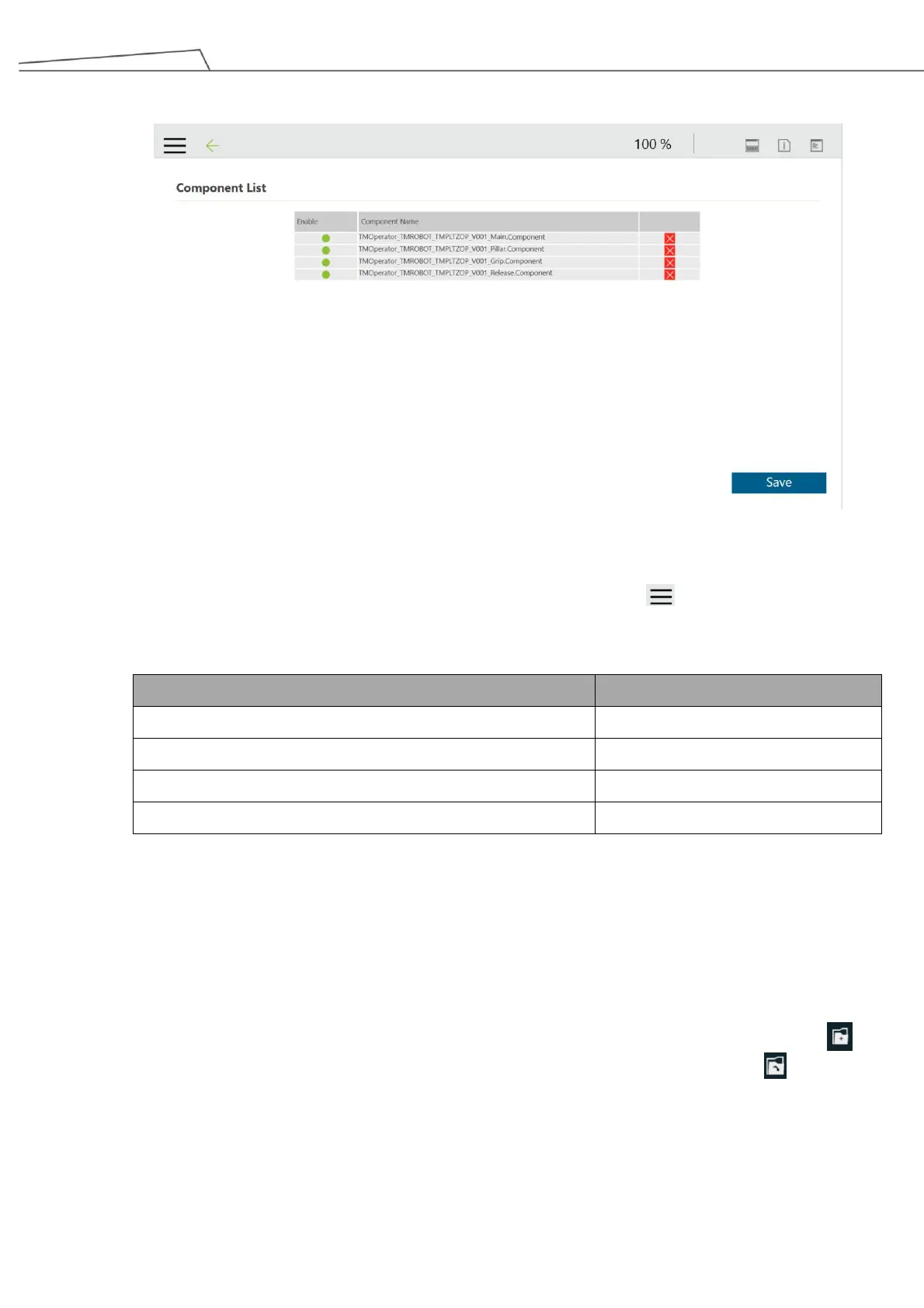
8. Enable the imported components and click “Save”.
Figure 116: Enable the imported components
These software components shall appear as nodes when you go to “Menu” “Project” on the left side
of TMflow.
TMOperator_TMROBOT_TMPLTZOP_V001_Pillar
TMOperator_TMROBOT_TMPLTZOP_V001_Main
TMOperator_TMROBOT_TMPLTZOP_V001_Grip
TMOperator_TMROBOT_TMPLTZOP_V001_Release
Table 29: Component Descriptions
6.5.2 Setting I/O While Project Stop/Error
Before using the imported TMOperator software components, it is necessary to set digital I/O first to ensure
that the pillar remains its position when palletizing project is stopped or encounters error.
1. Start a new project or open an existing project. Go to the top left corner of TMflow and click “New”
(for those using TM Palletizing Operator the first time) to create a new project or “Open” (for those
with experience using TMflow) to open an existing project.
2. Go to “Set I/O while Project Error” and click “Customized”.
Under Control Box, set DO0 and DO1 as “Low”.



 To Next Page