D-48 The MassLynx Tune window
Customizing the colors and numbers of displayed traces
To change the color of the background and traces, and to change the number of
traces displayed, on the Peak Display menu, click Customise >
Plot Appearance.
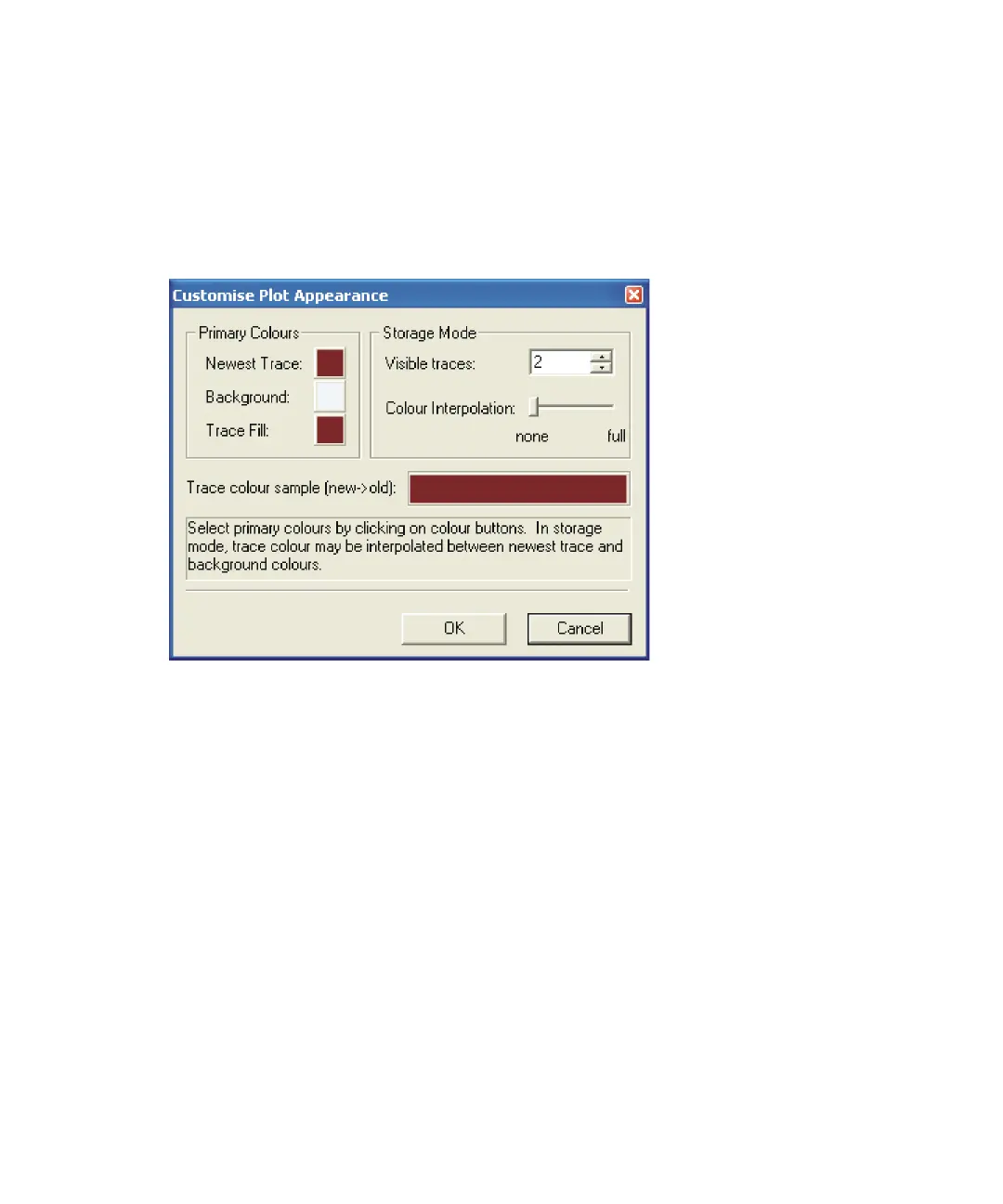
Customise Plot Appearance dialog box
To change the colors in the display
1. Click the color box adjacent to Newest Trace, Background, or Trace Fill,
as required.
2. Select a new color from the Color dialog box.
To change the number of displayed traces
1. Specify the required value (2 to 20) in the Visible traces box.
2. In the Peak Display menu, click Trace > Storage.
3. If more than one trace is displayed, the older traces can be displayed in
different color shades to the newer ones. Drag the Colour Interpolation:
slider toward the full position. The colors of the older traces appear in
the Trace colour sample (new->old) field.



 To Next Page