The Tune window toolbar D-29
Customizing the Tune window
To hide/display the toolbar
Click View > Toolbar.
Tip: A tick mark appears beside the menu item when the toolbar appears.
To hide/display the status bar
Click View > Status Bar.
Tip: A tick mark appears beside the menu item when the status bar appears.
To hide/display the instrument and tuning control pages
Click View > Tuning Parameters.
Tip: A tick appears beside the menu item when the instrument and tuning
control tabs appear.
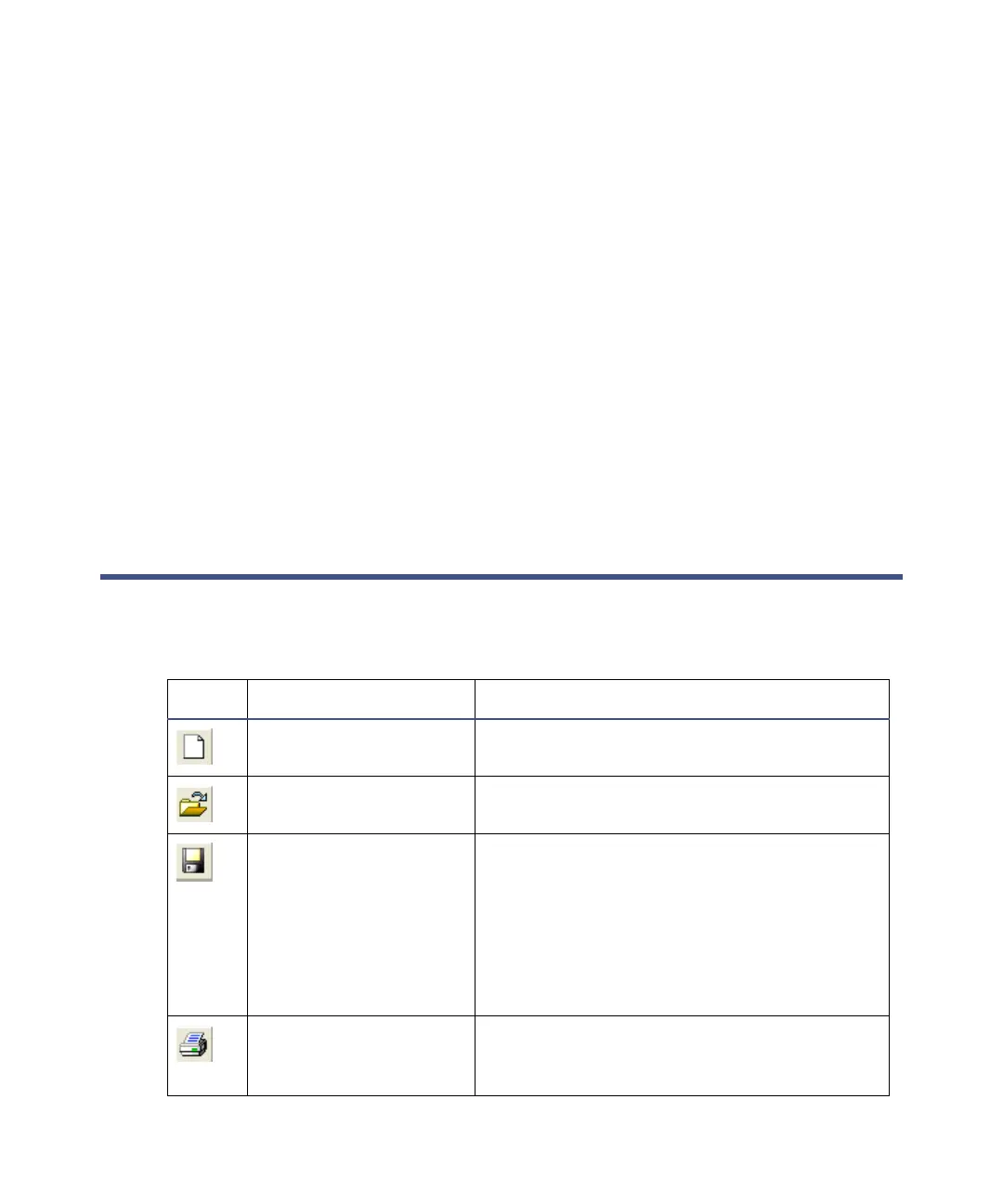
The Tune window toolbar
The following table details the Tune window toolbar buttons.
Toolbar buttons
Tool Equivalent menu item Function
File > New Creates a new set of default instrument
parameters in the Tune window.
File > Open Opens an existing instrument parameter
file (.ipr).
File > Save Saves all the current instrument
parameters into the current instrument
parameter file (indicated in the Tune
window title bar).
Tip: This option is available only if make
changes to Tune window parameters since
opening the instrument parameter file.
File > Print Prints a report containing the peak
display and the tune parameters for the
current ion mode.



 To Next Page