210
To inspect the clip contents more closely, use the zoom tools to increase the size in
which clips are displayed. Note that displaying the contents of each clip makes
your computer work a little harder. As a result, if your computer has an older,
slower CPU you may want to turn off the display of clip contents.
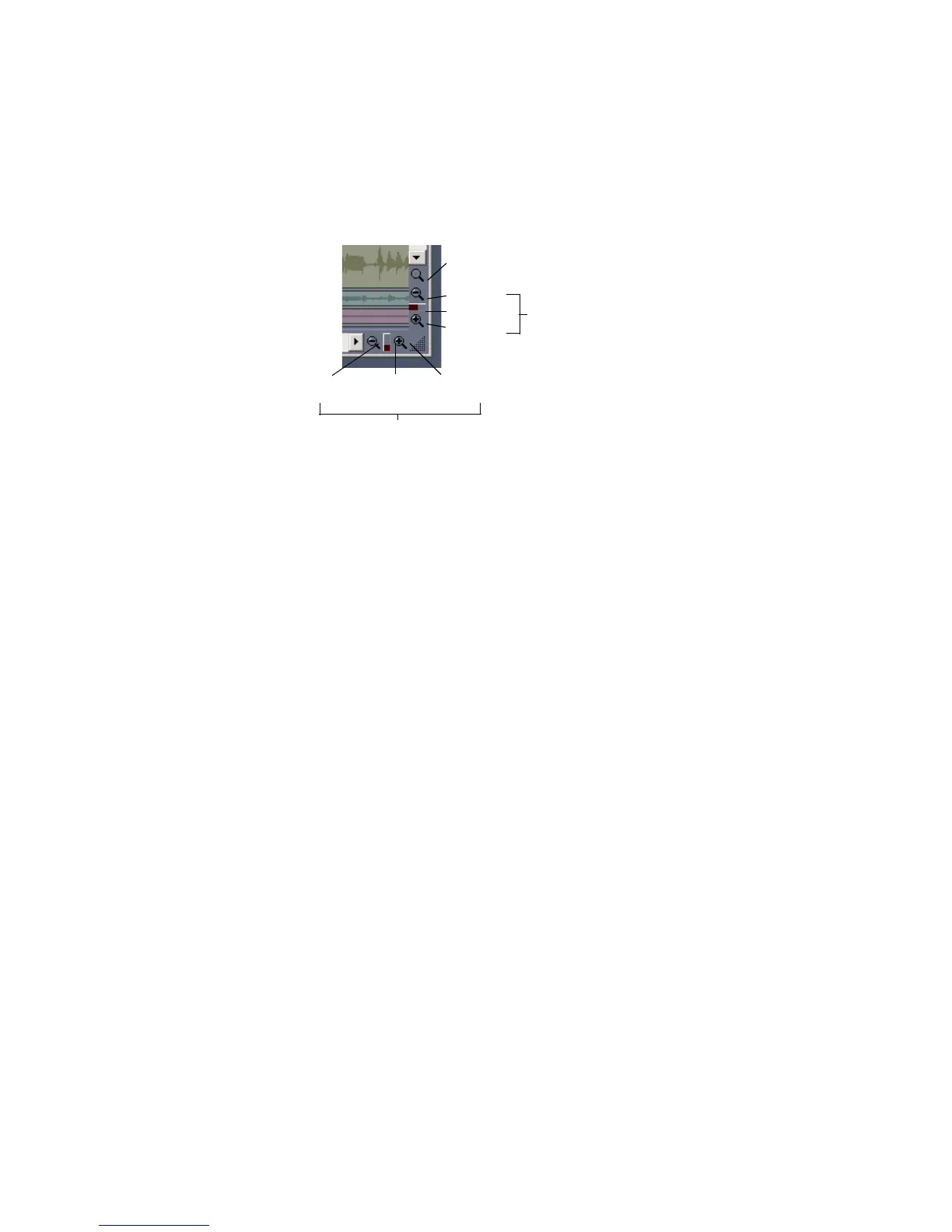
To Zoom Horizontally
• Click the horizontal zoom buttons to zoom in or out by a fixed percentage each
time you click.
Or
• Drag the horizontal zoom slider to zoom in or out by the amount you drag.
Or
• Hold down the Ctrl key and press the right arrow key (to zoom in) or the left
arrow key (to zoom out).
To Zoom Vertically
• Click the vertical zoom buttons to zoom in or out by a fixed percentage each
time you click.
Or
• Drag the vertical zoom slider to zoom in or out by the amount you drag.
Or
• Hold down the Ctrl key and press the up arrow key (to zoom out) or the down
arrow key (to zoom in).
To Zoom into a Selected Area
• Use the Zoom tool to drag-select an area of a clip or clips that you want to
zoom to. When you release the mouse, the area you selected expands to fill the
Clips pane window.
Vertical Zoom controls
Zoom In
Slider
Zoom tool
Zoom In
Slider
Zoom Out
Zoom Out
Horizontal Zoom controls



 To Next Page