222
Showing Gridlines
Displaying gridlines, or vertical rules, in the Clips pane of the Track view makes it
easy to see at a glance how clips align with each other, how they align with
measure boundaries, and when they start and end.
To Show or Hide Gridlines
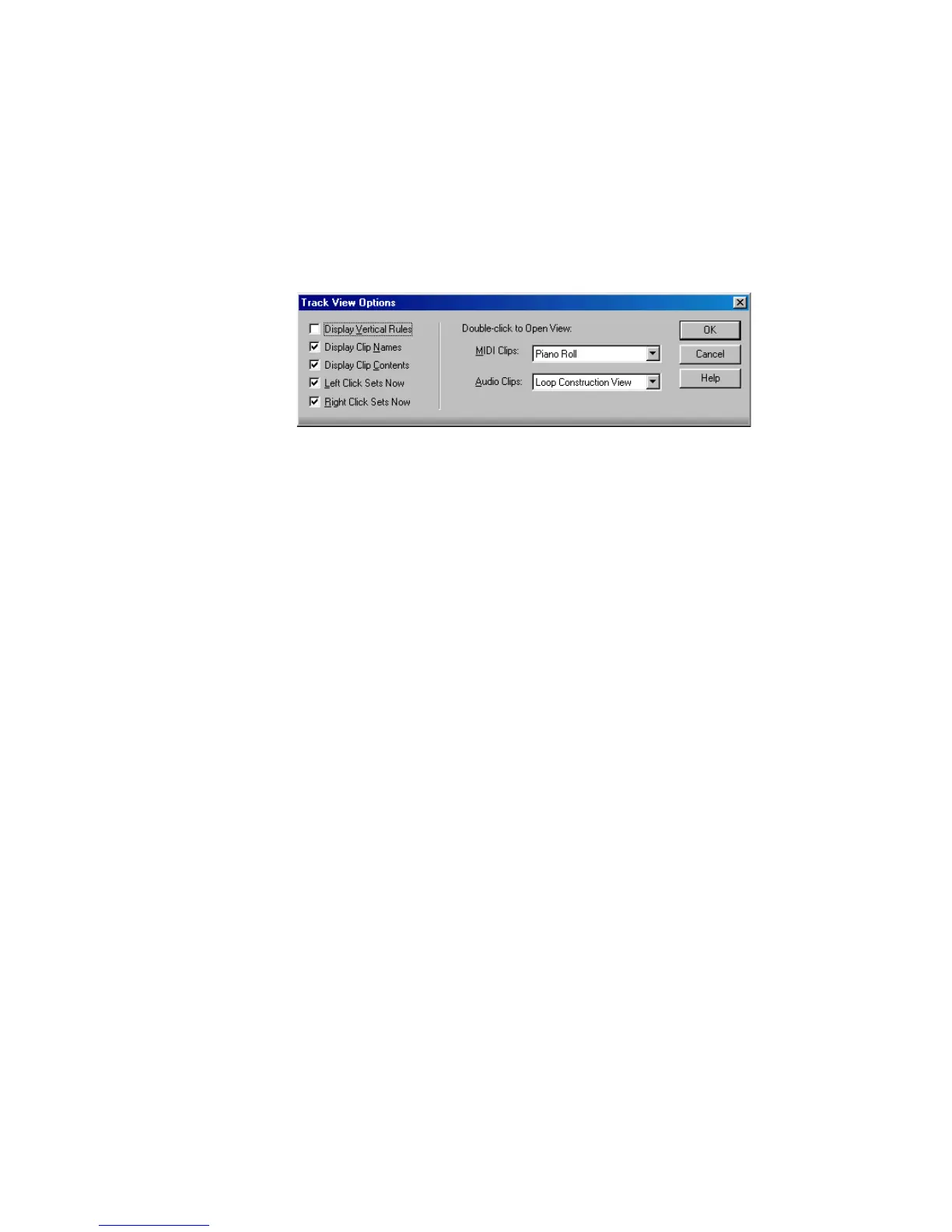
1. Right-click in the Clips pane and choose View-Options from the popup menu.
2. To show gridlines, check the Display Vertical Rules box. To hide gridlines,
make sure the Display Vertical Rules box is not checked.
3. Click OK.
SONAR displays the Track view as you requested.
Defining and Using the Snap Grid
SONAR lets you define a snap grid that makes it easier to arrange clips and select
time ranges. To use the Snap Grid, enable the snap feature and set an interval,
such as a whole note, half note, or quarter note; a marker; an event; the start or
end of a clip; or a user-defined number of frames, seconds or samples. From then
on, when you move or copy clips or markers, items will be snapped to the nearest
point on the Snap Grid. The Musical Time and Absolute Time options also apply
when you perform a selection using the Time Ruler,
You can also use the Snap Grid to move clips by a certain interval, rather than
snap them to the interval. Moving by an interval can be useful during drag-and-
drop operations, if your events are not exactly aligned with measure or note
boundaries.
The Snap Grid in each view is independent. For example, you can enable the Snap
Grid in the Track view without enabling it in the Piano Roll or Staff views. You can
also enable the Snap Grid in several different views, with different grid intervals
in each one.



 To Next Page