479
To Downmix a Project
1. If you do not have a stereo bus in your project, create one by right-clicking in
the Bus pane in the Track view or Console view and selecting Insert Stereo
Bus from the menu that appears.
2. Open the Project Options dialog (Options-Project command), select a center
downmix level and a surround downmix level in the Surround tab, and click
OK.
3. In each of the surround buses, assign the output to a stereo bus.
4. Listen to your project through the stereo bus, and make any final adjustments
to the stereo mix by changing the values in the Surround tab of the Project
Options dialog.
5. If you want to export your stereo mix, use the File-Export Audio command.
This command obeys your downmix settings.
Panning in Surround
Unlike stereo panning which sends sound to left and right speakers, surround
panning means sending sound to multiple speakers at points along a circle.
When a track/bus/send is assigned to a surround bus, the Pan control turns into a
multi-dimensional surround panner. The surround panner comes in four sizes:
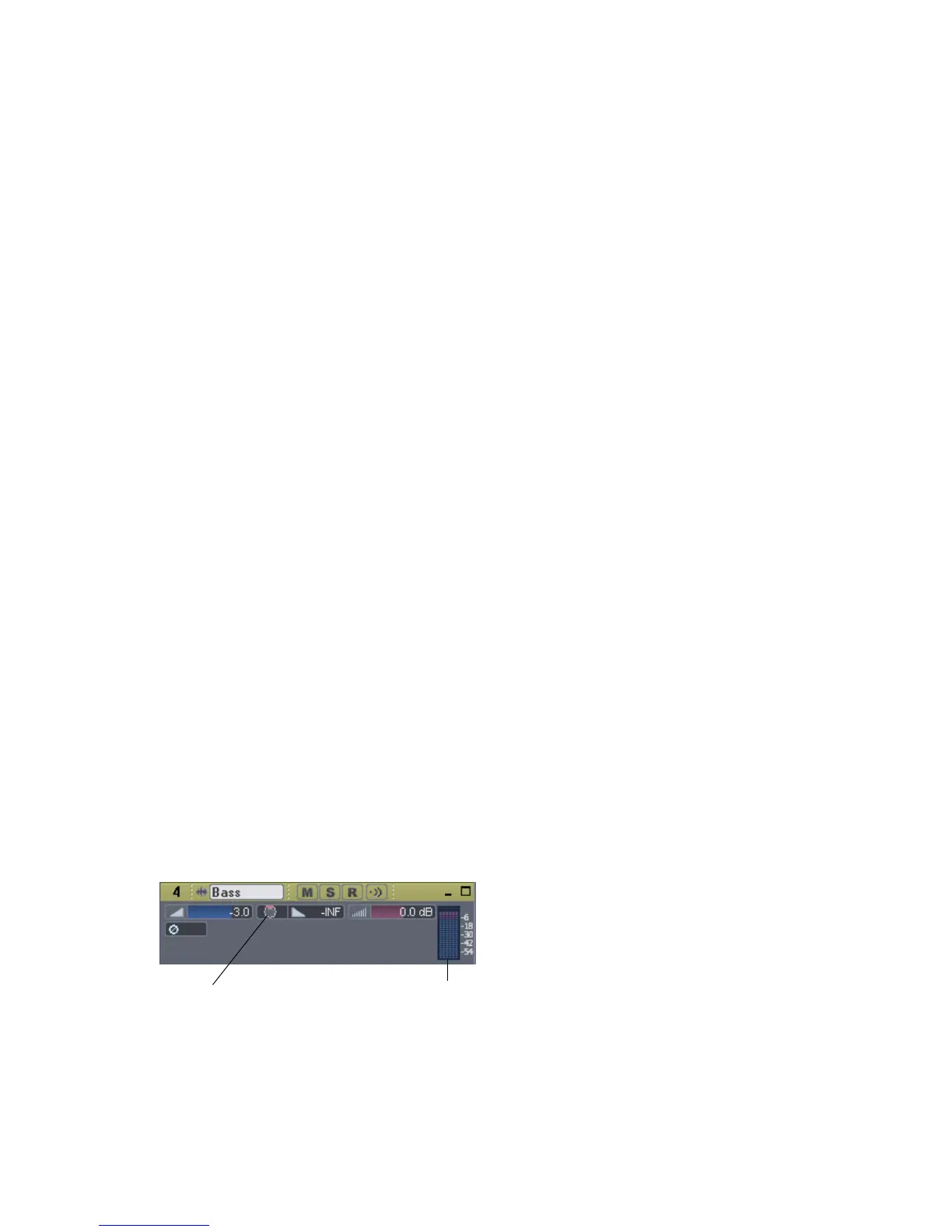
• Micro—this is found in the Track view.
• Small—this is found on sends.
• Medium—this is the surround panner which is displayed in the Track
Inspector and Console view.
• Large—this is a large surround panner (see “Controlling Surround Panning”
on page 480) which has additional controls, and appears when you right-click
a surround panner and choose Open Surround Panner from the popup
menu, or double-click outside the surround panner circle, or press Enter when
the panner has focus.
MIcro surround panner in Track view
Six channel output
meter



 To Next Page