401
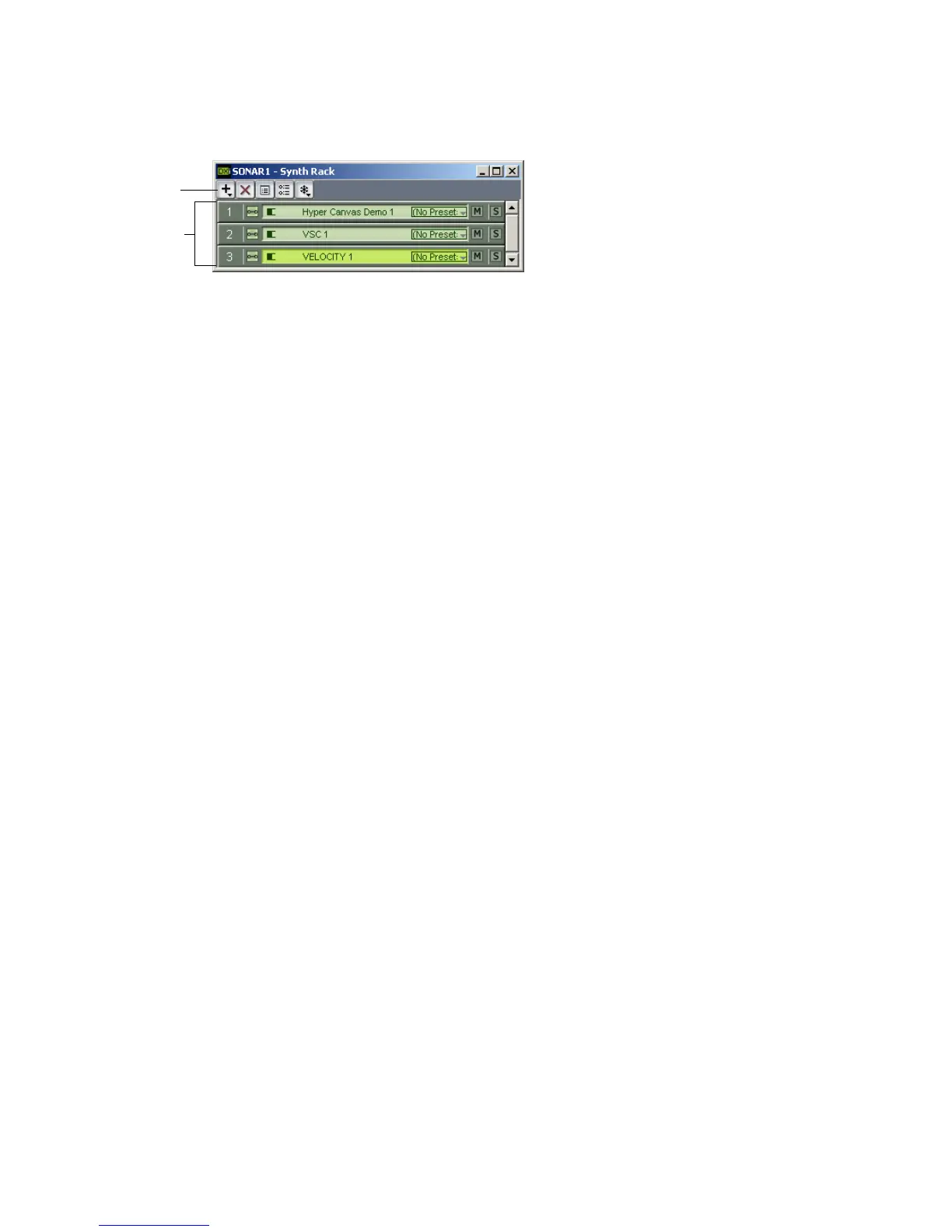
There is much more information about the Synth Rack view in the online help.
Press F1 when the Synth Rack view is open and on top to display the appropriate
help topic.
DX Instruments (DXi’s)
In order to play a DXi from a MIDI controller or with recorded MIDI data, you
need to have at least one audio track that lists the DXi in its Input field, and at
least one MIDI track that lists the DXi in its Output field. The data from the MIDI
track feeds the audio track and plays the DXi. If you’re playing the DXi with a
MIDI controller, the MIDI track that’s feeding the audio track must have the focus
(gold or tan color). You can also patch the DXi into an audio track’s Fx field instead
of an audio track’s Input field.
To add a DXi to the audio tracks’ In menus (drop-downs) and the MIDI tracks’ Out
menus, you have to insert each DXi that you want to use into each project. There
are two basic ways to insert DXi’s in SONAR:
• You can insert DXi’s from the Synth Rack view or with the Insert-DX
Instruments command. If you use this method, you can choose to have
SONAR create the necessary audio and MIDI tracks, and patch them together
correctly. If you want to use multiple audio tracks to take advantage of
SONAR’s support for the multi-output DXi 2 format, you need to create and
patch additional MIDI tracks manually to feed the additional audio tracks.
• You can insert DXi’s into Fx bins of individual audio tracks. If you use this
method, you need to set a MIDI track’s Output field to the name of the DXi
you inserted. Then you can record MIDI data in the MIDI track to play the
DXi with.
Insert button
Currently inserted
synths



 To Next Page