386
To Crossfade Two Overlapping Clips
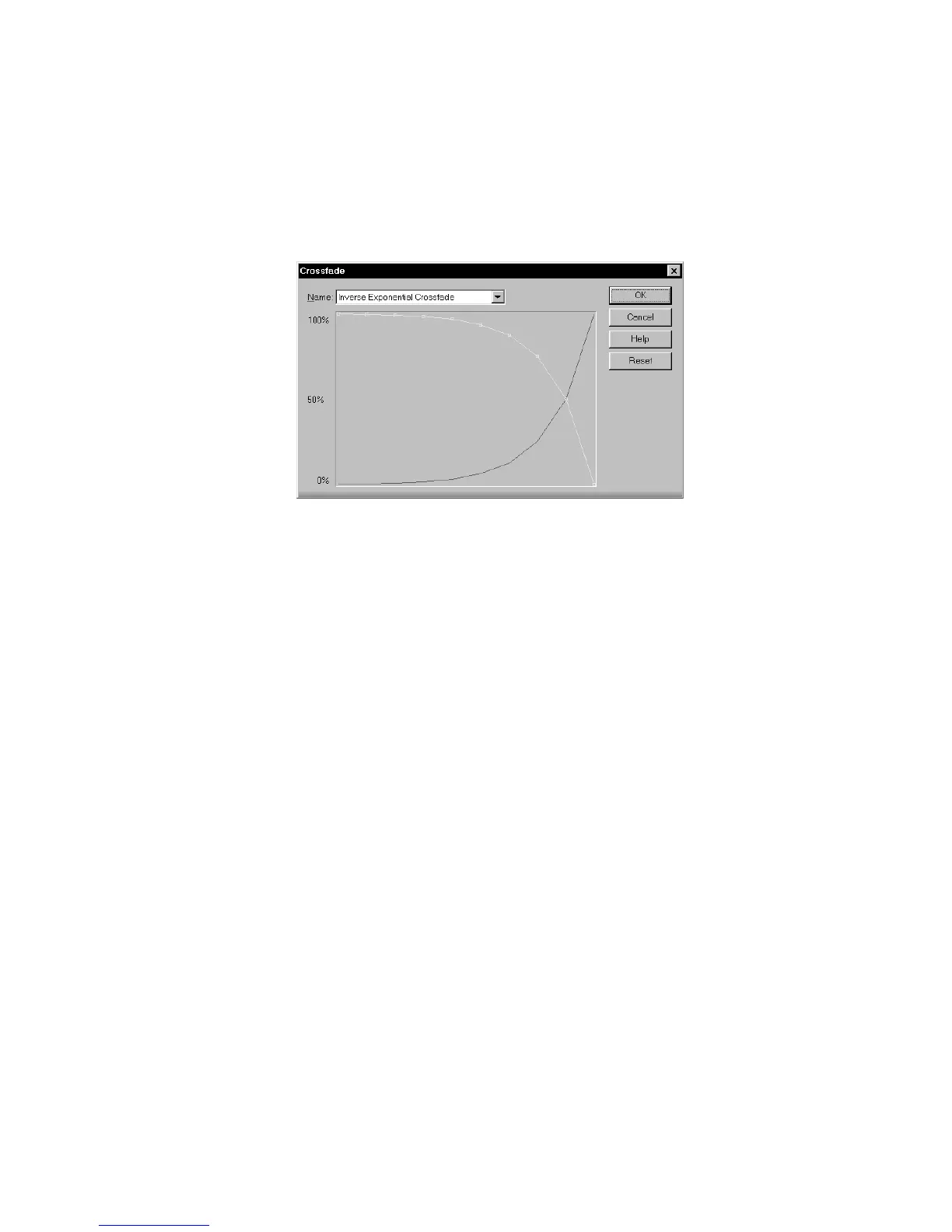
1. Select two overlapping audio clips. They need not be on the same track, but
they must overlap in time for the command to have any effect.
2. Choose Process-Audio-Crossfade to open the Crossfade dialog box.
3. Select an envelope from the dropdown list.
4. If desired, manipulate the curve as described in the table above. You can
manipulate only the curve pertaining to the first of the two overlapping clips;
the second curve is automatically adjusted so that the two curves constantly
add up to 100%.
5. Click OK.
SONAR applies the two fades to the selected data.
Audio Effects (Audio Plug-ins)
SONAR provides the ability to use plug-in audio effects using Microsoft’s DirectX
technology. Some audio plug-in effects are supplied with SONAR. Others can be
purchased from third-party software manufacturers, and appear automatically in
SONAR’s menus once they are installed on your system. If you need help when
using a plug-in, press the F1 key on your computer keyboard to open the plug-in’s
help file. Please note that third-party plug-ins may not have a help file.
This section describes the effects that are included with SONAR.
Using plug-in effects is similar to using the audio processing commands off-line.
The overall procedure is as follows:
• In the Track view, right-click the Fx field and select an effect from the popup
menu.
• Set effect parameters (or select a preset).
• Listen to the track and adjust parameters based on what you hear.



 To Next Page