486
6. Now select Button 2, and select Engage Pan Nav Mode in the Button Actions
field.
7. Select any other buttons your joystick has (one at a time), and connect them to
any transport or menu commands you want in the Button Actions field; close
the Joystick Panner dialog.
Now when you hold down button 1 (the “trigger button”), the joystick controls the
surround panner on the current track or send. When the pan/sphere is in the
desired position, let button 1 up to hold the position. When you hold down button
2, move the joystick vertically to change the current track, and horizontally to
change to a different send control. The window on the right side of the Control
Surfaces toolbar displays the names of the current track and send. Use any other
buttons you configured to control other SONAR Producer functions.
You can save your button assignments as a preset by typing a name for the current
group of settings in the Presets window in the Joystick Panner dialog, and then
clicking the floppy disk icon that’s next to the Presets window. Whenever you want
to load a preset, just select it in the Presets window.
Surround Metering
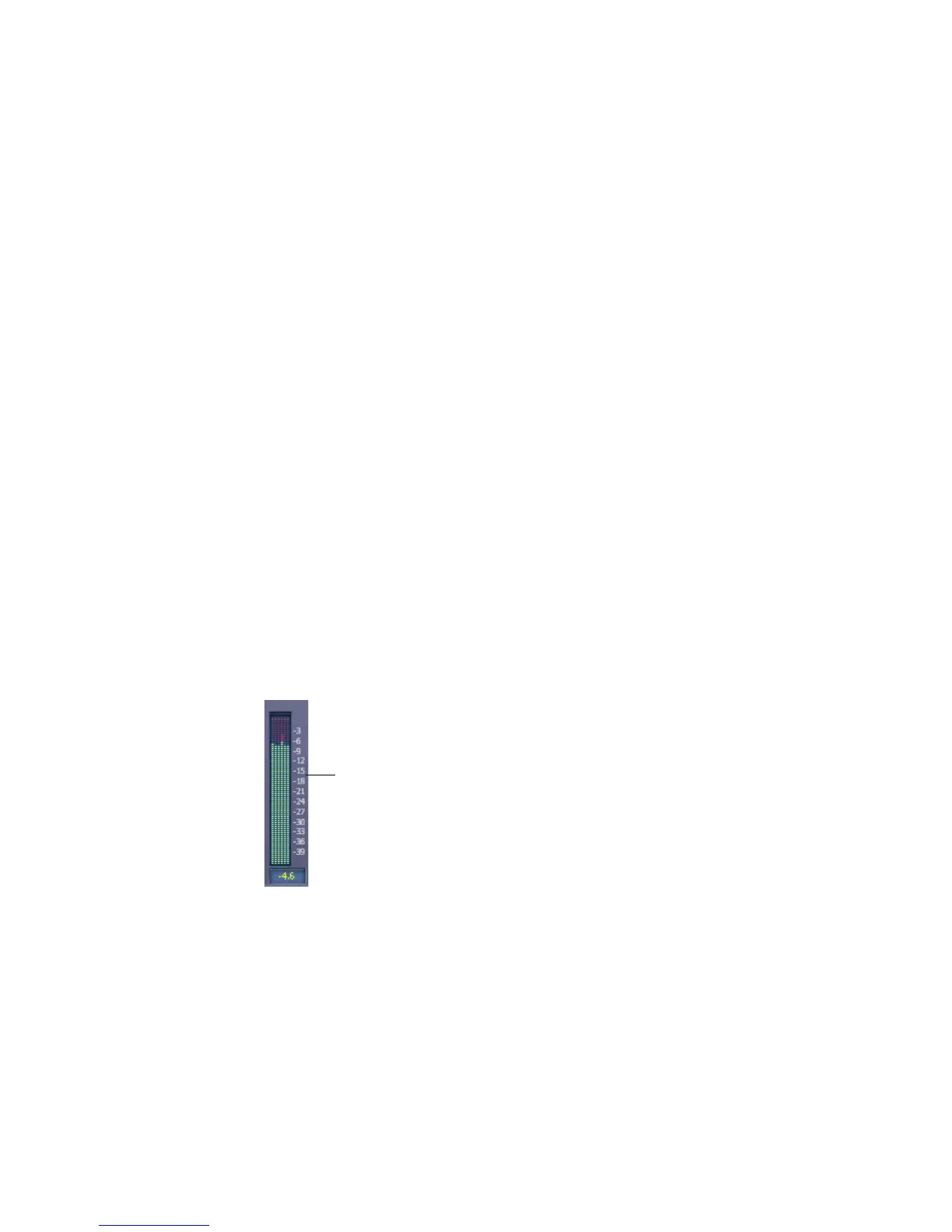
Meters in tracks routed to surround buses or the Surround Main, and meters in
surround buses work the same as stereo meters (see “Metering” on page 436),
however, surround meters display more channels. For example, a project in 5.1
would have a six-channel meter.
Six-channel meter



 To Next Page