240
To Hide or Show the Tracks in a Track Folder
• Click the folder icon that’s just left of the track folder’s name.
To Select or Deselect all the Tracks in a Track Folder
• Click just to the left of the folder icon.
To Rename a Track Folder
• Double-click the track folder’s name, type a new name, and press Enter.
Or
• Right-click the track folder, choose Folder Properties from the popup menu,
type a name in the Name field of the Folder Properties dialog, and click OK.
To Add a Description to a Track Folder
• Double-click the Description box, type a description, and press Enter.
Or
• Right-click the track folder, choose Folder Properties from the popup menu,
type a description in the Description field of the Folder Properties dialog, and
click OK.
To Select all Clips in a Time Range
• Hold down the Alt key while dragging a selection on the composite clip.
Now you can edit, move, cut and paste all the selected clips by editing the selected
part of the composite clip.
Adding Effects in the Track View
You can add both MIDI and audio effects directly from the Track view. SONAR
adds these effects in real-time, preserving your track’s original data.
To Add Effects in the Track View
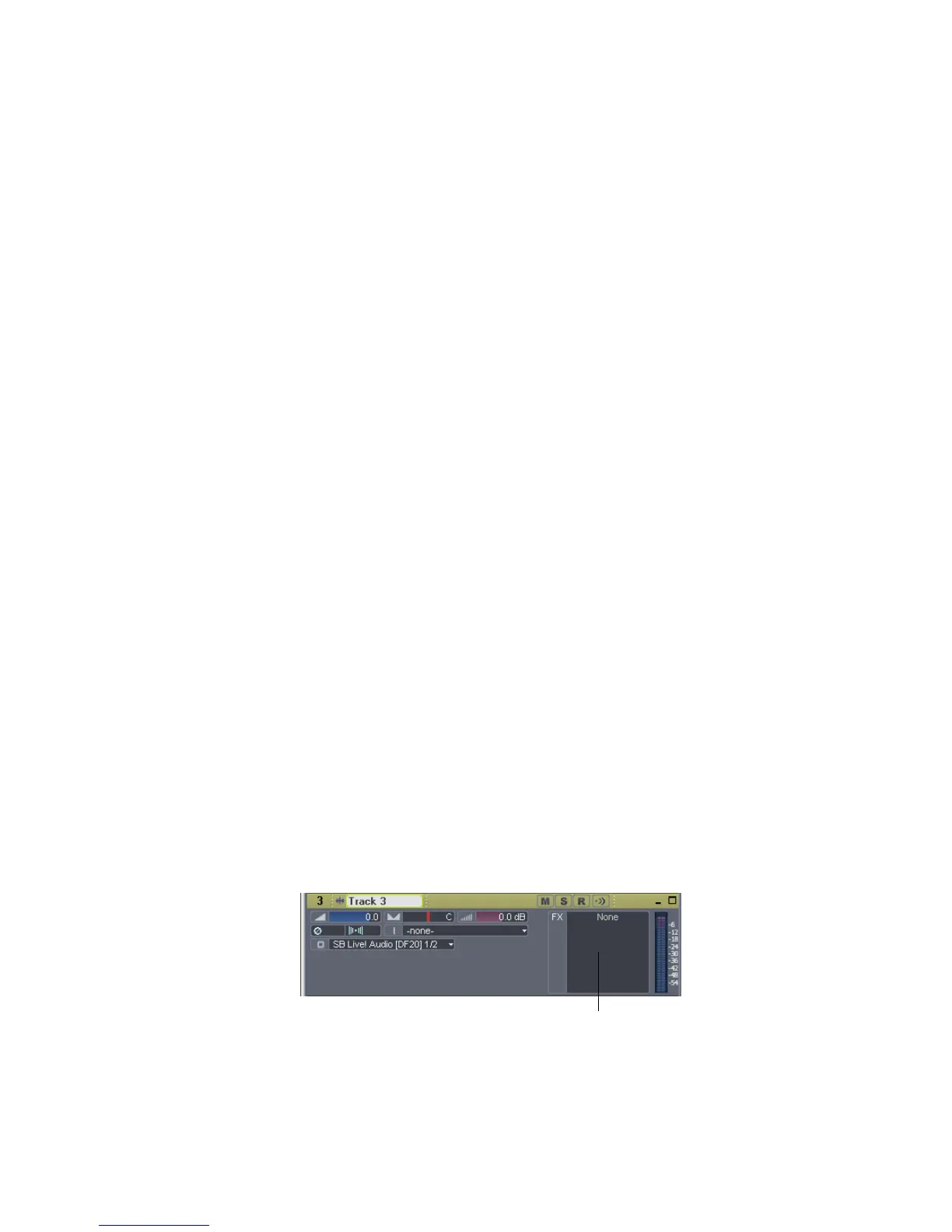
1. Right-click in the FX bin of the track you want to add effects to. You may have
to click the FX tab or the All tab that’s at the bottom of the Track pane to
display the FX bin, and also expand the track pane a little.
Right-click here to add an effect.



 To Next Page