87
7. Navigate to the Tutorials folder in the directory where you installed SONAR.
8. Select 100
ONETWO.WAV and drag it into the Clips pane below the Sound Effect
track at measure 3.
Repeat step 8 by dragging 100
BEAT2.WAV below Track 2 at measure 7 and
100
ORGAN.WAV below Track 3 at measure 1, and close the Loop Explorer view.
SONAR automatically creates any necessary audio tracks when you import audio
data.
You now have a four track project. If you haven’t done so yet, click the play button
to take a listen to your project before we begin to arrange the clips.
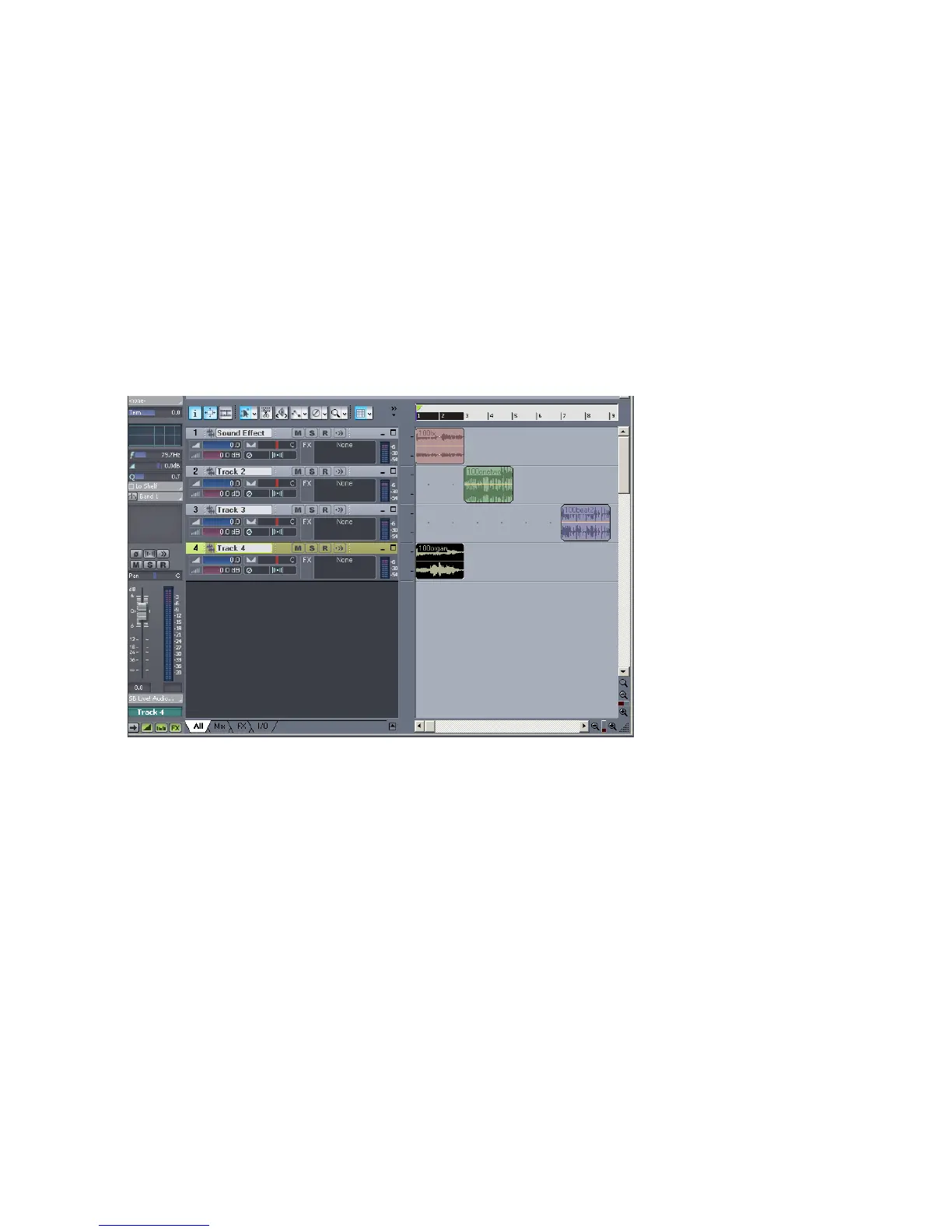
Your project should look something like this:
Looping Groove Clips
Here’s where Groove clips get real fun. You need only drag the beginning or end of
a Groove clip to create repetitions or loops.
First, though, lets copy the Groove clip in Track 2.
To Copy a Groove Clip
1. Press the Ctrl key and click and drag the clip until the beginning is at
measure 8 and release.
The Drag and Drop Options dialog appears.
2. Make sure the Copy Entire Clips as Linked Clips option is not checked and
click OK.
A copy of the Groove clip now appears on the same track at measure 8.



 To Next Page